
Tired of fumbling with tiny, unresponsive buttons every time you need to change HDMI on monitor setups? You’re not alone. Many modern displays ship with flat, non-tactile OSD controls that make input switching a frustrating experience. The good news is there’s a smarter approach that keeps your hands off the panel entirely.
This guide shows you exactly how to change HDMI on monitor configurations using software commands rather than physical buttons. You’ll learn to verify hardware compatibility, map input values, build automation scripts, and troubleshoot common issues. By the end, you’ll have a one-click solution for switching between HDMI, DisplayPort, and other inputs across single or multiple monitors.
Confirm DDC/CI Support Before Anything Else
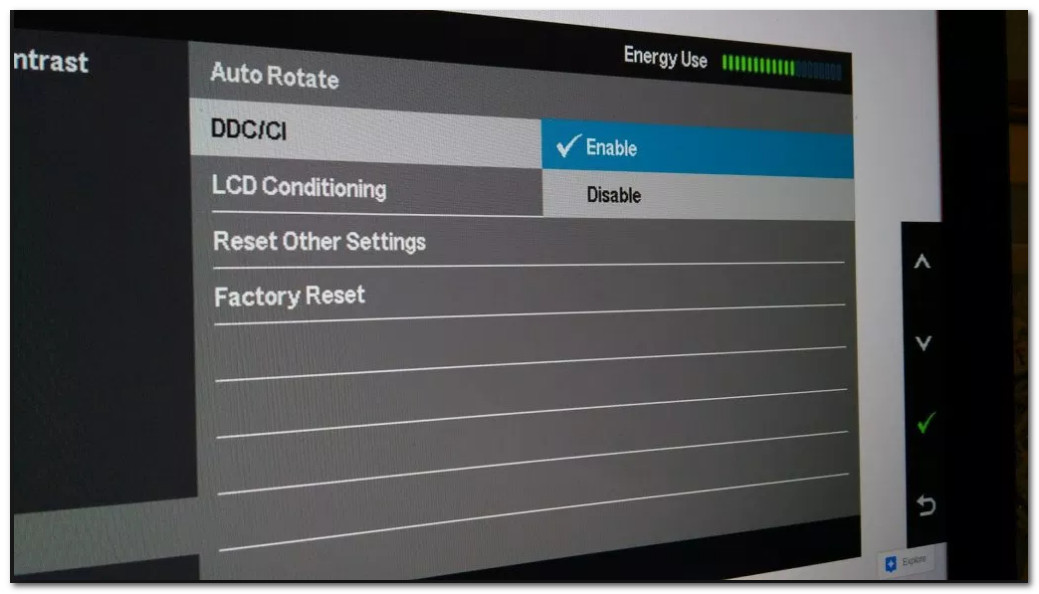
Before diving into software-based input switching, you need to verify your hardware actually supports the underlying protocol. Without this foundation, no tool will work regardless of how perfectly you configure it.
Check Your Monitor’s Internal Settings
Start by accessing your monitor’s built-in menu system using the physical buttons on the bezel or back panel.
- Press the menu button to open the On-Screen Display.
- Navigate to System Settings or a similar menu category.
- Look for an option labeled DDC/CI or MCCS Support.
- Confirm the setting is toggled to enabled.
Some manufacturers disable this feature by default to prevent compatibility issues. If you cannot locate the option, consult your monitor’s user manual or the manufacturer’s support website.
Verify Your Graphics Card and Operating System
Your GPU and OS must also support DDC/CI communication for this method to function.
Graphics Card Compatibility:
– NVIDIA, AMD, and Intel integrated graphics all generally support DDC/CI
– Works across HDMI, DisplayPort, DVI, and VGA connections
– Requires active DDC signaling through your cable
Operating System Support:
– Windows 11 and Windows 10 are fully supported
– Windows Vista, 7, and 8 also work without issues
– Windows XP and earlier versions are not supported
Test with ControlMyMonitor
The fastest way to confirm everything works is downloading NirSoft’s free ControlMyMonitor utility.
- Download ControlMyMonitor from the official NirSoft website.
- Right-click the executable and select Run as Administrator.
- Look for VCP Code 60 in the displayed list of monitor settings.
If you see VCP Code 60 with readable values, your system supports DDC/CI and you’re ready to proceed. If the tool shows no monitors or empty values, your hardware likely lacks support or the feature is disabled somewhere in your settings.
Identify Your Monitor’s Input Values
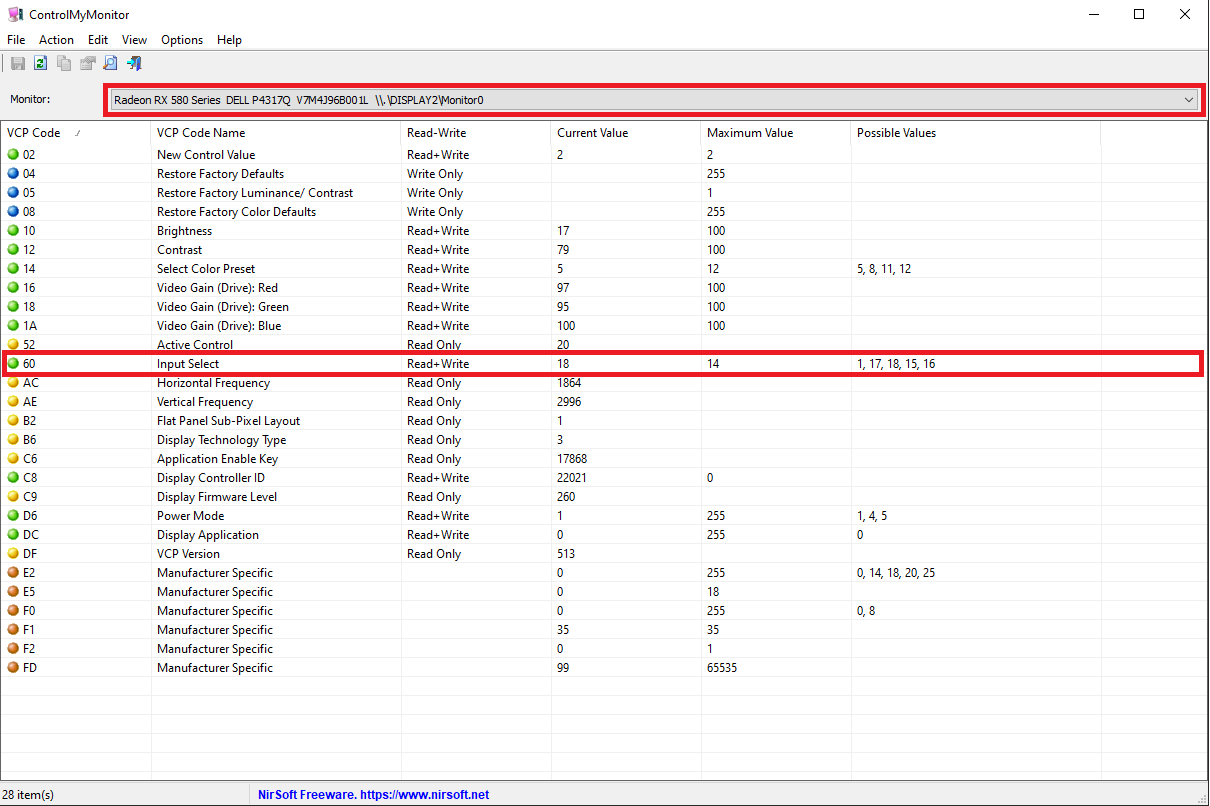
VCP Code 60 controls input selection across all DDC/CI monitors. However, the numeric value representing each input varies wildly between brands and models, so you cannot rely on universal mappings.
Map Values Through Manual Testing
The only reliable method is testing each input on your specific monitor and recording the corresponding value.
- Use your monitor’s physical buttons to manually switch to the first input (for example, HDMI 1).
- Open ControlMyMonitor while that input is active.
- Locate VCP Code 60 in the list.
- Read the Current Value column and write it down.
- Repeat this process for every input you plan to switch to.
Example Mappings You Might Encounter:
– HDMI 1 might show as 15
– HDMI 2 might show as 18
– DisplayPort might show as 3
– VGA might show as 1
– Some Dell and LG monitors use larger values like 8465
There is no industry standard for these values. Always verify using your own hardware rather than trusting documentation from other models.
Find the Correct Monitor Identifier
When running commands, you need to specify which monitor you want to control. This becomes critical in multi-display setups.
- Open ControlMyMonitor.
- Navigate to Edit then Copy Monitor Strings.
- Note the unique identifier for each display.
Common Identifier Formats:
– .DISPLAY1Monitor0 for generic targeting
– Primary for your main display
– Serial number-based strings for identical monitors
Using Primary works perfectly when you only control one monitor or always switch the main display. For identical monitors, the serial number approach prevents accidentally sending commands to the wrong screen.
Switch HDMI Input via Command Line

With your monitor identifier and input values mapped, you can now construct commands that change sources instantly.
Basic Command Syntax
The command structure follows a simple pattern that ControlMyMonitor recognizes:
cmd

ControlMyMonitor.exe /SetValue [MonitorID] 60 [InputValue]
Replace [MonitorID] with your specific identifier and [InputValue] with the number you recorded during testing.
Practical Command Examples
Switch a Specific Monitor to HDMI (Value 15):
cmd

ControlMyMonitor.exe /SetValue ".DISPLAY1Monitor0" 60 15
Switch Your Primary Monitor to HDMI 1 (Value 3):
cmd

ControlMyMonitor.exe /SetValue Primary 60 3
Change Multiple Monitors Simultaneously:
Chain multiple commands together to sync all your displays at once:
cmd

ControlMyMonitor.exe /SetValue ".DISPLAY2Monitor0" 60 18 /SetValue ".DISPLAY1Monitor0" 60 8465
This chaining capability makes software switching especially powerful for users with dual or triple monitor configurations.
Automate Input Switching for One-Click Control

Raw commands work, but automation transforms the experience into true one-click convenience.
Create Desktop Shortcuts
The simplest automation method involves Windows shortcuts.
- Right-click an empty area on your desktop.
- Select New then Shortcut.
- Enter the full path to ControlMyMonitor followed by your command arguments.
- Name the shortcut something memorable like Switch to HDMI.
- Click Finish to create it.
Double-clicking this shortcut executes the input switch instantly. Pin it to your taskbar or Start menu for even faster access.
Build Batch Files for Complex Workflows
Batch files handle multi-step operations and keep your scripts organized.
- Open Notepad or any text editor.
- Paste your command(s) into the document.
- Save the file with a
.batextension.
Example Batch File:
bat

@echo off

"C:\Tools\ControlMyMonitor.exe" /SetValue ".DISPLAY1Monitor0" 60 15

echo Switched to HDMI

timeout /t 2 >nul
Double-clicking this batch file switches your input and waits two seconds before closing. You can stack multiple /SetValue commands inside one batch file to control several monitors simultaneously.
Integrate with Streamdeck or Macro Devices
For professional-grade control, hardware macro devices offer unmatched convenience.
- Open your Elgato Streamdeck software.
- Add a new action under System then Open.
- Point the action to your batch file or executable.
- Assign a custom icon and label.
- Press the physical button to trigger the switch.
This approach also works with ShuttleXpress, AutoHotKey scripts, and Logitech G-Hub macros. Any device that can launch executables or run commands can trigger your input switches.
Fix Common HDMI Switching Problems
Even with perfect setup, issues sometimes appear. Here’s how to diagnose and resolve the most frequent problems.
Commands Produce No Response
Possible Cause: DDC/CI is disabled in your monitor.
Enter your monitor’s OSD menu and verify DDC/CI is enabled. Some monitors hide this setting under advanced or system menus.
Possible Cause: Wrong monitor identifier.
Use ControlMyMonitor’s Edit > Copy Monitor Strings feature to grab the exact identifier. If you only have one monitor, try using Primary instead of the display string.
Possible Cause: Missing administrator privileges.
Always launch ControlMyMonitor as Administrator. Without elevated rights, the utility cannot communicate with your monitor’s controller.
Values Don’t Match Expected Inputs
The Problem: You assume 15 means HDMI, but on your specific monitor it actually controls DisplayPort.
The Fix: Always perform manual testing on your own hardware. Never trust values from forums or documentation because they vary dramatically between manufacturers and even between models from the same brand.
Commands Fail After Switching Inputs
This is the most critical limitation of software-based switching, and it catches many users off guard.
The “Current Display” Rule: You can only send commands from the computer currently driving the monitor.
Example Scenario:
1. You’re working on your Desktop PC (Input 1).
2. You run a command to switch to your Laptop input (Input 2).
3. The monitor successfully switches to the laptop.
4. Your desktop now has no video signal and cannot send any more commands.
Workarounds for This Limitation:
- Create a return command on the laptop that switches back to the desktop.
- Invest in a KVM switch that handles both video and peripheral switching.
- Keep your monitor’s physical buttons accessible as a manual fallback.
Plan your workflow around this constraint from the beginning to avoid frustration later.
Monitor Loses Signal After Switching
Some monitors don’t wake up properly after a DDC/CI input change.
Quick Fixes:
– Wait 3 to 5 seconds after executing the command.
– Disable fast startup in Windows power settings.
– Disable monitor sleep mode if you switch frequently.
– Use a power cycle command via DDC/CI if your monitor supports it.
When Physical Buttons or a KVM Make More Sense
Software switching is powerful, but it isn’t always the right tool for every situation.
Stick with Manual OSD Buttons If:
- You only switch inputs occasionally
- Your monitor doesn’t support DDC/CI
- You prefer zero-configuration solutions
- Budget is a primary concern
Avoid relying on physical buttons if your monitor has flat, non-tactile controls. These buttons are error-prone and slow, especially in low-light environments.
Invest in a KVM Switch If:
- You switch between PCs multiple times per hour
- You need bidirectional control from a single location
- You want keyboard, mouse, and audio sharing
- Seamless toggling matters more than cost
KVM switches range from $50 to over $200 depending on resolution support and port count. They handle video switching at the hardware level, bypassing the “current display” limitation entirely.
Choose Software Switching If:
- Your monitor has difficult-to-use buttons
- You want one-click multi-monitor synchronization
- You’re comfortable running commands from the active PC
- You need a free solution without extra hardware
This method excels for home offices, dual-PC productivity setups, and anyone who values automation over physical interaction.
Real-World Workflow Examples

Dual-PC Home Office Setup
The Scenario: You use a desktop for daily work and a laptop for video meetings, sharing the same monitor.
Step-by-Step Setup:
- Connect your desktop via DisplayPort and your laptop via HDMI.
- On the desktop, create
SwitchToLaptop.batwith the HDMI input value. - On the laptop, create
SwitchToDesktop.batwith the DisplayPort input value. - Add a USB switch for keyboard and mouse sharing.
- Execute the appropriate batch file when you need to change sources.
This setup eliminates menu diving and reduces switching time to just two clicks.
Triple Monitor Productivity Rig
The Scenario: Three monitors shared between a workstation and a gaming PC, with frequent input changes throughout the day.
Implementation:
- Map VCP Code 60 values for all three monitors across both input sources.
- Create a single batch file chaining commands for all displays.
- Assign one Streamdeck key labeled “Work Mode” with work values.
- Assign another key labeled “Gaming Mode” with gaming values.
Pressing one button instantly reconfigures all three monitors. This level of automation is impossible with manual OSD navigation.
Frequently Asked Questions About Changing HDMI on Monitor
Can I change HDMI input on monitor without using buttons?
Yes, you can change HDMI input on monitor setups using software commands if your display supports DDC/CI. Tools like ControlMyMonitor let you send input-switching commands through your graphics card, bypassing the physical buttons entirely.
Why does my monitor not respond to input switch commands?
Your monitor likely has DDC/CI disabled in its internal settings, or your hardware doesn’t support the protocol. Check your monitor’s OSD menu under System Settings for a DDC/CI toggle and enable it. Also verify you’re running ControlMyMonitor with administrator privileges.
Do HDMI input values work the same on every monitor?
No, the numeric values that represent each input vary by manufacturer and model. VCP Code 60 is universal, but the value for “HDMI 1” might be 15 on one monitor and 8465 on another. Always test and record values manually on your specific hardware.
Can I switch back to my PC after changing inputs via software?
Only if the command originates from the currently active source. Once you switch away from your PC, it loses video signal and cannot send commands. You must run the return command from whatever device is now driving the display, or use a KVM switch for bidirectional control.
Does this method work on Windows 11?
Yes, Windows 11 fully supports DDC/CI communication through ControlMyMonitor. Windows 10, 8, 7, and Vista also work. Only Windows XP and earlier versions lack support for this protocol.
Will software switching damage my monitor?
No, DDC/CI is a standard protocol designed specifically for monitor communication. Sending input-switch commands through this protocol is safe and won’t damage your hardware. It’s the same protocol used for adjusting brightness and contrast via software.
Key Takeaways for Changing HDMI on Monitor
Software-based input switching transforms how you interact with multi-PC monitor setups. The core technology, DDC/CI, is built into most modern displays and graphics cards, making this method accessible to nearly everyone willing to invest an hour in setup.
Three Essentials to Remember:
- Always verify DDC/CI support before building automation scripts.
- Map your input values manually because universal standards don’t exist.
- Design your workflow around the “current display” limitation from day one.
Your Next Step: Download ControlMyMonitor, enable DDC/CI in your monitor settings, and spend ten minutes mapping your input values. Once you have those numbers recorded, create your first batch file and experience the satisfaction of switching inputs with a single click. You’ll never go back to fumbling with bezel buttons again.


