
You set up your dual monitor workstation, picked out two stunning images, and tried to apply them separately. Instead, both screens now show the same picture, and the “Set for Monitor 2” option has mysteriously vanished from your settings. This frustrating experience is a known design quirk in Windows 11, not a glitch with your hardware or drivers. The operating system intentionally shifts wallpaper controls from monitor-based to desktop-based when multiple virtual desktops are active.
The good news is that you can absolutely set a unique wallpaper on your second monitor, and this guide shows you exactly how. You will learn the workaround that unlocks per-monitor control, how to span a panoramic image across both screens, and what to do when your monitors have different orientations. By the end, your dual monitor setup will finally look the way you envisioned.
Bypass the Virtual Desktop Lock

Windows 11 restricts per-monitor wallpaper settings whenever more than one virtual desktop is active. To regain full control, you must temporarily reduce your desktop count to a single session.
Why the Monitor Options Vanish
When two or more virtual desktops exist, Windows binds wallpaper assignments to the desktop session rather than the physical monitor. The right-click menu inside Settings, Personalization, then Background transforms from “Set for Monitor 1” to “Set for Desktop 1,” locking you out of individual screen customization. Selecting any image applies it across every display currently showing that virtual desktop.
This behavior is consistent and intentional in Windows 11. It affects all users regardless of GPU brand, monitor model, or connection type.
Delete Extra Desktops First
To restore per-monitor options, follow these steps:
- Press Windows + Tab to open Task View.
- Look for desktop thumbnails at the top of the screen.
- If you see more than one desktop, hover over the second thumbnail.
- Click the “X” to close it completely.
You must delete the extra desktop, not simply switch away from it. Only one virtual desktop can remain active for the next phase to work. After deletion, return to Settings, Personalization, then Background. Right-click any image, and you should now see “Set for Monitor 1” and “Set for Monitor 2” options again.
Set Unique Wallpapers on Each Monitor
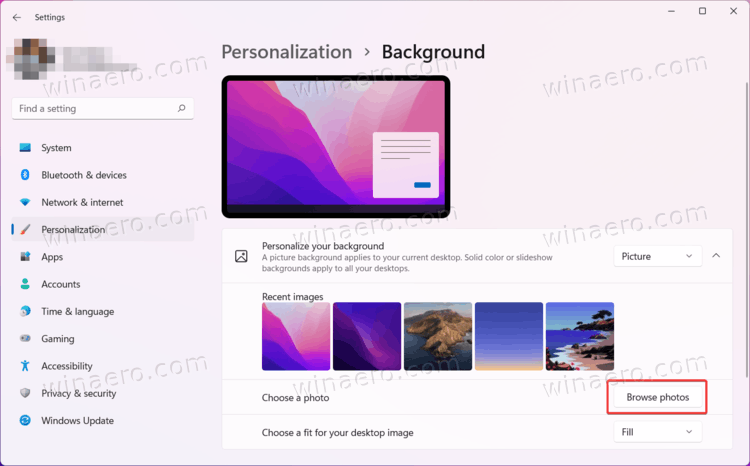
Once you are in single-desktop mode, assigning different images is straightforward, but the order of operations matters.
Apply Wallpapers in Monitor Mode
- Go to Settings, then Personalization, then Background.
- Click Browse photos and locate your first image.
- Right-click the image preview.
- Select Set for Monitor 1.
- Find your second image in the list.
- Right-click it and choose Set for Monitor 2.
Use the live preview to confirm which monitor is which. The display labeled “1” in Windows is your primary screen, while “2” is your secondary display. Both monitors should now show different wallpapers, but you are not finished yet.
Restore Your Virtual Desktops Safely
- Press Windows + Tab again.
- Click “New Desktop” to recreate your second virtual desktop.
- Switch between desktops using Ctrl + Windows + Left/Right.
Your custom per-monitor wallpapers should persist across both virtual desktops. Do not return to Background settings and try to change wallpapers while multiple desktops are active. That action will re-lock the system into desktop-level assignment and may reset both monitors to the same image.
Create Panoramic Wallpapers with Span Mode
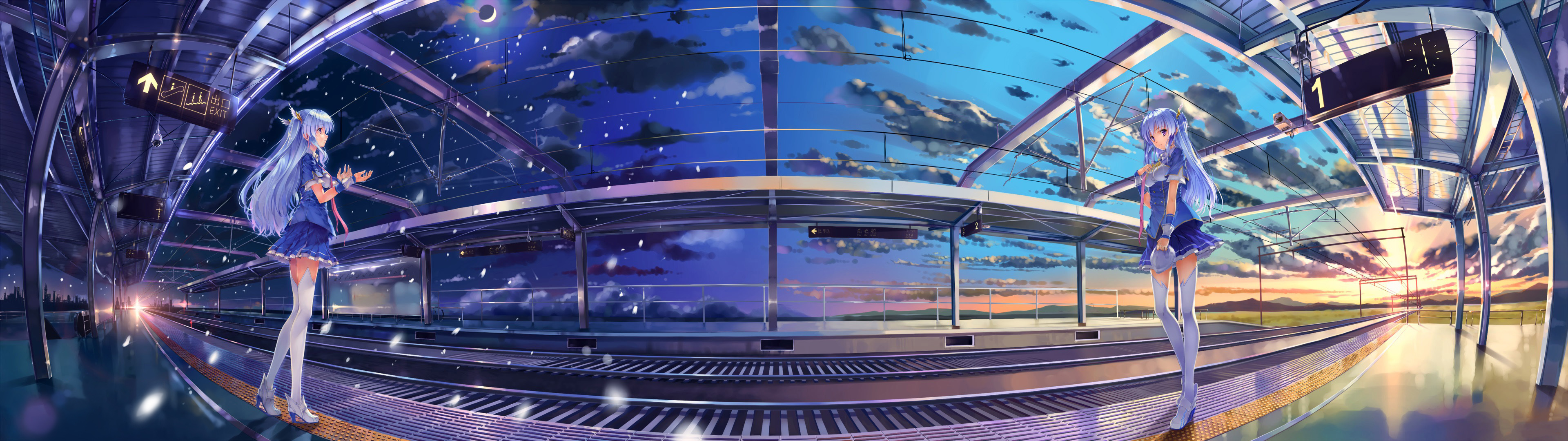
If you prefer one continuous image stretching across both screens, Span mode delivers a seamless desktop canvas. This method works best when your monitors share identical resolution and orientation.
Prepare the Correct Image Size
Span mode requires a single image sized to your combined monitor resolution. Here are common configurations:
| Monitor Setup | Required Image Size |
|---|---|
| Two 1920×1080 | 3840 × 1080 |
| Two 2560×1440 | 5120 × 1440 |
| Three 1920×1080 | 5760 × 1080 |
Search online for terms like “dual monitor wallpaper 3840×1080” to find compatible images. If one monitor is portrait and the other landscape, span mode will likely stretch or crop incorrectly. Use per-monitor assignment instead for mixed orientations.
Enable Span Fit
- In Settings, then Personalization, then Background, click Browse photos.
- Select your panoramic image.
- Under Choose a fit, open the dropdown menu.
- Select Span.
The image will automatically stretch across both monitors in the order defined in Display Settings. To rearrange monitor order, navigate to Settings, then System, then Display, then Identify, and drag the screen icons into the correct positions.
Handle Mixed Monitor Setups

Using monitors with different sizes, resolutions, or orientations creates unique challenges. Native Windows tools struggle with these configurations, but reliable workarounds exist.
Assign Custom Images Individually
For mixed setups such as a landscape monitor paired with a portrait display, the single desktop workflow remains your best option. Use a 16:9 image for the landscape monitor and a 9:16 or 10:16 image for the portrait monitor. Follow the delete-desktop, set per-monitor, restore-desktop process to avoid distortion and ensure each image fits perfectly.
Try DisplayFusion for Advanced Control
DisplayFusion, available in free and paid versions, bypasses Windows limitations entirely. The software lets you set different wallpapers per monitor even with multiple virtual desktops active. It supports mixed resolutions, orientations, and multi-GPU setups. Additional features include scheduled wallpaper changes and desktop grid overlays. The free version handles basic multi-monitor wallpaper management well enough for most users.
Troubleshoot Common Issues
Even when following the steps carefully, things can occasionally go wrong. Here is how to resolve the most frequent problems.
No “Set for Monitor” Option Appears
Verify the following conditions:
• Only one virtual desktop is active. Check this by pressing Win + Tab.
• Monitors are in Extend mode, not Duplicate or Mirror.
• You are right-clicking the image thumbnail, not left-clicking.
Left-clicking applies the image to all displays. Right-clicking reveals the per-monitor menu.
Wallpapers Reset After Reboot
This usually happens if you changed the background again after restoring multiple desktops. To prevent this issue, never re-open Background settings while multiple desktops are active. If you must change a wallpaper, repeat the full workflow: delete extra desktops, update your images, then recreate the virtual desktops.
Span Image Looks Cropped or Blurry
The cause is typically mismatched monitor resolutions or incorrect image dimensions. To fix this, recalculate the total width by adding both monitor widths together. Match the height to the common vertical resolution. Use high-DPI source images at 4K or higher to maintain clarity across larger displays.
For a 1920×1080 paired with a 2560×1440 setup, spanning will look uneven. Use per-monitor assignment instead.
macOS Users: Use Third-Party Tools
macOS does not support native wallpaper spanning or per-monitor customization in multi-display setups through system preferences alone.
Use Fresco for Spanning
Fresco is a free application that lets macOS users span a single image across multiple displays. It also enables different wallpapers per monitor with customizable placement and scaling options.
Steps to get started:
- Download Fresco from fresco.org.
- Open the app and load your panoramic image.
- Select “Span Across Displays.”
- Apply and enjoy your customized desktop.
No complex workflows are required. Just drag, drop, and display.
Frequently Asked Questions About Changing Wallpaper on Second Monitor
Why does Windows 11 hide the “Set for Monitor 2” option?
Windows 11 hides per-monitor wallpaper options whenever more than one virtual desktop is active. The operating system shifts personalization logic from monitor-based to desktop-based, forcing all displays in the same virtual desktop to share one wallpaper. Deleting extra virtual desktops restores the per-monitor controls.
Can I keep multiple virtual desktops and still have different wallpapers on each monitor?
Yes, but you must apply the unique wallpapers while only one virtual desktop is active. After setting per-monitor wallpapers, you can safely recreate additional virtual desktops without losing your configuration. Just avoid changing wallpapers again while multiple desktops are active.
What is the easiest way to change wallpaper on second monitor in Windows 11?
The simplest method is the single desktop workflow. Delete all extra virtual desktops using Win + Tab, then go to Settings, Personalization, Background, and right-click images to assign them to specific monitors. Once configured, recreate your virtual desktops.
Does Span mode work with different monitor resolutions?
Span mode works best with identical resolutions. When monitors have different resolutions, Windows scales the image unevenly, causing distortion or cropping. For mixed-resolution setups, use per-monitor assignment or third-party tools like DisplayFusion.
How do I make a panoramic wallpaper fit both monitors?
Create or download an image matching the combined width of your monitors while sharing the same height. For two 1920×1080 displays, use a 3840×1080 image. Then select Span from the “Choose a fit” dropdown in Background settings.
Is there a permanent fix for the Windows 11 wallpaper bug?
Microsoft has acknowledged user reports about this behavior. Until an official patch arrives, third-party utilities like DisplayFusion provide a permanent workaround. You can also submit feedback through the Feedback Hub to help engineering teams prioritize a fix.
Key Takeaways for Changing Wallpaper on Second Monitor in Windows 11
The single desktop workflow remains the most reliable method for assigning unique wallpapers to each monitor. Delete extra virtual desktops, apply your images using the right-click “Set for Monitor” options, then restore your virtual desktops. Avoid changing wallpapers again while multiple desktops are active to prevent unwanted resets.
For panoramic setups, Span mode delivers stunning results when monitors share identical specifications. For mixed orientations or resolutions, third-party tools like DisplayFusion on Windows or Fresco on macOS offer seamless control without workarounds. Start with the single desktop workflow today, and your dual monitor setup will finally match your personal style.


