
Your new monitor deserves better than sitting flat on a desk. Learning how to mount a monitor frees up workspace, improves posture, and gives you total control over screen position. Done wrong, however, mounting can lead to a wobbly display, neck strain, or even a dangerous fall. Done right, it transforms your entire workday.
This guide covers everything from checking compatibility and choosing hardware to final adjustments and long term care. You’ll learn which tools to gather, how to install both desk and wall mounts, and how to fix common issues like sagging arms or snagged cables. By the end, your monitor will float exactly where you need it.
Confirm VESA and Weight Compatibility Before You Buy

Every successful mount starts with two numbers: your monitor’s VESA pattern and its weight. Skip this step, and you risk buying hardware that simply does not fit or, worse, cannot hold your screen.
Check Your Monitor’s VESA Pattern
VESA is the universal standard that defines the screw hole layout on the back of monitors. To verify yours:
- Unplug and flip your monitor face down on a soft surface.
- Look for four screw holes arranged in a square or rectangle.
- Measure the distance between the holes from center to center.
- Common patterns include 75x75mm and 100x100mm for most home monitors.
- Larger or curved displays often use 200x100mm or 200x200mm.
If your monitor has no VESA holes, search the manufacturer’s website for an official adapter plate before purchasing a mount.
Match the Mount to Your Monitor’s Weight
Every mount has a maximum load rating, usually between 4kg and 15kg. Going over this limit causes sagging joints, broken springs, or sudden collapse.
- Find your monitor’s weight in the user manual or spec sheet.
- Pick a mount rated higher than your monitor’s weight.
- For dual screen setups, add the weights together and compare to the mount’s total capacity.
Pro Tip: A VESA match alone is not enough. Always cross check the weight rating. This single mismatch causes most post installation failures.
Choose the Right Mount Type for Your Space

Mounts come in several styles, each suited to different desks, walls, and workflows. Picking the wrong one leads to frustration or limited adjustability later.
Desk Clamp vs. Grommet Mount
Both attach to your desk but differ in fit and stability. A clamp mount grips the desk edge and works on most solid surfaces at least 2.5cm thick. A grommet mount slides through a pre drilled hole in the desk and offers a cleaner look with stronger hold, but requires permanent modification.
| Mount Type | Best For | Limitations |
|---|---|---|
| Clamp | Easy setup, removable | Not ideal for glass or hollow desks |
| Grommet | Flush look, high stability | Requires drilling the desk |
Wall Mounts for Maximum Desk Space
Wall mounting completely removes the monitor’s footprint from your desk. It works best in permanent setups, small offices, or minimalist studios. The trade off is more involved installation and the need for solid wall anchoring.
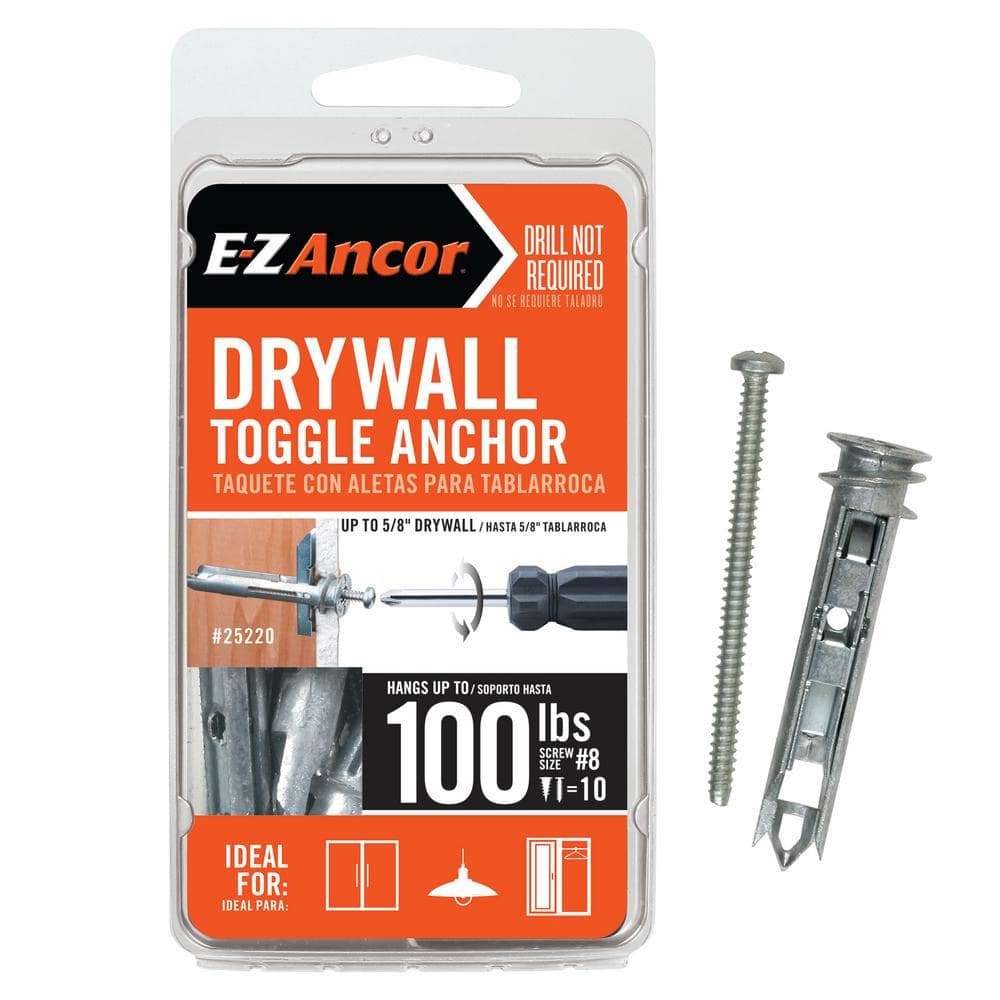
Warning: Never mount a monitor on drywall alone. Always anchor into a stud or use heavy duty toggle bolts rated for the load.
Articulating Arms for Full Flexibility
Premium mounts feature articulating arms that extend, retract, swivel, and tilt. These are ideal for shared workspaces, multi monitor layouts, or anyone who alternates between sitting and standing throughout the day.
Gather the Right Tools for the Job
Most mounts ship with screws and brackets, but tools are rarely included. Prepare everything before you start to avoid mid installation trips.
Essential Tool Checklist
You will need:
- A Phillips screwdriver or drill with matching bits
- A bubble level
- A measuring tape
- A pencil for marking
- A stud finder for wall mounts
- A drill with bits suited to wood, drywall, or masonry
- A wrench or Allen key, often included with the mount
Visual Cue: A bubble level is non negotiable. Even a slight tilt causes eye strain and looks unprofessional on camera.
Install a Desk Mount Step by Step
Desk mounts offer the best mix of ease, adjustability, and stability for most home offices. Follow these steps carefully for a wobble free result.
Attach the Base Securely
- Pick a mounting spot near the back edge of your desk.
- Open the clamp and position it under the desk surface.
- Tighten the knob or bolt until snug, but do not over tighten.
- Press down firmly on the arm to confirm no movement.
Time Estimate: 5 to 10 minutes
Difficulty: Easy
Mount the Arm and Adjust Tension
- Connect the arm to the base using the included hardware.
- Tighten every joint with a wrench or Allen key.
- Attach the VESA plate to the back of your monitor using M4 screws, typically 10mm to 12mm long.
- Tighten the screws diagonally to keep the plate flat.
- Hang the monitor on the arm’s quick release mechanism until you hear a click.
- Adjust the spring tension so the arm moves smoothly without drifting up or down.
Common Mistake: Skipping tension calibration. An unbalanced arm sags or bounces, which defeats the entire purpose of using a mount.
Install a Wall Mount Safely
Wall mounting delivers a clean, floating screen look but demands careful structural planning.
Locate Studs and Mark Your Placement
- Use a stud finder to locate wooden or metal studs behind the drywall.
- Studs are usually spaced 16 or 24 inches apart.
- Mark two stud centers at your desired screen height.
- Hold the wall plate against the wall, align with the studs, and trace the screw holes.
- Confirm everything is level before drilling.
Safety First: Drywall alone cannot hold a monitor. Always anchor into studs or use toggle bolts rated for the weight.
Drill, Anchor, and Secure the Bracket
- Drill pilot holes at each marked point.
- For concrete or brick, switch to a hammer drill and masonry bit.
- Insert anchors if you are not drilling directly into wood.
- Drive long wood screws through the wall plate into the studs.
- Recheck with a level and adjust before final tightening.
Hang and Lock the Monitor
- Attach the VESA plate to the monitor as described above.
- Lift the monitor and slide it onto the wall bracket.
- Insert any safety screws required by your specific model.
Time Estimate: 20 to 40 minutes
Difficulty: Moderate to high
Position Your Monitor for Better Ergonomics

Mounting is only half the job. Correct positioning protects your eyes, neck, and back during long sessions.
Set the Right Height and Distance
- The top edge of the screen should sit at or slightly below eye level.
- A slight downward gaze of 10 to 20 degrees reduces neck strain.
- Sit roughly one arm’s length away, about 50 to 100cm from the screen.
- Larger screens may need a bit more distance to feel comfortable.
Adjust Tilt, Swivel, and Rotation
- Tilt the screen back 10 to 15 degrees to reduce glare from overhead lights.
- Swivel the screen so it faces you squarely, avoiding neck twisting.
- Rotate to portrait mode if you code, write, or browse long documents and your mount supports it.
Pro Tip: Sit back in your chair and look straight ahead. Your gaze should naturally land near the top third of the screen. If not, adjust the mount height.
Fix Common Mounting Problems

Even a careful install can develop issues over time. Diagnose and resolve them before they cause damage.
Monitor Wobbles When Typing
A shaky screen usually points to loose hardware or poor tension. Retighten every screw on the base, arm, and VESA plate. Rebalance the spring tension. If your desk itself flexes, reinforce it or switch to a wall mount.
Mount Sags or Drifts Downward
This is a clear sign of weight tension mismatch. Locate the adjustment knob on the arm joint and turn it clockwise to increase resistance. Test by moving the arm up and down. No drift should occur at any position.
Warning: Sagging worsens over time and can damage internal springs. Fix it as soon as you notice it.
Cables Snag or Pull During Movement
Messy cables ruin the flexibility of an articulating arm. Run cables through the mount’s built in channels whenever possible. Secure them with Velcro straps every 15 to 20cm. Leave a little slack near the base so the arm can extend fully.
Keep Your Mount Stable for Years
A quality mount lasts for years with minimal care. Build these habits into your routine.
Monthly Stability Check
Once a month, inspect every screw and joint for looseness. Test the arm tension and readjust if needed. Wipe dust from moving parts so the joints stay smooth.
Avoid Overloading the Mount
Never attach gear heavier than the mount’s rated capacity. This includes large curved monitors, dual screens on a single arm, or accessories like speakers and webcams clamped to the display.
Expert Note: Stick with reputable brands known for metal construction and tested spring mechanisms. Cheap plastic gears wear out quickly and create safety risks.
Frequently Asked Questions About How to Mount a Monitor
Do all monitors come with VESA mounting holes?
Most modern monitors follow the VESA standard, but some ultra thin or budget models omit the holes. Check the back panel or the spec sheet before buying a mount. If your monitor lacks VESA support, the manufacturer often sells an adapter plate.
Can I mount a monitor without drilling into a stud?
You can, but only with heavy duty anchors rated for the monitor’s weight. Standard drywall anchors are not strong enough. Toggle bolts or specialized hollow wall anchors are the safest alternatives when studs are unavailable.
How much weight can a typical monitor arm hold?
Most single arm mounts support between 4kg and 15kg. Premium models can handle more, especially gas spring designs. Always check the product specs and choose a mount rated above your monitor’s actual weight.
Is wall mounting better than desk mounting?
Neither is universally better. Wall mounting frees up desk space and looks cleaner, but it requires drilling and limits repositioning. Desk mounting is easier to install, adjust, and move, which suits most home offices.
How long does it take to mount a monitor?
A desk clamp mount takes 5 to 10 minutes once tools are ready. A wall mount takes 20 to 40 minutes depending on wall material and experience. Allow extra time for stud finding, leveling, and ergonomic adjustments.
Can I use one mount for two monitors?
Yes, but only if the mount is rated for the combined weight of both screens. Dual arm mounts distribute load across two arms and offer better stability than stacking monitors on a single arm.
Key Takeaways for Mounting Your Monitor the Right Way
Learning how to mount a monitor is about more than clearing desk space. It is about building a setup that supports your body and your work for years. Start by confirming your monitor’s VESA pattern and weight, then choose a mount type that matches your desk, wall, and daily routine. Gather your tools, follow the installation steps carefully, and finish with proper ergonomic positioning.
The biggest wins come from avoiding common mistakes: over tightening clamps, skipping tension calibration, and ignoring stud placement. With the right hardware and a little patience, your mounted monitor will feel rock solid, look professional, and keep you comfortable through every long workday. Begin by measuring your monitor’s VESA pattern today, and you’ll be mounting within the hour.


