
You just unboxed a new monitor or added a second screen, but the picture looks off. Colors seem washed out, text appears blurry, or Windows refuses to recognize the display at all. The fix lies in proper monitor configuration, which combines physical setup, operating system settings, and display calibration to transform your screen from average to excellent. This guide walks you through how to configure monitor settings correctly across hardware, Windows, and OSD menus.
You’ll learn how to detect multiple displays, match screen layout to your desk, fix common issues like gray blacks or screen tearing, and fine-tune picture quality for accuracy or performance. Whether you need dual monitors for work, smoother frames for gaming, or precise colors for photo editing, these step-by-step instructions deliver verified procedures and expert testing methods.
Connect and Power Your Monitor
Before diving into software settings, make sure your monitor is physically ready and communicating with your system.
Verify Cable and Power Connections
Use a high-quality HDMI, DisplayPort, or USB-C cable depending on your GPU and monitor ports. Confirm the following:
- The video cable is firmly seated at both ends (PC and monitor)
- The power cable is plugged in and the monitor’s power LED is on
- If using a docking station or adapter, confirm it supports video output
Pro Tip: For 4K at 60Hz or higher refresh rates, use DisplayPort 1.4 or HDMI 2.0+. Older cables may limit resolution or refresh rate.
Update Windows Before Configuration
Outdated OS versions can cause detection problems. Update first:
- Press Start and open Settings
- Go to Windows Update and click Check for updates
- Install all pending updates and restart
This ensures compatibility with modern display drivers and features like HDR or variable refresh rate.
Set Up Wireless Display (Optional)
If using Miracast or a wireless adapter:
- Plug the adapter into the monitor or TV HDMI port
- Press Win + K to open Cast
- Select your wireless display from the list
- If not found, go to Settings > System > Display > Multiple displays > Connect
Wait a few seconds for connection. Wireless may have slight input lag, so it’s best for presentations rather than gaming.
Detect and Arrange Multiple Monitors in Windows
Once connected, configure how Windows sees and uses your displays.
Identify Each Connected Screen
Windows assigns numbers to detected monitors:
- Right-click the desktop and select Display settings
- Under Multiple displays, click Identify
- A large number appears on each screen (such as “1” on primary, “2” on secondary)
Use this to map which digital display corresponds to your physical setup.
Detect a Missing Monitor
If one screen isn’t showing:
- In Display settings, scroll to Multiple displays
- Click Detect
- If still not found, reseat cables or try a different port
For wireless displays, select Connect instead of Detect.
Arrange Monitors to Match Your Desk
Cursor movement should match real-world placement:
- In Display settings, drag the numbered boxes to reflect physical layout
- Place monitor “2” to the right of “1” if it sits on your right
- Click Apply
- Test by moving the mouse between screens
Warning: Incorrect arrangement causes cursor “sticking” or unnatural transitions.
Choose Display Mode: Extend, Duplicate, or Single
Press Win + P for quick access to projection modes:
- PC screen only: Only the laptop or internal display stays active
- Duplicate: Same image on all screens (ideal for presentations)
- Extend: Desktop spans across monitors (best for productivity)
- Second screen only: Laptop screen off, external monitor active
Select Extend for multitasking and Duplicate for sharing content.
Set Resolution, Scaling, and Orientation
Optimize clarity and usability per monitor, especially important when mixing different screen sizes or DPIs.
Select Native Resolution Per Monitor
Each display performs best at its native resolution:
- Click the monitor number in Display settings
- Under Display resolution, choose the recommended option
- Click Keep changes
Never choose lower than native unless troubleshooting, since it causes blurriness.
Adjust Scaling for Readability
High-DPI monitors like 4K make text too small by default:
- Under Scale & layout, adjust percentage from 100% to 200%
- Common settings include 125% for 1440p and 150–200% for 4K
- Log out and back in if apps appear blurry after change
Pro Tip: Use different scaling per monitor. Windows handles this well in Win10 and Win11.
Rotate Display to Portrait (Optional)
Useful for coding, reading, or design work:
- Select the monitor in settings
- Under Display orientation, choose Portrait
- Physically rotate the monitor if using a swivel stand
If the screen appears upside down, select Portrait (flipped).
Calibrate Picture Quality via OSD

Now fine-tune the monitor itself using its On-Screen Display menu, which is critical for color accuracy and visual comfort.
Start with the Right Picture Mode
Avoid factory presets like “Vivid” or “Dynamic” since they oversaturate colors:
- Choose User, Custom, sRGB, or Game mode
- For content creators, use sRGB mode to lock color space
- For gaming, use GameVisual (ASUS), Acer Color Modes, or similar brand presets
Note: sRGB mode may disable other adjustments, so use it only when color accuracy is key.
Adjust Brightness and Backlight
This controls overall screen luminance:
- Bright room? Set brightness to 80–100%
- Dark room? Reduce to 30–50% to prevent eye strain
- Avoid Eco mode since it limits performance; instead, manually lower brightness
Backlight affects black depth. Too low crushes shadows while too high washes out contrast.
Fine-Tune Black Level and Contrast
Balance dark and bright details:
- Black Level (or Shadow Boost):
- Too high creates gray blacks
- Too low loses shadow detail
- Use a near-black gradient test pattern and adjust until faint bars appear visible
- Contrast:
- Too high clips whites with no detail in bright areas
- Too low creates a flat, dull image
- Use a white gradient and set so the faintest bar stays visible
Default settings are often accurate, so adjust only if needed.
Set Gamma to 2.2 for Accuracy
Gamma controls mid-tone brightness:
- Standard: 2.2 (ideal for Windows and most content)
- Bright environment? Try 2.0–2.1
- Dark room? Try 2.3–2.4 for deeper contrast
Use a gamma test pattern: the center square should blend with the background at the correct setting.
Optimize Sharpness Without Artifacts
Sharpness enhances edges digitally:
- Increase to maximum
- Slowly reduce until halos or “rings” around text disappear
- Default is usually safe at 30–50%
Never max it out, since that causes unnatural edge enhancement.
Set Color Temperature to 6500K
Color temperature defines the warmth or coolness of the white point:
- Warm (lower Kelvin): Red or yellow tint
- Cool (higher Kelvin): Blue tint
- Target: 6500K (often labeled “Normal,” “Native,” or “Warm”) for accuracy
Advanced monitors allow individual adjustment of Red, Green, and Blue channels, though this requires professional equipment.
Optimize for Gaming: Refresh Rate and Motion
Gamers need smooth motion, low lag, and tear-free visuals.
Set Correct Refresh Rate
Higher Hz equals smoother motion:
- In Display settings, go to Advanced display
- Select Refresh rate and choose the highest available (such as 144Hz or 240Hz)
- Confirm your monitor supports it by checking the specs
Note: Some monitors allow overclocking via OSD, so proceed with caution.
Enable Variable Refresh Rate (VRR)
Eliminate screen tearing:
- AMD FreeSync: Enable in AMD Adrenalin Software
- NVIDIA G-SYNC: Enable in NVIDIA Control Panel under Set up G-SYNC
- Also check the monitor OSD for a FreeSync or G-SYNC Compatible toggle
Keep VRR on unless flickering occurs.
Tune Overdrive for Faster Response
Reduces motion blur:
- Off/Low: No artifacts, more blur
- Normal/Medium: Balanced performance
- High/Extreme: Fastest response, but may cause inverse ghosting (bright trails)
Test with fast mouse movements. If you see halos, reduce the setting.
OLED Note: No overdrive needed since native response is near-instant.
Use Motion Blur Reduction (If Available)
Features like ULMB (NVIDIA) or ELMB (ASUS) insert black frames:
- Pros: Sharper motion
- Cons: Can dim the screen or cause flicker; often incompatible with VRR
Use only if your monitor supports dual mode or if you prioritize clarity over brightness.
Configure Advanced Features and HDR
Unlock premium capabilities like HDR, local dimming, and eye protection.
Enable and Calibrate HDR
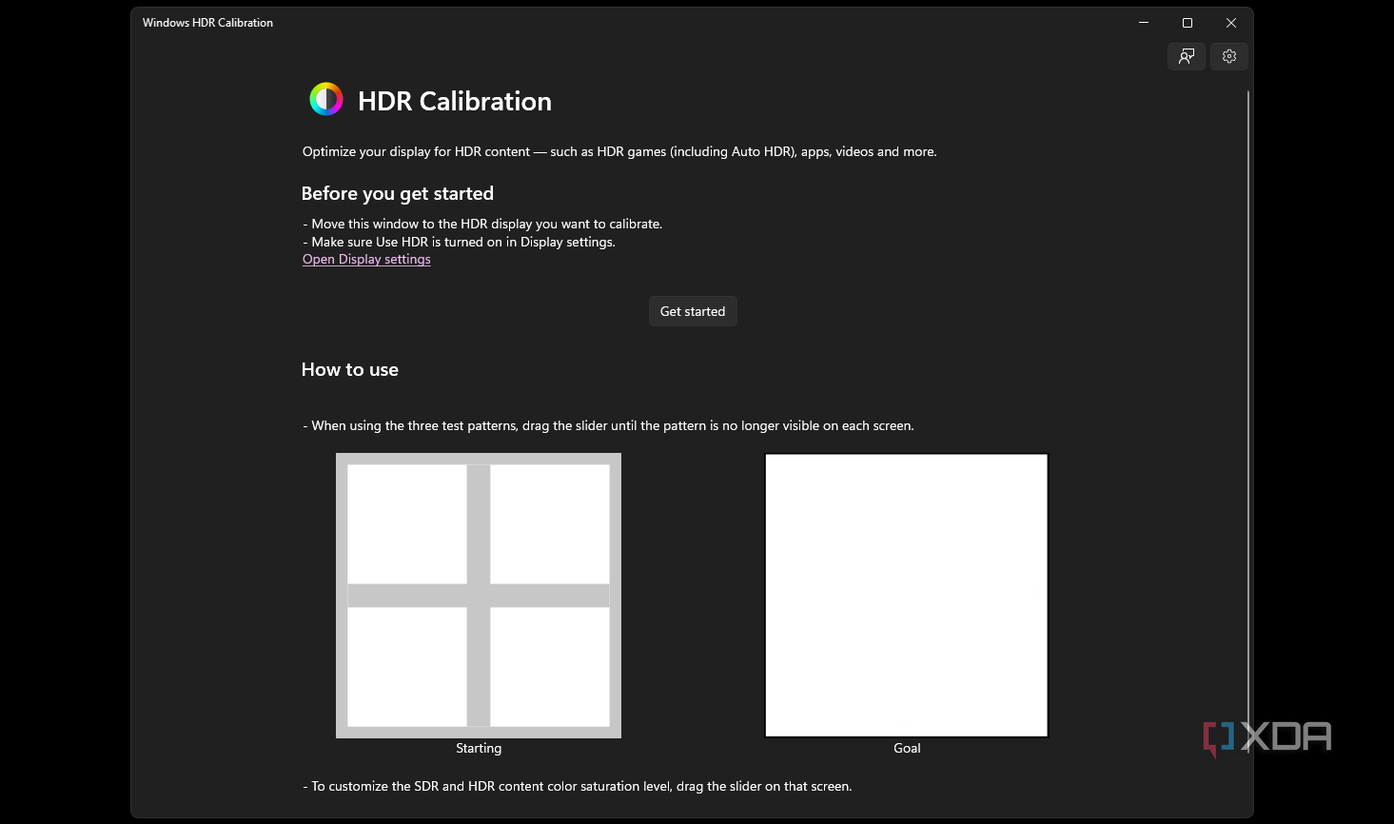
For HDR-capable monitors:
- Go to Settings > System > Display > HDR
- Toggle Use HDR
- Use the Windows HDR Calibration app from the Microsoft Store to adjust brightness and black levels
Warning: SDR content may look dim in HDR mode. Some apps auto-switch while others don’t.
Use Local Dimming for Better Contrast
Available on high-end LED monitors:
- Improves black levels by dimming zones behind dark content
- Poor implementation causes blooming (halos around bright objects)
Check reviews before enabling. Local dimming is often forced on during HDR.
Prevent OLED Burn-In
If using OLED:
- Enable Pixel Shift, Logo Dimming, and Pixel Cleaning in OSD
- Avoid static elements like taskbars or desktop icons in the same spot for hours
- Use screen savers or auto-off timers
These features help extend panel life significantly.
Reduce Eye Strain with Night Light
Skip monitor-based “Low Blue Light” modes since they’re often weak:
- Use Windows Night Light:
- Go to Settings > System > Display > Night Light
- Schedule it to turn on at sunset
- Adjust color temperature to preference
This solution is more effective and customizable than most OSD filters.
Troubleshoot Common Monitor Issues
Fix problems fast with targeted solutions.
Monitor Not Detected
Check the following:
- Reseat cable connections at both ends
- Try a different port or cable
- Update GPU drivers
- Run Detect in Display settings
For laptops, close the lid and reconnect. Sometimes this forces detection.
Mouse Cursor Stuck on One Screen
The likely cause is incorrect display arrangement:
- Press Win + P and ensure Extend is selected
- In Display settings, drag monitor boxes to match physical layout
- Click Apply and test
Also ensure no display is set to “PC screen only.”
Blacks Look Gray or Washed Out
Caused by high Black Level or Shadow Boost:
- Enter the monitor OSD
- Find Black Level, Shadow Detail, or similar setting
- Lower the setting until blacks appear deep and true
Avoid “Boost” modes for accurate content work.
Haloing or Ghosting Around Moving Objects
This signals aggressive Overdrive:
- Enter OSD and find Response Time or Overdrive
- Change from Extreme or Fastest to Normal or Medium
- Test with fast cursor movement
This should eliminate bright trails.
Colors Look Washed Out
Possible causes include:
- Monitor in Vivid or Dynamic mode (switch to Standard or sRGB)
- RGB range mismatch in NVIDIA Control Panel or AMD Software (set RGB Range to Full, not Limited)
- HDR enabled on non-HDR content (disable HDR temporarily)
Frequently Asked Questions About Monitor Configuration
What is the best refresh rate for a gaming monitor?
Higher refresh rates like 144Hz or 240Hz provide smoother motion and lower input lag compared to standard 60Hz displays. Competitive gamers benefit most from 144Hz and above, though your GPU must support the frame output to take full advantage.
How do I fix gray blacks on my monitor?
Lower the Black Level setting (also called Shadow Boost or Black Stabilizer) in your monitor’s OSD. Adjust until dark areas appear deep and true. If the setting is too high, blacks appear washed out and gray.
Should I use sRGB mode for everyday use?
Use sRGB mode only when color accuracy matters, such as for photo editing or content creation. This mode clamps colors to the sRGB color space and prevents oversaturation, but it often locks other adjustment settings.
Why is my second monitor not detected in Windows?
Check cable connections first, then try a different port or cable. Update your GPU drivers and Windows. In Display settings, click Detect under Multiple displays. For wireless displays, select Connect instead.
Is Windows Night Light better than monitor blue light filters?
Yes, Windows Night Light is generally more effective than OSD-based filters. It dynamically adjusts color temperature based on time of day and offers better customization options than most built-in monitor features.
How often should I recalibrate my monitor?
Recalibrate every few years since panels degrade over time. For professional work, use a colorimeter to create a custom ICC profile. Avoid downloading third-party ICC profiles since every panel varies due to manufacturing tolerances.
Key Takeaways for Configuring Your Monitor
Configuring a monitor properly goes far beyond plugging it in. From matching display layout to your desk to calibrating gamma and contrast, each step ensures you get the most from your hardware. Whether you’re a designer needing accurate colors, a gamer chasing 240Hz smoothness, or a remote worker running dual screens, this guide gives you the tools to optimize every pixel.
Remember to start with physical setup, detect and arrange in Windows, set resolution and scaling, then fine-tune via OSD. Enable advanced features like VRR or HDR only when supported, and always troubleshoot methodically.
With your monitor now fully configured, enjoy a sharper, smoother, and more productive experience, exactly how it should be.


