
You finish a project and want to show your team exactly what you did. Or maybe you need to capture a bug, record a tutorial, or save a video call. Knowing how to record monitor screen content saves time and removes confusion in every kind of communication. The best part is you already have most of what you need on your computer.
This guide covers every reliable method to record your screen, from free built-in tools to professional software. You will learn how to capture audio, edit clips, fix common problems, and choose the right tool for your specific goal. No fluff, just clear steps you can follow right now.
Use Xbox Game Bar on Windows
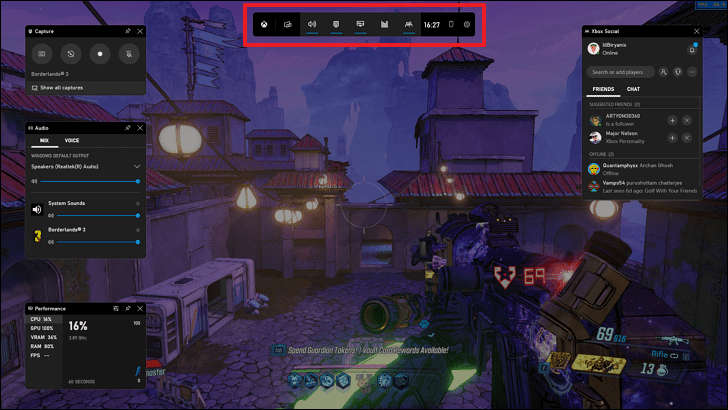
Windows 10 and 11 come with a free screen recorder called Xbox Game Bar. It works without any download and is perfect for quick captures when you need a clip in seconds.
Enable Game Bar in Settings
Before you can record, you need to turn the feature on:
1. Press Windows + I to open Settings.
2. Click Gaming, then choose Xbox Game Bar.
3. Toggle on “Record game clips, screenshots, and broadcast.”
If you skip this step, your keyboard shortcuts will not respond.
Start Recording with a Shortcut
Once enabled, recording takes one keystroke:
– Press Win + G to open the Game Bar overlay.
– Click the red Record button or press Win + Alt + R to begin.
A small timer appears in the top-right corner to confirm the capture has started.
Capture System or Microphone Audio
Game Bar lets you choose your audio source:
– Click the Audio icon (speaker) inside the overlay.
– Pick Game Audio for system sound.
– Pick Mic Audio for your voice.
– Or select Both for simultaneous capture.
Make sure your input and output devices are set correctly in Windows Sound settings. Note that some non-game apps may not trigger system audio capture due to Game Mode limitations.
Locate Your Saved Recordings
Recordings save automatically as MP4 files in this folder:
This PC > Videos > Captures
Files use names like Clip001.mp4 and Clip002.mp4. You can change the save location under Gaming > Captures in Settings.
Pro Tip: Game Bar performs best with full-screen apps and games. For desktop windows like browsers, choose a third-party tool instead.
Record on macOS with Built-in Tools

macOS includes a native screen recording tool that works with a simple keyboard shortcut. No downloads or setup required.
Open the Recording Toolbar
Press Shift + Command + 5 to bring up the recording panel. You can:
– Record the entire screen.
– Capture a selected portion.
– Record one specific window.
Start and Stop Your Recording
- Click Record to begin full-screen capture.
- To record a custom area, click and drag the crosshair.
- Stop by clicking the Stop button in the menu bar or pressing
Control + Command + Esc.
Add Microphone Audio
Click Options before recording to:
– Choose your microphone input (internal or external).
– Select which screen to record on multi-monitor setups.
– Set your preferred save location.
By default, macOS records system audio only if the app supports it. For full system sound capture, use third-party tools like ScreenRec or OBS.
Expert Note: macOS requires app permissions before recording. If your capture fails, open System Settings > Privacy & Security > Screen Recording and grant access.
Use OBS Studio for Full Control

OBS Studio is the top choice for advanced users who want unlimited recording time, no watermarks, and complete control over every source.
Install and Configure Audio
- Download OBS Studio for free from obsproject.com.
- Open Settings and click Audio.
- Set Sample Rate to 44100 Hz.
- Assign Desktop Audio for system sound.
- Assign Mic/Auxiliary Audio for your voice.
OBS captures both audio streams independently, so you do not need Stereo Mix.
Add a Display Capture Source
- In the Sources box, click the + button and choose Display Capture.
- Select which monitor you want to record.
- Resize or reposition the capture using the preview window.
For a webcam overlay, add Video Capture Device as a separate source.
Start Recording with Hotkeys
Go to the Controls panel at the bottom:
– Click Start Recording, or
– Use the default hotkey Ctrl + Alt + R.
Stop with Ctrl + Alt + S. Recordings save locally in MP4 or MKV format, which you can configure in Settings > Output.
Pro Tip: Create scenes for different setups like “Tutorial” or “Gaming” so you can switch quickly between recording styles.
Try Camtasia for Built-In Editing
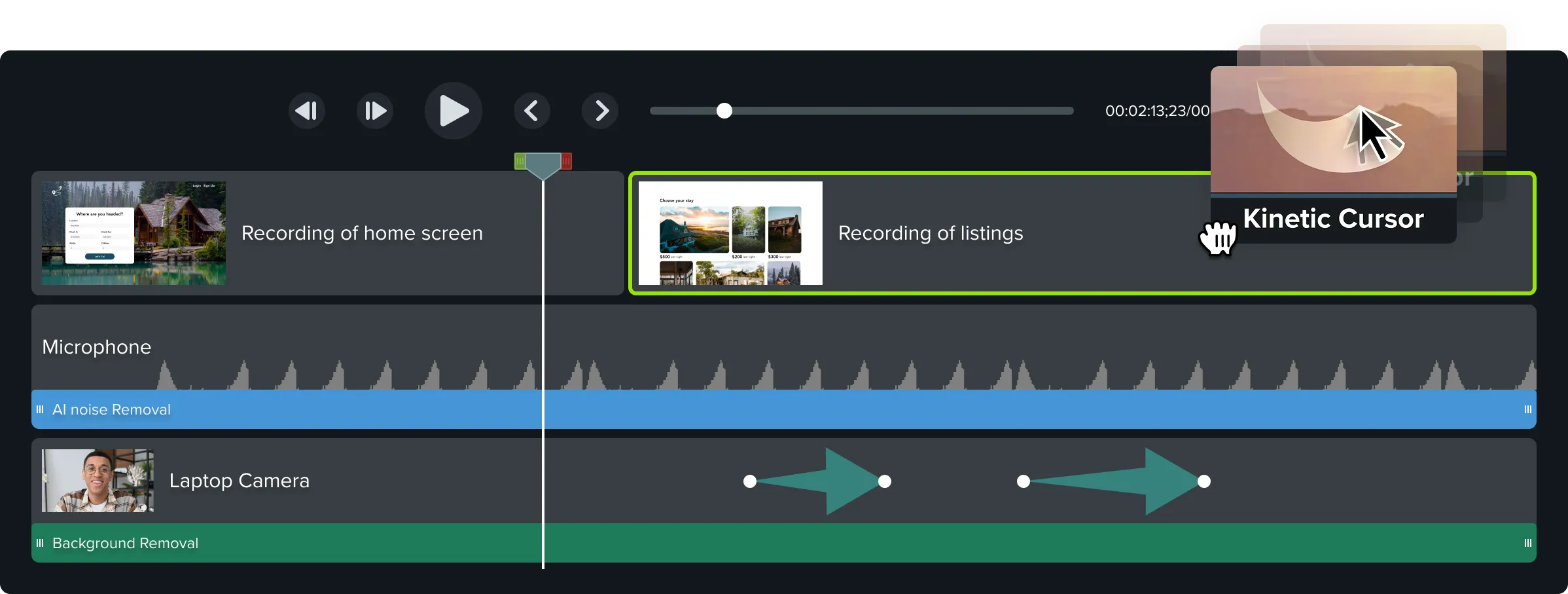
Camtasia combines screen recording and video editing in one application. It works well for educators, trainers, and anyone who creates instructional content.
Record Screen and Audio Together
- Open Camtasia.
- Click Record.
- Select your area: full screen, region, or window.
- Check the boxes for System Audio and Microphone.
Press F9 to start recording. Press F9 again to stop.
Edit Without Exporting First
Your recording opens directly in the editor. Use the built-in tools to:
– Trim clips.
– Add captions, callouts, and animations.
– Insert transitions and background music.
– Apply cursor effects like zoom and highlights.
Export to Any Platform
Choose export presets for YouTube, learning management systems like Moodle, or custom MP4 settings. Save locally or upload directly from the app.
Limitation: Camtasia is paid software, though a free trial is available. If you create tutorials regularly, the integrated workflow saves hours of editing time.
Use ScreenRec for Instant Sharing
ScreenRec excels at fast recording and one-click sharing. It works perfectly for teams, customer support, and quick business communication.
Record and Share in Seconds
- Install ScreenRec (free).
- Press
Ctrl + Alt + Ron Windows orCmd + Option + Ron macOS. - Choose full screen, a region, or webcam plus screen.
- Stop recording and your video uploads instantly to the cloud.
You receive a shareable link immediately. No manual saving or uploading required.
Control Who Sees Your Video
Set privacy options before sharing:
– Password protection.
– Require sign-in to view.
– Disable downloads.
Business plans add analytics so you can see who watched, how long they watched, and when.
Record Offline and Upload Later
No internet connection? ScreenRec records locally and syncs to the cloud once you reconnect.
User Feedback: Teams report 70% faster response times when using video replies instead of text messages.
Use Canva for Design-Integrated Recording
If you already use Canva for presentations or social media, the desktop app lets you record, edit, and brand videos all in one place.
Access Screen Recorder in the Desktop App
- Open the Canva Desktop App.
- Click Create, then Quick Actions, then Screen Recorder.
- Select your area: full screen, window, or custom region.
Note that this feature is not available in the browser version.
Record with Webcam and Audio
Enable these options before recording:
– Microphone.
– System audio.
– Facecam for picture-in-picture.
Press Record or use the shortcut Cmd/Ctrl + Shift + 2.
Edit Like a Designer
After recording finishes:
– Your video appears in the Uploads tab.
– Add brand colors, fonts, and logos.
– Use Magic Studio AI to generate auto-captions, remove background noise, and extract highlights.
Split, trim, add music from Artlist, or apply cinematic effects.
Time-Saving Hack: Use “Magic Shortcuts” during recording. Press C for confetti or D for drumroll.
Use ScreenPal Online Without Installing
Need to record quickly on a shared or restricted computer? ScreenPal’s browser-based tool requires no installation at all.
Launch the Browser Recorder
Go to screenpal.com, click Record, and allow camera and microphone access. Choose to record:
– Full screen.
– A specific window.
– A browser tab.
Record with Webcam Overlay
Turn on your camera during setup:
– Resize and position the facecam window.
– Use drawing tools while recording, including arrows, highlights, and zoom.
Audio options include microphone only. System audio capture requires the desktop app.
Save and Share Privately
Recordings stay in browser memory until you save them. Download as MP4, or WEBM if you use Firefox. After five downloads, you must create a free account.
Privacy Note: Videos are not stored on servers unless you share them, which makes this tool ideal for sensitive content.
Fix Common Recording Issues
Even the best tools sometimes fail. Here is how to solve the most frequent problems.
No System Audio in Recording
Cause: Windows blocks system sound capture in certain apps.
Solutions:
– Use OBS, Bandicam, or ScreenRec since they bypass restrictions through WASAPI.
– Enable Stereo Mix by right-clicking the speaker icon, choosing Sounds, then the Recording tab. Right-click Stereo Mix and select Set as Default Device. Then choose it in your recorder’s audio settings.
If Stereo Mix does not appear, your driver does not support it. Switch to OBS instead.
Black Screen During Capture
Cause: Hardware acceleration conflicts, common in Chrome, Zoom, and Edge.
Fix:
– In OBS, use Display Capture instead of Window Capture.
– Disable hardware acceleration in Chrome by going to Settings, then System, and turning off “Use hardware acceleration.”
– Restart your browser and try again.
App Crashes During Long Recordings
Cause: Low RAM or memory leaks.
Prevention:
– Close unused applications.
– Ensure you have at least 2GB of RAM, with 4GB recommended.
– Update to the latest version (ScreenRec v5.0.13 fixed crash bugs).
Pro Tip: Split long sessions into 10 to 15 minute clips to avoid data loss.
Optimize Video Quality Settings
Balance quality and file size with these proven settings.
Choose the Right Resolution and Frame Rate
| Use Case | Resolution | Frame Rate | Bitrate |
|---|---|---|---|
| Tutorials | 1080p | 30 FPS | 5 Mbps |
| Gaming | 1080p | 60 FPS | 10 Mbps |
| Webinars | 720p | 30 FPS | 3 to 5 Mbps |
Higher FPS produces smoother motion but creates larger files.
Set Encoder to H.264 MP4
Use H.264 encoding in MP4 format because it offers:
– Universal compatibility.
– Efficient compression.
– Support across all editors and platforms.
In OBS, go to Settings > Output > Recording and set the encoder to x264.
Match Audio Sample Rate
Set audio to 44100 Hz, which is the standard for MP4 and YouTube. Avoid 48000 Hz unless your workflow specifically requires professional audio settings.
Pro Tip: Lower the bitrate if storage space is limited. 5 Mbps is plenty for most screen recordings.
Pick the Best Tool for Your Needs
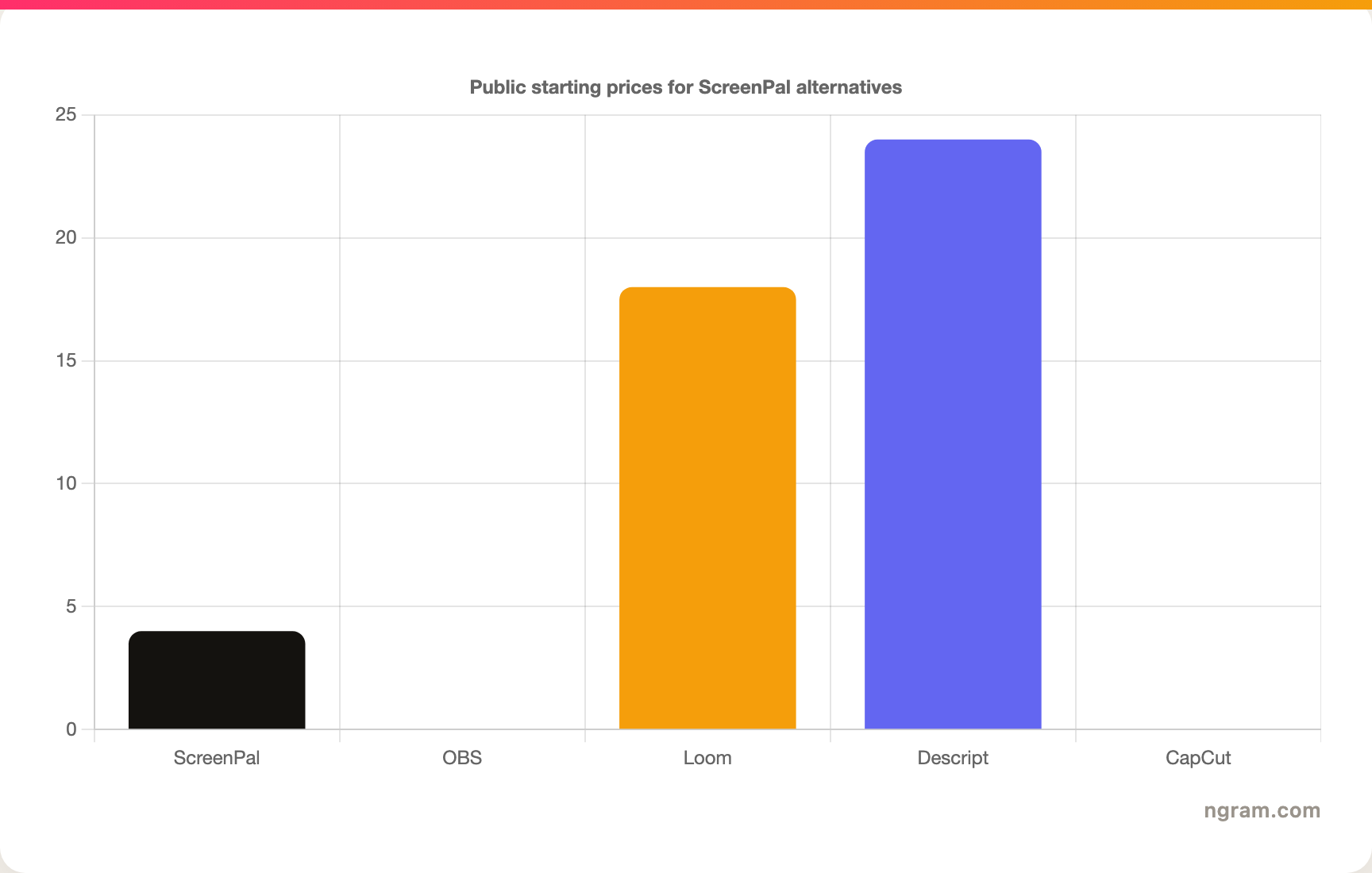
Not all recorders work equally well. Match the tool to your specific goal.
Quick Capture Without Installation
Use: Xbox Game Bar (Windows) or ScreenPal Online.
Ideal for fast clips, no setup, and one-time use.
Avoid: Recording standard desktop apps with Game Bar since it may not capture system audio.
Professional Quality and Streaming
Use: OBS Studio.
Best for gamers, streamers, and podcasters who need full control.
Bonus: Stream live to YouTube or Twitch while recording simultaneously.
Business Communication and Feedback
Use: ScreenRec.
Why: instant link sharing, viewer analytics, and password protection.
Teams use it for onboarding, bug reports, and customer replies.
Tutorials and Training Videos
Use: Camtasia or ScreenPal.
Features include built-in editing, quizzes, auto-captions, and translation.
Educators save hours with AI-powered tools.
Designers and Marketers
Use: Canva.
Advantage: record, brand, and share without leaving the app.
Add music, effects, and collaborate with teammates in real time.
Master AI and Advanced Features
Modern recorders use AI to cut editing time and boost viewer engagement.
Auto-Generate Subtitles
Tools like ScreenPal and Canva create captions automatically:
1. Upload your video.
2. Click “Auto-Caption.”
3. Edit the text and style.
This improves accessibility and viewer retention.
Translate Videos Instantly
ScreenPal supports translation into more than 150 languages, which works great for global teams and removes the need for external dubbing tools.
Enhance Audio and Video
Use AI to:
– Remove background noise with Canva’s “Enhance Voice” feature.
– Blur or replace your webcam background in ScreenRec or OBS.
– Highlight mouse clicks and keystrokes in Camtasia.
Pro Tip: Enable cursor highlighting in ScreenRec v5.0.1 or later for clearer tutorials.
Maintain and Update Your Tools
Keep your recorder running smoothly with regular maintenance.
Update Software Regularly
Check for updates monthly:
– ScreenRec fixed crashes in v5.0.13.
– Canva adds new AI features frequently.
Outdated versions may lack security patches or bug fixes.
Install Required Dependencies
Some apps need additional software to run:
– ScreenRec requires MS Visual C++ Redistributable 2015 (64-bit) on Windows.
– Download it from Microsoft if installation fails.
Manage Storage Space
High-quality recordings eat space fast:
– 1080p at 30 FPS uses about 500MB per 10 minutes.
– Clean up old files in your Videos/Captures folder or cloud storage.
Set OBS to auto-delete old recordings through Advanced Output settings.
Frequently Asked Questions About Recording Your Monitor Screen
What is the easiest way to record a monitor screen?
The easiest way is using Xbox Game Bar on Windows or the built-in Shift + Command + 5 shortcut on macOS. Both tools require no installation and let you start recording within seconds using simple keyboard shortcuts.
Can I record my screen with audio?
Yes. Most modern recorders capture both system audio and microphone input. OBS Studio, ScreenRec, and Camtasia all support simultaneous audio capture. On Windows, you may need to enable Stereo Mix or use software that captures audio through WASAPI.
How do I record my screen without downloading anything?
Use ScreenPal’s online recorder at screenpal.com. It runs directly in your browser with no installation required. You can record your screen, webcam, and microphone, then download the file as MP4.
Why is there no sound in my screen recording?
This usually happens because your recorder is not set to capture system audio. Fix it by enabling Stereo Mix in Windows Sound settings, switching to OBS or ScreenRec which bypass audio restrictions, or checking your microphone permissions on macOS.
What is the best free screen recorder?
OBS Studio is the best free option for users who want full control and professional features. For quick captures, Xbox Game Bar works on Windows. ScreenRec offers free cloud sharing and analytics for business users.
How do I record my screen in high quality?
Set your resolution to 1080p, frame rate to 30 FPS (or 60 FPS for gaming), and bitrate to 5 to 10 Mbps. Use H.264 encoding in MP4 format and set your audio sample rate to 44100 Hz for the best balance of quality and file size.
Key Takeaways for Recording Your Monitor Screen
Learning how to record monitor screen content gives you a powerful way to teach, collaborate, and create. You do not need expensive gear. Start with free tools like Xbox Game Bar or ScreenPal, then upgrade as your needs grow. For full control, OBS Studio is unbeatable. For speed and sharing, ScreenRec and Canva integrate seamlessly into modern workflows.
Choose the right tool, optimize your settings, and fix issues before they happen. With these steps, you will record clear, professional videos every time, whether it is a 30-second tip or a full training session. Pick one method from this guide and try your first recording today.


