
A blurry monitor can turn even the simplest tasks into a frustrating experience. Whether you’re working on a detailed spreadsheet, editing photos, or just browsing the web, fuzzy text and soft images strain your eyes and reduce productivity. The good news is that in most cases, a blurry monitor is not a hardware failure. It usually points to a mismatch between your display settings, graphics driver, or cable performance and your screen’s native capabilities.
The root causes generally fall into three categories: incorrect resolution, improper scaling, or faulty signal transmission. Windows may be sending a lower resolution than your screen supports, macOS might be scaling incorrectly on an external display, or your HDMI cable could be limiting bandwidth. In this guide, you will learn how to fix a blurry monitor step by step, whether you use a single desktop display, a dual-monitor setup, or a portable USB-C screen.
Set Your Monitor to Its Native Resolution

Matching your monitor’s native resolution is the most critical fix for blurriness. Every monitor has a fixed pixel count, commonly 1920×1080 (Full HD), 2560×1440 (QHD), or 3840×2160 (4K). Running any other resolution forces the screen to stretch or shrink the image, which causes blur.
Find the Recommended Resolution
On Windows:
1. Right-click your desktop and choose Display settings.
2. Scroll to the Display resolution section.
3. Select the option marked (Recommended).
4. Confirm the change and check text clarity.
On macOS:
1. Open System Settings and select Displays.
2. Click Default for display or choose a scaled resolution labeled “Looks like” with sharp text.
3. Avoid non-HiDPI scaled modes on external monitors.
If the correct resolution is missing, the issue may be driver-related or caused by cable limitations.
Fix Missing Resolution Options
If your native resolution does not appear in the list, try these steps:
- Update your graphics driver through the steps covered later in this guide.
- Swap your cable, especially moving from VGA to HDMI or DisplayPort.
- Force the resolution manually by pressing Win + R, typing dxdiag, and opening the DirectX Diagnostic Tool.
- Go to the Display tab, click Properties, then Display Adapter, and choose List All Modes.
- Select your monitor’s native resolution and a 60Hz progressive refresh rate.
This approach bypasses EDID handshake failures where the monitor fails to properly report its capabilities.
Adjust Display Scaling Correctly

Incorrect scaling causes apps and text to appear blurry, especially on high-DPI screens. Modern operating systems use scaling to enlarge text and UI elements for legibility, and getting this wrong creates fuzziness.
Match Scaling Across Monitors
In multi-monitor setups, mismatched scaling (such as 100% on one screen and 125% on another) forces Windows to upscale content, leading to fuzziness.
Fix:
1. Open Settings, then System, then Display.
2. Click each monitor and set the Scale percentage to the same value.
3. If sizes differ too much, use the workaround described below.
Set Your Lower-DPI Monitor as Primary
Windows uses the primary monitor’s DPI as the baseline for the entire system. Setting a lower-DPI screen as main can fix blur on secondary displays.
Steps:
1. In Display settings, click the monitor with 100% scaling.
2. Check “Make this my main display.”
3. Sign out and back in. This step is required for the change to apply system-wide.
Many users skip the logout step, but scaling changes often do not take effect until a full sign-out cycle.
Toggle the App Blur Fix
Windows includes a built-in feature designed to fix blurry legacy apps.
Toggle the setting:
1. Go to Settings, then System, then Display, then Advanced scaling settings.
2. Flip “Let Windows try to fix apps so they’re not blurry.”
3. Test both on and off, since sometimes disabling it improves clarity.
Restart all open apps after changing this setting to see results.
Calibrate Text Sharpness with ClearType
Even with correct resolution and scaling, text may still look fuzzy due to font rendering settings. ClearType optimizes sub-pixel rendering for your specific monitor and can resolve “jelly text” or slightly vibrating characters.
Run the ClearType Tuner
How to use:
1. Type “ClearType” in the Start menu.
2. Open Adjust ClearType text.
3. Follow the wizard and select the text sample that looks sharpest at each step.
4. Finish and restart affected apps.
Disable Font Smoothing If Needed
Some users prefer crisper, aliased text, especially on lower-resolution screens.
To disable:
1. Search for “Performance Options” in Start.
2. Click Adjust the appearance and performance of Windows.
3. Uncheck “Smooth edges of screen fonts.”
4. Click Apply.
This makes text blockier but eliminates blur caused by font rendering.
Verify Refresh Rate Settings
A blurry or vibrating image, especially in text, is often caused by incorrect refresh rate settings. Interlaced modes like 60i Hz draw alternating lines and cause visible flicker.
Set to 60p Hz Progressive
Check refresh rate:
1. In Display settings, click Advanced display settings.
2. Select Display adapter properties.
3. Go to the Monitor tab.
4. Set Screen refresh rate to 60 Hz (or higher if supported) and ensure it says “p” for progressive.
Use the Intel Graphics Control Panel
Intel GPUs sometimes default to interlaced output even when Windows shows 60Hz.
Fix:
1. Right-click the desktop and choose Intel Graphics Settings.
2. Go to Display, then General.
3. For each display, set Refresh Rate to 60p Hz.
This setting overrides the Windows control panel and ensures progressive output.
Upgrade or Replace Your Cables
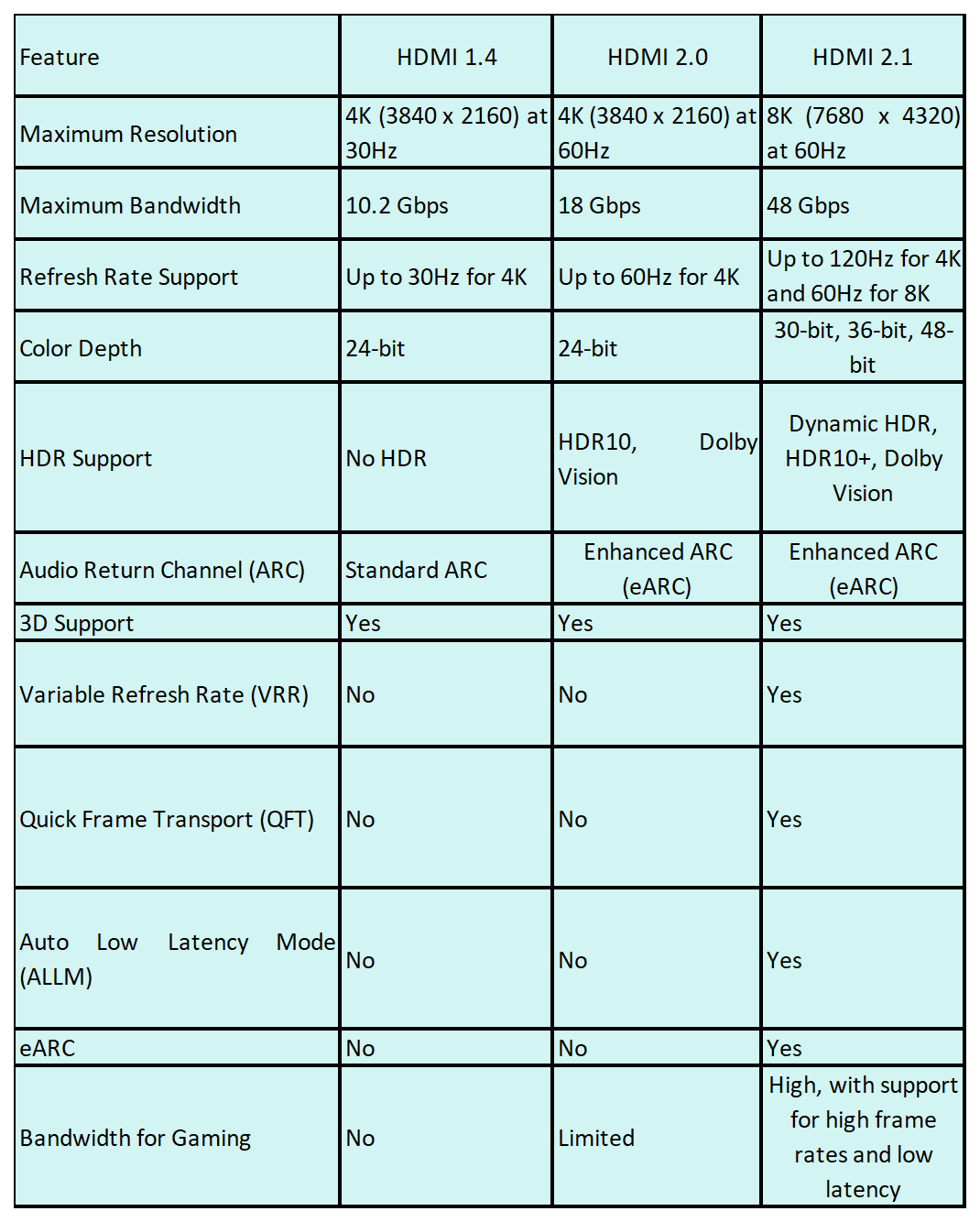
Signal quality directly impacts image clarity. Poor cables cause softness, color bleed, or resolution limits.
Ditch VGA for Digital
VGA is an analog signal prone to interference, ghosting, and incorrect EDID detection.
Solution: Replace VGA with HDMI or DisplayPort.
You will immediately see sharper text and unlock higher resolutions.
Choose HDMI 2.0 or DisplayPort 1.4
Not all HDMI cables are equal. Older HDMI 1.4 cables cannot handle 4K at 60Hz.
Use:
– HDMI 2.0 or higher for 4K at 60Hz
– DisplayPort 1.4 for 4K at 120Hz or dual 4K monitors
If your 4K monitor runs at 30Hz or looks blurry, the cable is likely the culprit. Swap in a certified high-speed cable to test.
Fix Blur on Portable Monitors

Portable monitors often suffer from blurriness due to bandwidth limits on USB-C connections.
Lower the Refresh Rate
High-refresh portable screens at 120Hz on USB-C can exceed available bandwidth.
Try:
1. Go to Display settings, then Advanced, then Refresh rate.
2. Change from 120Hz to 100Hz or 60Hz.
3. Check if text sharpness improves.
Bandwidth saturation forces the system to reduce color depth or clarity, so lowering the refresh rate frees up data space.
Disable HDR
Many portable monitors use 8-bit+FRC panels. Enabling HDR on these screens can soften the image.
Fix:
1. Go to System, then Display, then HDR.
2. Turn off “Use HDR”.
3. Retest clarity.
HDR processing on non-native HDR panels often degrades sharpness.
Use a Thunderbolt Cable
Non-Thunderbolt USB-C ports may not deliver full bandwidth.
Best practice: Use Thunderbolt 3 or 4 cables and ports for 4K portable monitors to ensure a stable signal.
Handle Dual-Screen Monitor Issues
Stacked dual-screen portable monitors often show clarity differences between panels.
Accept Hardware Limits
It is normal for the lower screen to appear slightly warmer or less sharp due to panel design and signal routing. This is not a defect, and many brands acknowledge it as an industry-wide limitation.
Disable the Gravity Sensor
If text blurs when moving or rotating the monitor, the gravity sensor may be misfiring.
Fix:
1. Open the monitor’s OSD menu using the physical buttons.
2. Navigate to Display Settings.
3. Turn off Gravity Sensor or Auto Rotate.
4. Manually set the orientation in Windows Display settings.
This prevents unwanted rotation and rendering artifacts.
Clean Install Your GPU Drivers
Outdated or corrupted drivers are a top cause of blurry displays. Generic Windows Update drivers often lack critical optimizations for display handling.
Download the Latest Driver
Get drivers from:
– NVIDIA: nvidia.com/drivers
– AMD: amd.com/support
– Intel: intel.com/drivers
Always match your GPU model and operating system version.
Perform a Clean Installation
Residual files from old drivers can cause conflicts.
Steps:
1. Download the latest driver from the manufacturer.
2. Boot into Safe Mode by holding Shift while clicking Restart.
3. Run the installer and choose “Custom (Advanced) Install.”
4. Check “Perform a clean install.”
5. Let it remove old settings and install fresh.
This resets display timing, scaling tables, and color profiles.
Troubleshoot macOS External Displays
MacBooks often make external monitors look blurry because macOS renders UI elements at a high pixel density and downscales them for the external display.
Force HiDPI Mode
Non-Retina external monitors connected to MacBooks often appear slightly blurry.
Workaround: Use BetterDisplay, a third-party app, to force HiDPI mode on external monitors.
This simulates Retina sharpness but requires compatible hardware.
Avoid Daisy-Chaining on M1/M2 Macs
Apple Silicon Macs have strict limits on daisy-chained displays. Two 4K monitors over one Thunderbolt port may run at 30Hz, causing blur.
Fix: Connect each monitor directly to a separate Thunderbolt port.
Alternatively, lower the resolution to 1280×720 HiDPI for sharper scaling at the cost of screen space.
Optimize Samsung DeX and Mobile Connections
A blurry display when using phone-to-monitor connections such as Samsung DeX usually points to a phone-side issue.
Update Your Phone Software
Fix:
1. Update your phone’s OS.
2. Update the DeX app via the Galaxy Store.
3. Restart the DeX connection.
The monitor is likely fine, since DeX sometimes defaults to lower resolution modes.
Reset Your Monitor Settings
Internal monitor settings can override your PC’s output and create unwanted blur.
Factory Reset the Monitor
Steps:
1. Press the menu button on the monitor.
2. Go to Settings, then Reset or Factory Reset.
3. Confirm and restart.
This disables Sharpness, Overscan, and Adaptive Contrast, all of which can degrade clarity.
Turn Off Post-Processing
Disable these features in the OSD:
– Sharpness (set to 0 to 10, not 50 or higher)
– Overscan
– Smart Scaling
– Adaptive Contrast
These alter the image unnaturally and can mimic blurriness.
Final Tips and Prevention
Keep your display sharp long-term with these habits.
Avoid High Sharpness Settings
Setting Sharpness above 20 adds artificial edge enhancement, creating halos and noise.
Best practice: Keep sharpness at 0 to 10 for natural clarity.
Use the Correct Aspect Ratio
Ensure the monitor is set to 1:1 or Native aspect ratio in the OSD.
“Fit to screen” or “Zoom” modes stretch the image and blur text.
Update Firmware
Check the manufacturer’s website for monitor firmware updates, especially for USB-C and portable models.
Some updates address EDID, HDR, or scaling bugs.
Frequently Asked Questions About Fixing a Blurry Monitor
Why is my monitor blurry all of a sudden?
Sudden blurriness usually results from a Windows update that changed your resolution or scaling, a driver crash, or a loose cable connection. Start by checking your display resolution matches the recommended setting, then reseat your cable and reboot.
Can a bad HDMI cable cause a blurry display?
Yes. Older HDMI cables (such as 1.4) lack the bandwidth for 4K at 60Hz, forcing the system to drop resolution or refresh rate. A damaged cable can also cause signal degradation. Swap in a certified HDMI 2.0 or DisplayPort 1.4 cable to test.
How do I fix blurry text on Windows 10 or 11?
Set your display to the recommended native resolution, match scaling percentages across all monitors, and run the ClearType Text Tuner. If text remains fuzzy in specific apps, use the “Override high DPI scaling behavior” option in the application’s compatibility settings.
Why does my second monitor look blurry in a dual setup?
Mismatched scaling between monitors is the most common cause. Set both screens to the same scale percentage, or make the lower-DPI monitor your primary display and sign out and back in for the change to take effect.
Does ClearType actually help with blurry text?
ClearType helps when text appears slightly fuzzy but the rest of the display looks sharp. It optimizes sub-pixel rendering for your specific monitor. If text looks blocky or distorted, try disabling font smoothing instead.
How do I fix a blurry external monitor on a Mac?
Use BetterDisplay to force HiDPI mode on non-Retina external monitors. Avoid daisy-chaining displays on M1 or M2 Macs, and connect each monitor directly to a separate Thunderbolt port for best results.
Key Takeaways for Fixing Your Blurry Monitor
A blurry monitor is almost always fixable without buying new hardware. Start by setting your display to its native resolution and matching scaling percentages across all monitors. Then verify your refresh rate is set to a progressive mode (60p Hz or higher) and run the ClearType tuner for sharper text.
If the issue persists, swap your cable for a certified HDMI 2.0 or DisplayPort 1.4 option, and perform a clean install of your GPU drivers. Most fixes take under 10 minutes and require no special tools. Apply these steps in order, and you will restore crisp, comfortable viewing in no time.


