
You’ve just unboxed an Xbox Series X or Series S and want the fastest, cleanest gaming experience at your desk without a bulky TV. Connecting your Xbox to a monitor delivers lower input lag, higher refresh rates, and a more compact setup ideal for competitive and immersive gaming. Unlike a TV hookup, monitors often lack speakers and may have HDMI limitations that cause black screens or audio problems if not configured properly.
This guide walks you through exactly how to connect any Xbox (Series X, Series S, or Xbox One) to a PC monitor or laptop, covering hardware compatibility, step-by-step setup, resolution optimization, audio solutions, and troubleshooting. Whether you’re aiming for 1440p 120Hz on the Series S or 4K 120Hz on the Series X, you’ll get it right the first time with no guesswork.
Check Monitor and Xbox Compatibility
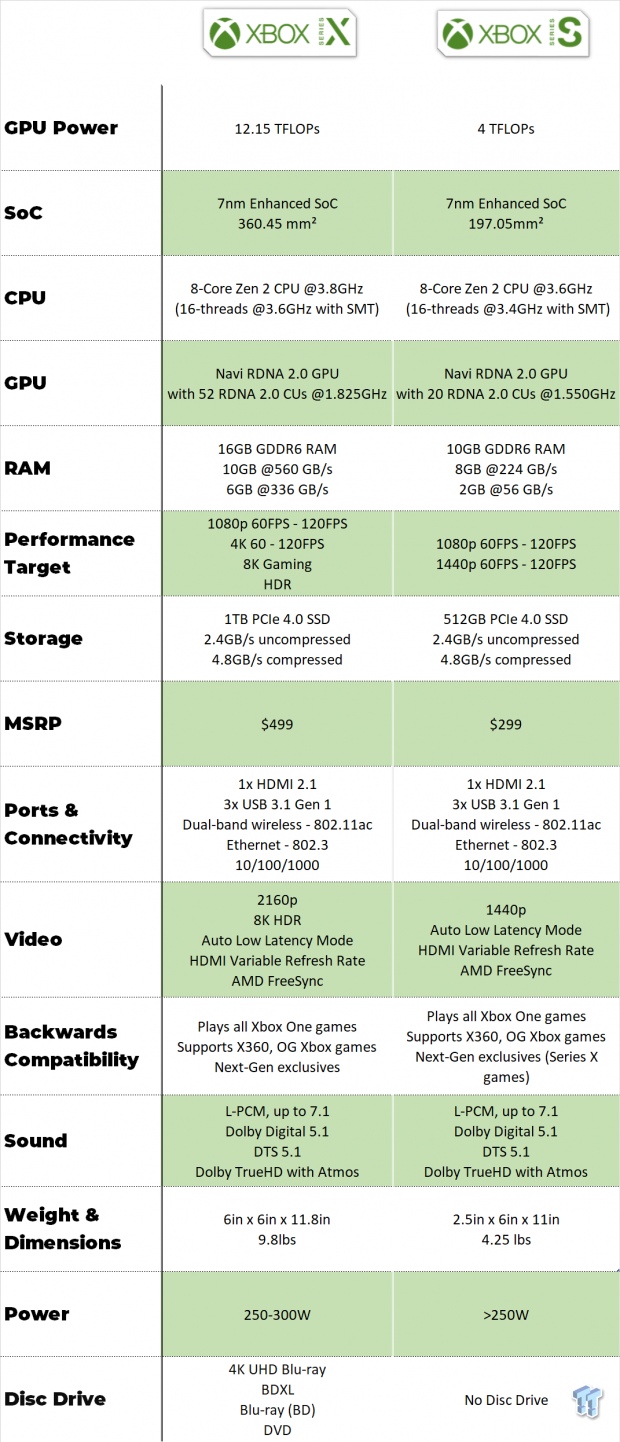
Before plugging anything in, confirm your hardware supports your desired performance. Mismatched specs are the leading cause of failed connections.
Match HDMI Versions to Your Goal
| Target Performance | Required HDMI Version | Supported By |
|---|---|---|
| 4K @ 120Hz | HDMI 2.1 | Xbox Series X only |
| 4K @ 60Hz | HDMI 2.0 | Series X, Series S, Xbox One X |
| 1440p @ 120Hz | HDMI 2.0 | Series S (max), Series X |
| 1080p @ 120Hz | HDMI 2.0 | All modern Xbox consoles |
- Xbox Series X ships with an Ultra High Speed HDMI 2.1 cable. Use it.
- Xbox Series S includes an HDMI 2.0 cable, which is sufficient for its 1440p max.
- Your monitor must support a matching HDMI input. An HDMI 2.0 monitor cannot run 4K 120Hz.
⚠️ Warning: Using an older HDMI 1.4 cable limits you to 1080p 60Hz and may cause flickering or no signal.
Verify Monitor Input Type
Most monitors have HDMI IN ports, but double-check before connecting:
- Look for labels: “HDMI IN” or an arrow pointing into the port.
- Avoid output-only ports, which are common on laptops.
- If your monitor only has DisplayPort, use an active HDMI to DisplayPort adapter.
Consider Aspect Ratio Limits
Ultrawide monitors (3440×1440, 21:9) often show black bars on the sides (pillar-boxing) because most Xbox games are built for 16:9. Some titles stretch awkwardly. Stick with 16:9 monitors unless you’re okay with visual compromises.
Gather Required Equipment
Use this checklist to avoid mid-setup frustration.
Essential Gear
- HDMI cable: Use the one included with your Xbox (HDMI 2.1 for Series X, HDMI 2.0 for Series S).
- Monitor with HDMI input: Must support your target resolution and refresh rate.
- External audio solution: Most monitors lack speakers.
Optional but Helpful
- HDMI switch: Switch between PC and Xbox easily.
- KVM switch: Share monitor, keyboard, and mouse between PC and Xbox.
- USB-C to HDMI adapter: For laptops without HDMI input.
- HDMI audio extractor: Route audio to speakers or headphones.
- Active HDMI-to-DisplayPort adapter: If monitor has DP but no HDMI.
✅ Pro Tip: Label your HDMI cables. One for PC, one for Xbox. No more guessing during setup.
Step-by-Step Connection Process
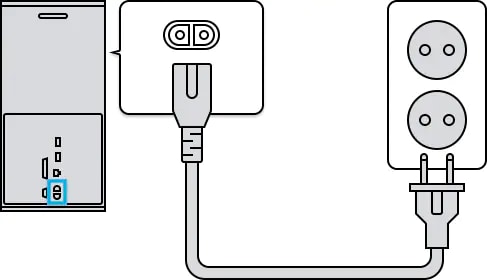
Follow these steps in order to avoid signal issues and hardware strain.
Power Down Devices First
Always turn off both the Xbox and monitor before connecting cables. This prevents power surges and handshake errors.
Connect HDMI Cable
- Plug one end into the HDMI OUT port on the back of the Xbox.
- Plug the other end into an HDMI IN port on the monitor.
- Ensure the connector clicks into place. Gently wiggle to test security.
🔍 Visual cue: The HDMI port on the Xbox is labeled and positioned near the power and Ethernet ports.
Power On in Correct Order
- Turn on the monitor first.
- Then power on the Xbox using the power button or controller.
The console should auto-detect the display within 10 to 15 seconds.
Fix No Signal or Black Screen
If the monitor stays black, don’t panic. This is common and usually fixable.
Select Correct Input Source
Monitors often default to the wrong input.
- Press the input/source button on the monitor (usually bottom-right).
- Open the On-Screen Display (OSD) menu.
- Navigate to Input Source.
- Choose the HDMI port you plugged into (e.g., HDMI 1, HDMI 2).
🔄 Shortcut: Many monitors have a dedicated “Source” button that cycles inputs quickly.
Test Cable and Port
- Try a different HDMI cable, preferably the one that came with your Xbox.
- Swap to a different HDMI port on the monitor.
- If using an adapter (e.g., HDMI to DP), ensure it’s powered and active.
Laptop Users: Confirm Input Support
Most laptops only have HDMI output, not input.
To connect Xbox to a laptop:
- Use a USB-C to HDMI adapter that supports DisplayPort Alt Mode.
- Or use the Xbox streaming app for a wireless method (see below).
❌ Myth: “I can plug HDMI into my laptop’s HDMI port.”
✅ Reality: Unless it’s a capture laptop or has HDMI-in, it won’t work.
Configure Xbox Display Settings

Once you see the Xbox dashboard, optimize for performance.
Access TV and Display Options
- Press the Xbox button on your controller.
- Go to Profile & system > Settings > General > TV & display options.
Set Correct Resolution
Choose based on your monitor:
- 4K UHD (3840×2160): For 4K monitors (Series X only).
- 1440p (QHD): For 1440p monitors (ideal for Series S).
- 1080p (FHD): For older or high-refresh 1080p monitors.
📏 Rule of thumb: Match the monitor’s native resolution. Forcing 4K on a 1080p screen causes blurriness.
Enable 120Hz Refresh Rate
If your monitor supports it:
- In TV & display options, select Refresh rate.
- Choose 120 Hz.
- Confirm the screen doesn’t go black. Revert to 60Hz if needed.
⚠️ Note: 4K 120Hz requires HDMI 2.1. You’ll only see the option if both console and monitor support it.
Turn On Variable Refresh Rate (VRR)
Eliminate screen tearing:
- Go to Video modes in display settings.
- Toggle Variable Refresh Rate to On.
- Reboot if prompted.
✅ Works with: HDMI 2.1 VRR or AMD FreeSync-compatible monitors.
Enable HDR (If Supported)
- In Video modes, turn on Allow HDR10.
- The Xbox will test your monitor’s HDR capability.
- If supported, games with HDR will look richer with better contrast.
🔍 Check: In settings, go to 4K TV details to see if HDR10 is detected.
Solve Audio Problems

No sound? Most monitors don’t have speakers. Here’s how to fix it.
Use Controller Headset
- Plug a 3.5mm headset into the port on the bottom of the Xbox controller.
- Audio routes directly with zero latency, perfect for gaming.
💡 Best for: Private play, voice chat, competitive gaming.
Connect External Speakers
Option 1: HDMI Audio Extractor
- Sits between Xbox and monitor.
- Splits signal: video to monitor, audio to 3.5mm, optical, or RCA.
- Connect speakers or soundbar to the audio output.
Option 2: Monitor Audio Out
- If your monitor has a 3.5mm Audio Out jack, plug in external speakers.
- Go to Xbox Settings > General > Volume & audio output and set Speaker audio to Stereo uncompressed.
Option 3: Optical Audio (With Adapter)
- Use a Toslink optical cable.
- Requires Xbox Stereo Headset Adapter (sold separately).
- Connect to AV receiver or sound system.
🎧 Avoid: Relying on monitor speakers. Most are underpowered and tinny.
Connect Xbox to Laptop Wirelessly
No HDMI input? Stream wirelessly instead.
Requirements
- Xbox and laptop on the same Wi-Fi network.
- Laptop running Windows 10 or 11.
- Same Microsoft account on both devices.
Steps to Stream
- On Xbox: Settings > Devices & connections > Remote features > Enable remote connections.
- On PC: Open Microsoft Store, install Xbox App.
- Sign in with the same Microsoft account.
- Click the Connection icon (top-left), then Add device, then select your Xbox.
- Click Stream.
⏱️ Latency: Expect 50 to 150ms delay. Not ideal for fast-paced shooters.
✅ Best for: Casual gaming, watching media, remote console management.
Optimize for Competitive Gaming
Gamers chasing 120 FPS need every millisecond.
Choose High-Refresh Monitor
Target monitors like:
- ViewSonic XG24G1: 24″, 180Hz, 1ms, HDMI 2.0.
- ViewSonic XG27G1: 27″, 180Hz, ideal for esports.
Both support 1080p 120Hz, which is perfect for FPS titles like Call of Duty or Fortnite.
Enable Auto Low Latency Mode (ALLM)
- In TV & display options, go to Game mode.
- Enable Allow game mode.
- Monitor should auto-switch to low-latency mode.
🎯 Result: Up to 30ms lower input lag.
Disable Unneeded Features
Turn off:
- HDR (if the game doesn’t use it).
- Motion smoothing.
- Post-processing effects in game settings.
Every setting impacts response time.
Recommended Monitors for Xbox

Pick based on your console and priority.
For Xbox Series S (1440p Focus)
MSI PRO MP341CQ – 34″ Curved Ultrawide
- Resolution: 3440×1440 (UWQHD)
- Refresh: 100Hz
- Ports: 2x HDMI 2.0b
- Pros: Immersive curve, built-in speakers
- Cons: Max 100Hz, no 120Hz; ultrawide game support spotty
🎮 Best for: Mixed productivity and gaming. Accept pillar-boxing in games.
For 1080p 120Hz Gaming
ViewSonic XG24G1
- Resolution: 1080p
- Refresh: 180Hz
- Response: 1ms
- Ports: HDMI 2.0, DP 1.4
- Features: VRR, G-Sync Compatible
🎯 Best for: Competitive FPS with smooth motion and low input lag.
ViewSonic XG27G1
Same specs, larger 27″ screen. Better for sitting slightly farther back.
Troubleshoot Common Issues
Quick fixes for typical problems.
Can’t Select 120Hz
- Check: Are you using an HDMI 2.1 cable and port?
- Confirm: Monitor supports 120Hz over HDMI (not just DisplayPort).
- Update: Xbox system software. Go to Settings > System > Updates.
Screen Tearing
- Enable VRR in Video modes.
- Ensure the monitor supports Adaptive Sync or FreeSync.
Audio Out of Sync
- On Xbox: Settings > General > Volume & audio output > Audio latency.
- Adjust the slider until audio matches video.
- Close background apps if streaming wirelessly.
Flickering or Signal Drop
- Replace the HDMI cable. Try the one from the Xbox box.
- Avoid cable extensions or splitters unless HDMI 2.1-rated.
- Don’t bend the cable sharply. Keep it straight near connectors.
Maintenance Tips for Longevity
Keep your setup running smoothly.
Prevent Overheating
- Leave 10 to 15 cm (4 to 6 inches) clearance around the Xbox.
- Dust vents monthly with compressed air.
- Never stack items on or around the console.
Protect HDMI Ports
- Minimize frequent plugging and unplugging.
- Use an HDMI switch if toggling between devices.
Avoid Burn-In
- Don’t leave static HUDs (e.g., game menus) on screen for hours.
- Use screen savers or turn off the monitor when idle.
Update Firmware
- Xbox updates often improve display compatibility.
- Check for monitor firmware updates via the manufacturer website.
Frequently Asked Questions About Connecting Xbox to a Monitor
Can I connect my Xbox to any monitor?
Yes, as long as the monitor has an HDMI input port. Older monitors with only VGA require an active HDMI-to-VGA adapter. Most modern PC monitors support HDMI and will work with any Xbox console.
Why is my Xbox showing a black screen on my monitor?
The monitor is likely set to the wrong input source. Open the OSD menu and select the correct HDMI port. If that fails, try a different HDMI cable or port. Confirm your cable meets the HDMI version required for your target resolution.
Do I need HDMI 2.1 for Xbox Series X?
You need HDMI 2.1 only if you want 4K at 120Hz. For 4K at 60Hz or 1440p at 120Hz, HDMI 2.0 is sufficient. The Xbox Series X includes an HDMI 2.1 cable in the box.
Can I connect my Xbox to a laptop screen?
Most laptops only have HDMI output, not input. You can use a USB-C to HDMI adapter that supports DisplayPort Alt Mode, or stream wirelessly using the Xbox app on Windows 10 or 11. Expect some latency with wireless streaming.
How do I get sound from my Xbox to my monitor?
Most monitors lack speakers. Use a 3.5mm headset plugged into the controller, connect external speakers via an HDMI audio extractor, or use your monitor’s 3.5mm audio out jack if available. Optical audio requires the Xbox Stereo Headset Adapter.
Will an ultrawide monitor work with Xbox?
Ultrawide monitors work but most Xbox games are built for 16:9. Expect black bars (pillar-boxing) on the sides or stretched visuals in unsupported titles. A standard 16:9 monitor delivers the cleanest Xbox experience.
Key Takeaways for Connecting Your Xbox to a Monitor
Connecting an Xbox to a monitor unlocks lower latency, faster response, and a cleaner desk setup. Match your HDMI cable and port version to your target resolution and refresh rate. Use the official Xbox cable whenever possible, and always set up audio separately since most monitors lack quality speakers.
Start by checking your monitor’s HDMI version and ports, then follow the step-by-step connection process. Configure your Xbox display settings to match your monitor’s native resolution, enable VRR for smoother gameplay, and pick an audio solution that fits your space. With the right setup, you’re ready to game like a pro right from your desk.


