
Your high-resolution PC monitor sits on your desk collecting dust between work sessions. Why not turn it into a fully functional television? With streaming dominating modern viewing habits, learning how to use computer monitor as television is both practical and budget-friendly. Whether you want a secondary screen for your bedroom or a primary display for a small space, the setup is simpler than you might think.
Monitors lack built-in tuners, powerful speakers, and smart TV interfaces. However, those gaps are easy to fill with streaming sticks, external audio, and a few smart adjustments. This guide covers every step: from connecting devices to optimizing picture quality and sound. By the end, your monitor will deliver crisp, vibrant TV content for movies, shows, and live broadcasts.
Connect a Streaming Stick to Your Monitor
:max_bytes(150000):strip_icc()/how-to-connect-firestick-to-a-computer-monitor-a99c4b7a33d14e3784c170fb3c0ede17.jpg)
The fastest path to smart TV functionality runs through a streaming stick. Devices like the Amazon Fire Stick, Roku Streaming Stick, or Google Chromecast plug directly into your monitor’s HDMI port. Simply connect the device, power it via USB or a wall adapter, and switch to the correct HDMI input. You now have a smart TV interface without buying a new television.
Pick the Right Streaming Device
Match your streaming stick to your preferred ecosystem:
– Amazon Fire Stick: Best for Prime Video households
– Google Chromecast with Google TV: Ideal for YouTube and Android users
– Roku Streaming Stick 4K: Simple interface with broad app support
– Apple TV 4K: Perfect for Apple ecosystem fans
All these options support 4K, HDR, and voice remotes for full control without a PC.
Control Your Monitor Like a Real TV
Once connected, operate your monitor just like a traditional television:
– Power on and off using the streaming remote (if HDMI-CEC is supported)
– Launch apps, search for shows, and adjust volume
– Switch back to desktop use by changing the input source
Some monitors auto-detect active HDMI signals. Others require manual input selection through the on-screen display menu.
Watch Live TV With an External Tuner
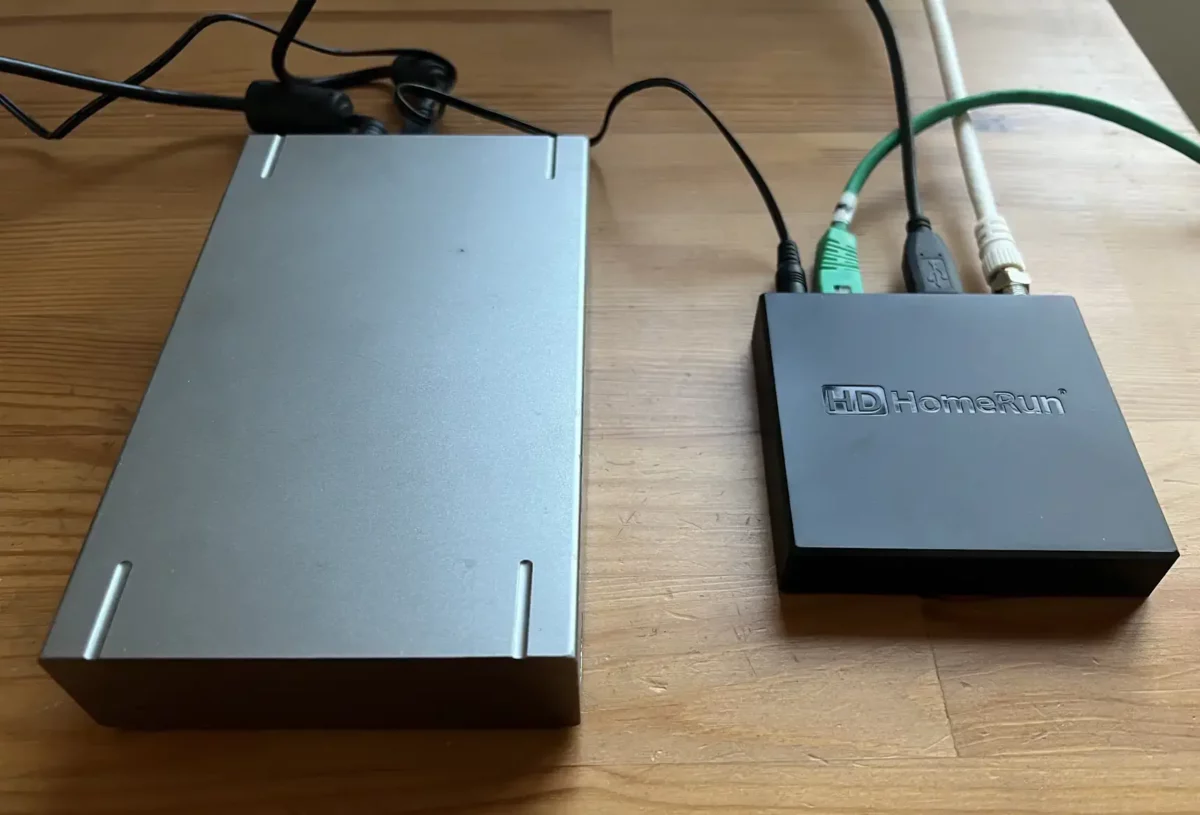
Monitors cannot receive over-the-air broadcasts without help. Unlike televisions, they lack built-in tuners for antenna signals. To watch free local channels, you need an external digital converter or set-top box.
Set Up an Antenna With a Set-Top Box
Follow these steps for live broadcast TV:
1. Purchase a digital tuner (such as HDHomeRun, Mohu AirWave, or RCA Digital Converter)
2. Connect your coaxial antenna cable to the tuner’s RF input
3. Run an HDMI cable from the tuner to your monitor
4. Power on the tuner and scan for available channels
After setup, select the correct HDMI input on your monitor. You will see live local channels in full HD without any subscription fees.
Stream Live TV Through Online Services
Skip the antenna entirely with live TV streaming platforms:
– YouTube TV: Full local channels with cloud DVR
– Hulu + Live TV: Includes on-demand library
– Sling TV: Budget-friendly customizable packages
– FuboTV: Sports-heavy channel lineup
Log in through a browser or your streaming stick. No extra hardware required.
Choose a Monitor With Built-In Streaming Apps

Some modern monitors eliminate the need for external devices entirely. They come with smart TV features pre-installed, combining productivity with entertainment in a single display.
Explore Monitors With Smart Hubs
Models like the Samsung M80C and Alienware AW3225QF include:
– Pre-installed apps for Netflix, Prime Video, Disney+, and YouTube
– Bluetooth for wireless remotes, controllers, and headphones
– WebOS or Tizen interfaces for smooth navigation
The Samsung M80C even supports Samsung Gaming Hub. This lets you stream Xbox Cloud Gaming or NVIDIA GeForce NOW directly, with no PC required.
Pair Devices Through Bluetooth
If your monitor includes Bluetooth connectivity:
– Connect a wireless remote for easier navigation
– Link a game controller for cloud gaming sessions
– Stream audio to Bluetooth speakers or headphones
Access these options through your monitor’s settings menu. No dongles or drivers needed.
Adjust Your Viewing Distance for TV Use
Monitors are typically smaller than living room televisions, usually ranging from 24 to 32 inches. This size difference affects how far you should sit for optimal viewing comfort.
Follow Recommended Distances by Resolution
Match your seating distance to your monitor’s resolution:
– 1080p monitor: Sit 3 to 5 feet away
– 1440p monitor: Sit 2.5 to 4 feet away
– 4K monitor: Sit 2 to 3 feet away
Sitting too far reduces visible detail. Sitting too close causes eye strain during long sessions. For a 27-inch screen used as a primary TV, position seating within 4 feet for the best experience.
Wall-Mount Your Monitor Like a TV
Want a living room setup with your monitor?
– Use a VESA-compatible mount (most monitors support 75x75mm or 100x100mm patterns)
– Position the screen center at eye level when seated
– Manage cables with ties or raceways for a clean look
A proper mount transforms any monitor into a sleek entertainment display.
Add External Speakers for Better Sound
Most monitors have weak built-in speakers or none at all. For a true television experience, external audio is essential.
Use HDMI ARC or eARC for Clean Audio
If your monitor supports HDMI ARC (Audio Return Channel):
– Connect an HDMI cable from the monitor to a soundbar or AV receiver
– Enable ARC in your monitor’s settings menu
– Audio from streaming devices routes directly to your sound system
This setup keeps everything centralized and tidy.
Connect Speakers Through 3.5mm or USB
No ARC support? Try these alternatives:
– 3.5mm headphone jack: Plug in powered speakers or a soundbar
– USB audio output: Connect USB speakers or a DAC (digital-to-analog converter)
– Bluetooth: Stream wirelessly to headphones or portable speakers
Check your monitor’s side or back panel for available ports. Test each option to find what works best.
Route Audio From Source Devices Correctly
Important note: When your streaming stick or tuner connects directly to the monitor, the monitor handles audio output. Ensure your speaker system connects to the monitor, not a PC. Otherwise, you will see video but hear nothing.
Understand Upscaling Limitations on Monitors

Televisions enhance lower-resolution content automatically. Monitors do not, which affects how older content looks on modern displays.
Why Monitors Lack Upscaling Hardware
TVs contain onboard processors that upscale 720p or 1080p content to fit 4K screens. Monitors assume the connected device (usually a PC) handles scaling. When you plug a streaming stick directly into a monitor, that processing power is missing.
The result? Lower-resolution streams may appear softer or more pixelated compared to the same content on a 4K television.
Improve Picture Quality With These Fixes
Boost image clarity with practical workarounds:
– Stream in 4K whenever possible to avoid upscaling
– Run streaming apps on a PC connected to the monitor, letting the GPU handle scaling
– Enable NVIDIA RTX Video to enhance sharpness and color in lower-resolution videos
– Adjust sharpness slightly in your monitor’s on-screen display menu
These adjustments help close the quality gap between monitors and televisions.
Optimize Monitor Settings for TV Viewing

Fine-tune your display to make television content look its best. Small adjustments to picture modes and calibration can dramatically improve your viewing experience.
Switch to Movie or HDR Mode
Change picture modes through your monitor’s on-screen display:
– Movie or Cinema Mode: Warmer tones with better contrast
– HDR Mode: Brighter highlights and richer colors for supported content
– Game Mode: Turn off for video to avoid oversharpening
Avoid “Vivid” or “Standard” modes. They often over-enhance colors and distort the original image.
Calibrate Brightness and Contrast
Ideal starting settings for dark rooms:
– Brightness: 40 to 60 percent
– Contrast: 70 to 80 percent
– Color Temperature: Warm (around 6500K)
Adjust based on your room’s ambient light. Too bright causes eye strain during nighttime viewing.
Troubleshoot Common Setup Issues
Even with careful planning, problems can arise. Here are solutions to the most frequent challenges when learning how to use computer monitor as television.
Fix No Signal Problems
A blank screen after connecting a device usually means an input issue:
– Press the input or source button on your monitor
– Manually select the correct HDMI port
– Confirm the streaming stick or tuner has power
Some monitors do not auto-switch inputs. Always verify the active port in your settings.
Solve Remote Control Issues
If your streaming remote turns on the streaming device but not the monitor, HDMI-CEC may be disabled:
– Check whether your monitor supports HDMI-CEC (called “Anynet+” on Samsung or “VIERA Link” on Panasonic)
– Enable the feature in your monitor’s settings menu
– Use a CEC-compatible streaming device for best results
Without CEC support, you will need to power the monitor on manually.
Resolve Audio Problems
Picture appears but no sound plays? Try these fixes:
– Verify the monitor’s audio output is enabled
– Connect speakers to the correct port (3.5mm, HDMI, or Bluetooth)
– Adjust audio output settings on your streaming device
– Test with a different HDMI cable, as faulty cables can drop audio signals
Headphones offer a quick way to isolate whether the issue lies with speakers or the monitor itself.
Final Tips for a Seamless Monitor-to-TV Experience
Transform your monitor into a true television replacement with these professional recommendations.
Simplify Control With a Universal Remote
Reduce remote clutter by programming a single controller:
– Universal remotes from RCA or GE work with most devices
– Smartphone apps (like Roku or Fire TV) offer full remote functionality
– Some older Logitech Harmony remotes remain available secondhand
Program one remote to control both your monitor and streaming device.
Keep Your Setup Organized
A tidy arrangement looks professional and prevents hazards:
– Use cable ties or sleeves to bundle cords
– Mount power strips nearby for easy access
– Hide cables behind furniture or in wall raceways
Clean cable management improves both aesthetics and safety.
Consider a Dedicated Mini PC
For maximum flexibility, connect a small computer to your monitor:
– Options include Intel NUC, ASRock DeskMini, or Mac Mini
– Install streaming apps on Windows or Linux
– Run it as a 24/7 media center
A mini PC provides full browser access, better GPU-based upscaling, and background task capability. It offers the ultimate hybrid experience: monitor as TV, powered by a silent computer.
Frequently Asked Questions About Using a Monitor as a TV
Can any computer monitor be used as a television?
Most modern monitors with HDMI input can function as a television. You will need to add a streaming device, external speakers, and possibly a tuner for live broadcasts. The main limitations are size and built-in features compared to dedicated TVs.
Do monitors have built-in tuners like TVs?
No, monitors do not include built-in tuners for over-the-air broadcasts. To watch live TV from an antenna, you must connect an external digital converter or set-top box between your antenna and the monitor.
Will a streaming stick work on any monitor?
Streaming sticks work on any monitor with an HDMI port. You will need a way to power the device, either through a USB port on the monitor or a wall adapter. After connecting, simply switch to the correct HDMI input.
Why does my monitor have no sound when streaming?
Monitors often have disabled or low-quality built-in speakers. Check your monitor’s audio output settings and connect external speakers through the 3.5mm jack, HDMI ARC, or Bluetooth. Also verify the audio output settings on your streaming device.
Can I watch live TV on a monitor without cable?
Yes, you can watch live TV through streaming services like YouTube TV, Hulu + Live TV, or Sling TV. Alternatively, connect an antenna to a digital tuner for free over-the-air broadcasts. Both methods work well with any HDMI-equipped monitor.
Is it worth using a monitor instead of buying a TV?
Using a monitor as a TV makes sense for small spaces, dorm rooms, or secondary viewing areas. Monitors often offer better pixel density and lower input lag than budget TVs. However, dedicated TVs provide larger screens, built-in tuners, and stronger speakers out of the box.
Key Takeaways for Using Your Monitor as a Television
Learning how to use computer monitor as television opens up flexible viewing options without buying a new display. A streaming stick provides instant smart TV functionality. An external tuner unlocks live broadcasts. External speakers solve the weak audio problem common to most monitors.
The setup requires some initial investment in accessories, but the result rivals many dedicated televisions. Adjust your viewing distance, calibrate picture settings, and consider wall-mounting for a true living room experience. With the right configuration, your monitor delivers excellent picture quality, responsive performance, and versatile entertainment options.
Ready to transform your workspace display? Plug in a streaming stick, connect your speakers, and start watching. Your monitor is now a fully functional television ready for binge sessions, live sports, and movie nights.


