
A flickering screen, distorted colors, or an unresponsive menu can turn your monitor into a source of pure frustration. If you’re searching for how to reset monitor settings to fix display glitches, misconfigurations, or frozen screens, this guide walks you through every proven method. You’ll learn software resets, brand-specific factory restores, and hardware-level hard resets to bring any display back to life.
Whether you use LG, AOC, HP, or another brand, the methods below cover blurriness, black bars, color shifts, and unresponsive menus. By the end, you’ll know exactly how to reset a monitor using the right technique for your specific problem.
Reset Windows Display Settings in Windows 11
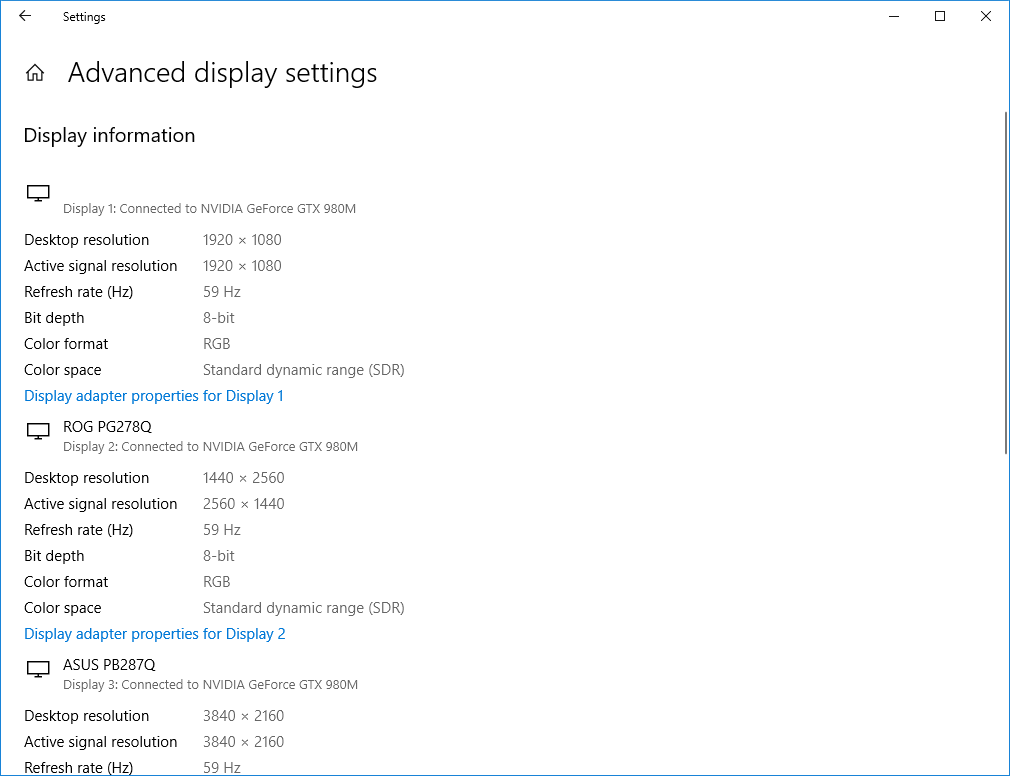
When your monitor shows black bars, blurry text, or incorrect scaling, the issue often lies in Windows rather than the hardware. Resetting the display adapter forces your system to renegotiate resolution and refresh rate with the monitor.
Fix Resolution via Display Adapter
- Right-click your desktop and select Display settings.
- Scroll down and click Advanced display settings.
- Choose Display adapter properties.
- Click List All Modes.
- Pick a different resolution, such as 1280×1040 at 32-bit, 60 Hz.
- Click OK, then Apply.
- Repeat the process and select your native resolution (usually 1920×1080 at 60 Hz).
- Confirm the display looks sharp and fills the screen.
Pro Tip: Older HDMI or VGA cables may limit available modes. Use DisplayPort or updated cables for high-resolution support.
Why This Method Works
This approach clears corrupted GPU-to-monitor communication. It resets resolution, color depth, and refresh rate without affecting monitor-specific settings like brightness or input preference.
Time Required: 2 minutes
Difficulty: Easy
Best For: Blurry text, black bars, scaling issues after Windows updates
Factory Reset Using the OSD Menu
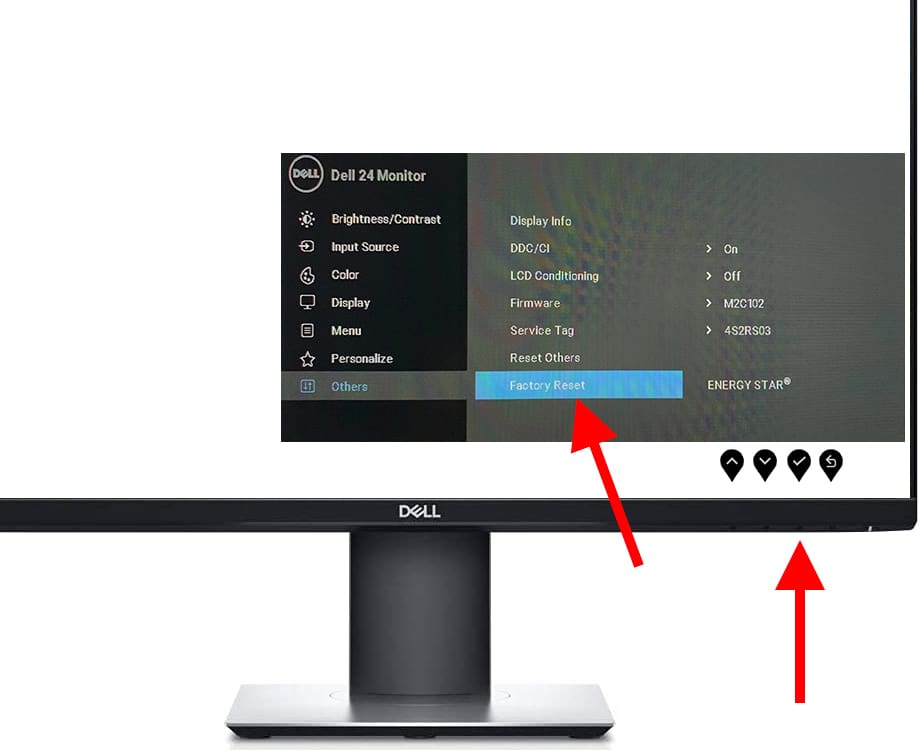
When colors look off, the image is warped, or custom modes behave oddly, your monitor’s internal settings are likely corrupted. A factory reset via the On-Screen Display (OSD) restores all image and system settings to default.
Universal Reset Steps
- Press the Menu button on your monitor (usually on the front, side, or bottom).
- Use directional buttons to navigate to Settings, System, or Setup.
- Find and select Reset to Factory Defaults, Restore Factory Settings, or Initialize Settings.
- Confirm the action when prompted.
- Wait for the monitor to reboot automatically.
After the reset completes, brightness, contrast, and color temperature return to stock. Geometric distortions like pincushion and trapezoid are corrected, and input priority resets to default (HDMI first in most cases).
What Gets Reset
• Brightness, contrast, and gamma
• Color temperature and custom modes (Game, Movie, sRGB)
• Geometric corrections (phase, clock, keystone)
• Input source preferences
• OSD language and timeout
Note: Firmware version and panel hardware remain unchanged after this process.
No OSD Access? Try a Hard Reset
If the menu won’t open, follow these steps:
- Unplug all cables (power, HDMI, USB).
- Hold the power button for 10 seconds.
- Reconnect power and video cables.
- Power on the monitor.
This drains residual power and often revives unresponsive units.
LG Monitor Reset Steps

LG monitors use a joystick control, typically located on the back bottom-right. Menu paths vary slightly between standard and gaming models.
Standard LG Models
- Press the joystick to open the menu.
- Push right to enter [Settings].
- Navigate to [General].
- Select [Reset to Initial Settings].
- Press [OK] to confirm.
LG Gaming Monitors
- Press the joystick.
- Move right to [Settings].
- Go to [General].
- Choose [Reset].
- Confirm with [Yes].
LG Hard Reset for Frozen Menus
If the OSD is frozen:
- Disconnect power and video cables.
- Hold the power button for 10 seconds.
- Reconnect and power on via the joystick.
Result: All user settings clear, and the monitor reverts to 1920×1080 at 60 Hz by default.
AOC U2477PWQ Factory Reset

The AOC U2477PWQ uses five physical buttons on the bottom bezel. Follow this exact sequence for a complete reset.
Step-by-Step Reset
- Press Button 4 (Menu) to open the OSD.
- Press Button 3 (Right Arrow) to go to “Extra”.
- Press Button 4 (Menu) to enter “Extra”.
- Use Right Arrow to scroll to “Reset”.
- Press Button 4 (Menu) to select it.
- Use arrows to highlight “Yes”.
- Press Button 4 (Menu) to confirm.
Time to Complete: Under 60 seconds
After Reset: All modes (Game, Movie, sRGB), brightness, contrast, and input settings return to factory defaults.
Button Layout Reminder
• Button 1: Back
• Buttons 2 to 3: Navigation
• Button 4: Menu/Enter
• Button 5: Power
HP 22fw Reset Procedure

The HP 22fw has buttons on the bottom-right bezel. Use this path for a full reset.
Factory Reset Steps
- Press the Menu button.
- Navigate to Management.
- Select Factory Defaults or Reset.
- Confirm the action.
Manual Reference: HP 22fw User Guide (c06002131)
Outcome: Restores brightness, contrast, color, geometry, and input settings to original state.
If the monitor remains unresponsive, perform a hard reset by unplugging all cables, holding the power button for 10 seconds, then reconnecting and powering on.
When to Use a Hard Reset
A hard reset is not a configuration reset. It’s a hardware reinitialization designed for frozen or unresponsive monitors.
Perform a Hardware Reset
- Turn off and unplug the monitor.
- Disconnect all video and USB cables.
- Press and hold the power button for 10 seconds.
- Reattach only the power cable.
- Power on.
- Reconnect the video cable.
Why It Works: This drains capacitors, clears firmware hangs, and forces a clean boot. It often triggers a fallback to default settings.
Best For:
• Frozen OSD
• Unresponsive buttons
• Monitor won’t wake from sleep
• No display after power surge
Warning: Do not skip the 10-second hold. This step is critical for full discharge.
Troubleshoot Post-Reset Issues
Even after a reset, problems may persist. Use this checklist to diagnose next steps.
Verify Reset Success
• Geometry: Check horizontal and vertical lines for pincushion or trapezoid warping
• Color: No red, green, or blue tint across the screen
• Resolution: Windows reports native resolution (1920×1080)
• Refresh Rate: 60 Hz active (or higher if supported)
• Input Detection: Monitor shows correct source (HDMI 1, for example)
Fix Common Errors
“Out of Range” Error
The GPU is sending an unsupported resolution or refresh rate. Boot into Windows Safe Mode, then use List All Modes to select 1280×1040 at 60 Hz or 1920×1080 at 60 Hz.
“No Signal” Message
Check cable connections at both ends. Try a different cable, such as switching from HDMI to DisplayPort. Test the monitor with another device like a laptop or console.
Colors Still Look Wrong
If issues remain after a factory reset, the problem may involve a panel defect (dead pixels, backlight bleed), a faulty graphics card, or a damaged video cable. Try connecting the monitor to a different PC to isolate the source.
Prevent Future Display Issues
Keep your monitor running smoothly with these proactive habits.
Use OEM Cables
Cheap or outdated HDMI and VGA cables can cause resolution limits, flickering, color banding, and “Out of Range” errors. Invest in certified DisplayPort or HDMI 2.0+ cables for stable 1080p/60Hz+ performance.
Avoid Extreme Custom Settings
Manually tweaking phase, clock, or gamma can cause instability. Use built-in picture modes (sRGB, Movie) instead of manual calibration unless necessary.
Update Graphics Drivers
Outdated GPU drivers often cause display mismatches. Update through Windows Update, NVIDIA GeForce Experience, AMD Radeon Software, or Intel Driver and Support Assistant.
Power Down Properly
Always shut down your PC before turning off the monitor. Sudden power loss can corrupt temporary display states.
Frequently Asked Questions About Resetting a Monitor
Will resetting my monitor delete my files?
No. Resetting a monitor only clears its internal image and system settings. Your computer files, applications, and operating system remain completely untouched.
How long does a factory reset take?
A factory reset through the OSD menu typically completes in under 60 seconds. A hard reset takes about 1 to 2 minutes including cable disconnection and reconnection time.
What is the difference between a factory reset and a hard reset?
A factory reset clears configuration settings through the OSD menu. A hard reset physically drains power from the monitor to recover from frozen states or unresponsive firmware.
Why does my monitor say “Out of Range” after a reset?
This message means your graphics card is sending a signal the monitor cannot display. Use Windows Safe Mode and the “List All Modes” option to select a supported resolution like 1920×1080 at 60 Hz.
Do I need special software to reset my monitor?
No. All reset methods use either the monitor’s built-in OSD menu or physical buttons. No third-party software is required for any reset procedure.
Can a reset fix a monitor with dead pixels?
No. Factory resets only clear configuration data. Dead pixels are physical panel defects that require hardware repair or replacement, not a software reset.
Key Takeaways for Resetting Your Monitor Successfully
Learning how to reset monitor settings puts you in control of nearly any display issue. Start with the Windows display adapter reset for software-related problems like blurry text or black bars. Move to the OSD factory reset when colors, geometry, or custom modes behave incorrectly. Reserve hard resets for frozen menus or unresponsive hardware.
If problems persist after all three reset types, suspect hardware failure in the panel, graphics card, or cables. With these methods, you can diagnose, reset, and restore almost any monitor quickly and confidently without expensive repairs or replacements.


