
You’ve plugged your laptop into a monitor through HDMI, the picture looks perfect, yet silence greets every video, game, or notification. This frustrating scenario affects millions of users who assume a working display means working audio. The reality is that how to get sound when using a monitor depends on hardware capabilities, operating system behavior, and sometimes professional audio routing. Most issues have simple fixes once you know where to look.
This guide covers both everyday HDMI setups and advanced audio workstation configurations. You’ll learn how to verify speaker compatibility, correct Windows audio routing, prevent automatic HDMI switching, and troubleshoot Pro Tools systems with studio monitors. By the end, you’ll understand exactly where your sound should travel and how to send it there every time.
Verify Whether Your Monitor Has Built-In Speakers

Before adjusting any settings, confirm the physical hardware can actually produce sound.
Spot the Signs of Speaker-Equipped Displays
Not every monitor includes speakers. Many productivity, ultrawide, gaming, and older models rely entirely on your computer’s internal speakers or external audio devices. To check your display:
- Search the model number online to read official specifications.
- Inspect the bottom or side bezels for visible speaker grilles.
- Press the monitor’s physical buttons; if a volume slider appears, speakers are integrated.
If your monitor lacks built-in speakers, no audio will play through it, regardless of cable quality or signal strength. Sound must then come from your PC speakers, headphones, or a connected external system.
Use the Headphone Jack as an Audio Bridge
Some speakerless monitors include a 3.5mm audio output port. This jack passes the audio signal from your PC to external devices like:
- Powered desktop speakers
- Over-ear headphones
- Compact soundbars
Connect your audio device to the monitor’s headphone port, then ensure your computer routes sound correctly. This arrangement lets the monitor handle video while external hardware handles audio, ideal for quiet offices or premium speaker setups.
Fix Windows Audio Routing Through HDMI
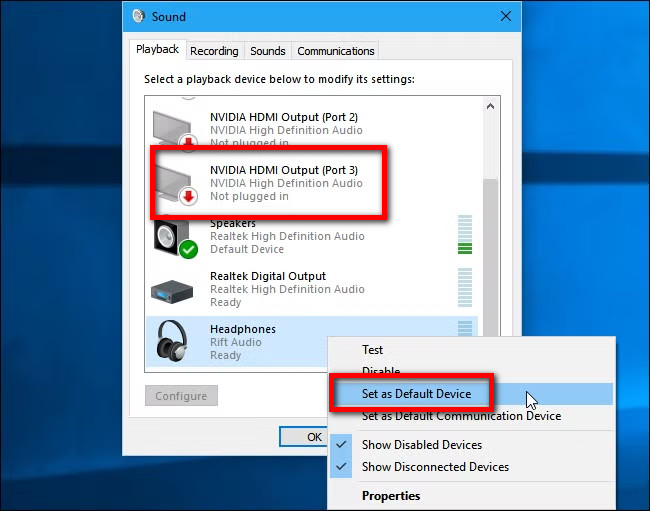
When you connect a monitor via HDMI, Windows often automatically switches the default audio output to the display, even when no speakers exist there. This causes silence despite correct cabling.
Navigate to the Sound Control Panel
To manually control audio output:
- Click the speaker icon in the system tray at the bottom-right corner.
- If hidden, click the upward chevron to reveal all icons.
- Right-click the speaker icon and choose Open sound settings.
- Scroll down and click Sound Control Panel under Related Settings.
This opens the legacy Sound window, which provides more detailed control than the modern Settings app.
Set Your PC Speakers as the Default Device
In the Playback tab, you’ll see all available audio outputs:
- Speakers (Realtek High Definition Audio) represents your computer’s internal sound.
- Digital Output (HDMI) or NVIDIA/AMD High Definition Audio represents the connected monitor.
To restore sound:
- Right-click Speakers.
- Select Set as Default Device.
- A green checkmark appears, confirming the selection.
All system audio now plays through your PC speakers or connected headphones, regardless of the monitor.
Disable HDMI Audio to Prevent Auto-Switching
Even after setting the correct default, Windows updates or driver changes can re-route audio back to HDMI. To stop this permanently:
- In the Playback tab, right-click the HDMI audio device.
- Select Disable.
- The icon turns gray, indicating inactivity.
Disabling HDMI audio blocks Windows from using it as an output while still allowing video transmission. This safe, reversible step eliminates recurring sound problems.
Troubleshoot Pro Tools and Audio Interface Setups
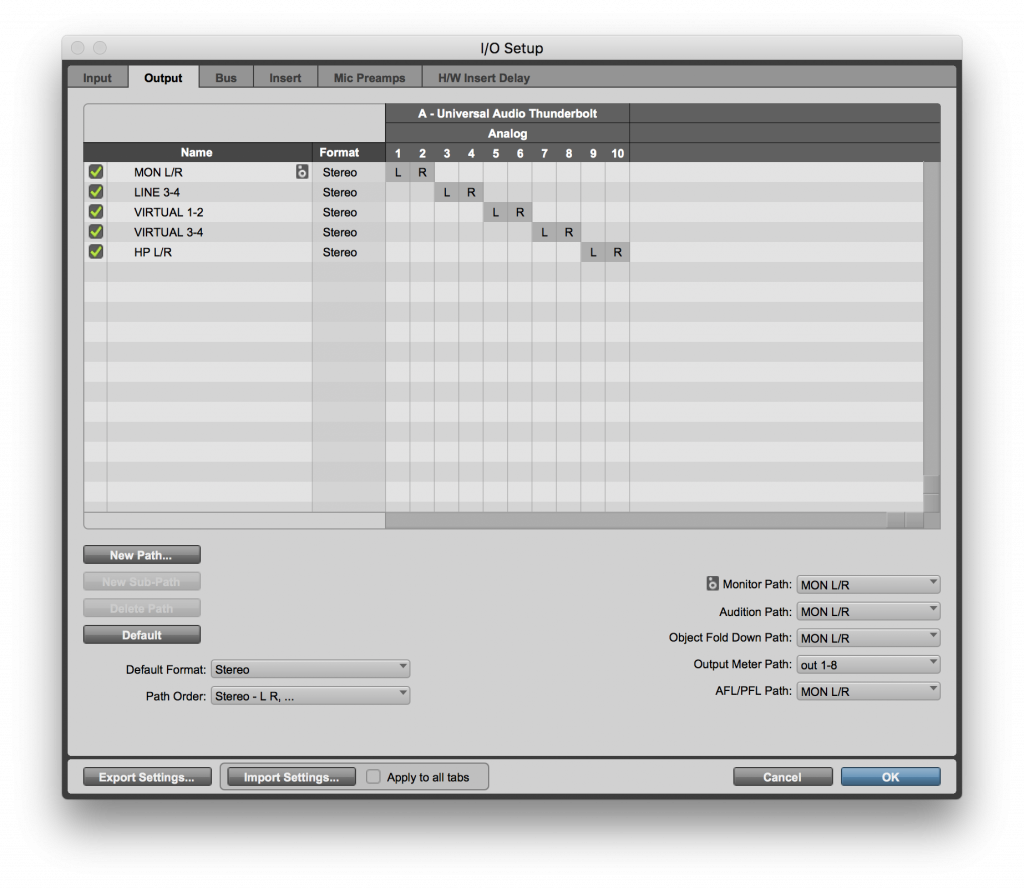
For music producers and audio engineers, silence usually means audio plays through laptop speakers instead of studio monitors connected via an audio interface like the Focusrite Scarlett.
Confirm Physical Connections First
Before adjusting software:
- Ensure studio monitors are powered on.
- Verify TRS or XLR cables connect interface outputs to monitor inputs securely.
- Test monitors with a phone or separate player to rule out hardware failure.
A frequent mistake involves plugging studio monitors into the PC’s headphone jack instead of the audio interface, defeating the purpose of professional gear.
Set Your Audio Interface as System Default
The operating system must recognize the external interface as the primary output:
- On Windows: Open Sound Settings > Sound Control Panel > Playback tab. Right-click your interface and set it as Default Device.
- On macOS: Go to System Settings > Sound > Output. Select your interface rather than “Built-in Output.”
If the interface doesn’t appear, confirm drivers are installed and the device is powered and connected via USB.
Configure the Pro Tools Playback Engine
Even with correct OS settings, Pro Tools may use the wrong audio engine:
- In Pro Tools, open Setup > Playback Engine.
- Select your external interface from the dropdown.
- Avoid “Built-in” or “No Selection.”
This directs Pro Tools to use your hardware for audio processing.
Map Outputs in the I/O Setup
Incorrect I/O routing sends audio to the wrong destination:
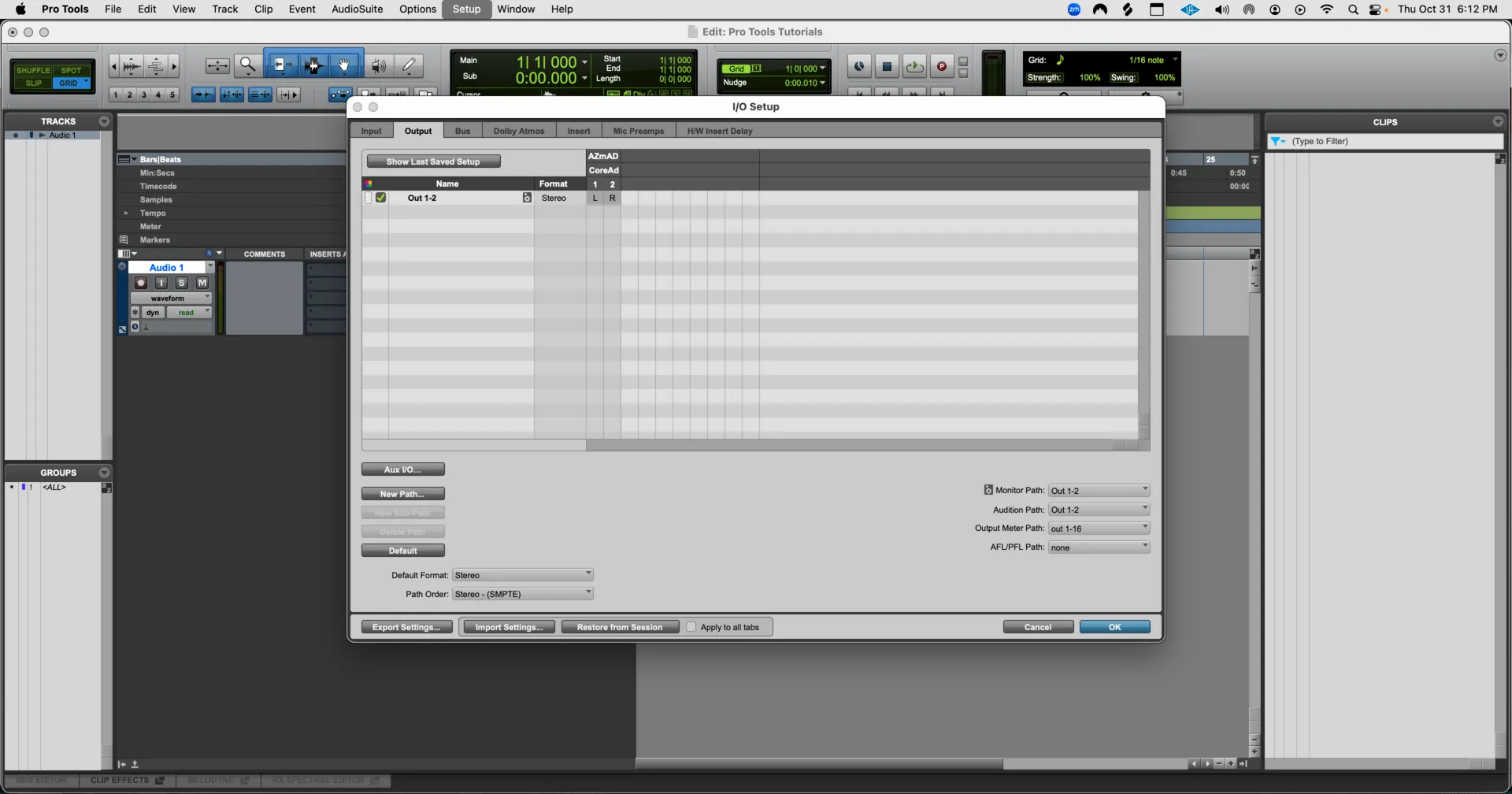
- Open Setup > I/O.
- Click the Output tab.
- Verify physical outputs like Out 1-2 map to the Stereo Mix or Main bus.
- Confirm the Master Fader outputs to the same channels.
If tracks or the master bus show “No Output” or an unassigned bus, no sound plays even when everything else is correct.
Prevent Common Audio Routing Mistakes
Avoid recurring sound issues through proactive configuration.
Match Sample Rates Across All Software
Mismatched sample rates between your DAW, OS, and interface cause audio dropout:
- Set the same rate (such as 48 kHz) in:
- Pro Tools (Setup > Playback Engine)
- Interface control panel (like Focusrite Control)
- OS audio settings (Windows Sound or macOS Audio MIDI Setup)
Mismatched rates prevent the interface from engaging, forcing audio back to internal speakers.
Block Exclusive App Conflicts
Some applications take exclusive control of audio devices:
- In Windows: Open Sound Control Panel > Speakers > Properties > Advanced.
- Uncheck “Allow applications to take exclusive control” for all devices.
This ensures multiple apps share audio hardware without blocking your DAW.
Test and Confirm Your Audio Output
Always verify changes with a quick isolation test.
Run the HDMI Disconnection Test
To confirm audio routing causes the problem:
- Disconnect the HDMI cable from your computer.
- Play audio such as a YouTube video.
- Sound should play through PC speakers.
- Reconnect the HDMI cable.
- If sound stops, Windows rerouted audio to HDMI.
This simple test confirms whether your monitor lacks speakers or settings are misconfigured.
Bypass Pro Tools to Test Studio Monitors
For DAW users:
- Close Pro Tools completely.
- Play a song from Spotify or any system audio source.
- If no sound reaches studio monitors, the issue is system-level.
- If sound plays correctly, the issue lies within Pro Tools routing.
This isolates whether the problem is hardware, operating system, or software specific.
Maintain Correct Audio Configuration Long-Term
Once sound is restored, prevent future issues with consistent habits.
Save DAW I/O Presets
In Pro Tools:
- After configuring I/O correctly, open Setup > I/O > Save Settings as Default.
- Create presets for different interfaces, such as “Studio Setup” or “Laptop Mode.”
This saves time and ensures consistent routing across sessions.
Re-Enable HDMI Audio Only When Needed
If you later connect to a TV or speaker-equipped monitor:
- Return to Sound Control Panel.
- Right-click the disabled HDMI device.
- Select Enable.
- Set it as default if needed.
Only enable HDMI audio when using a display with working speakers.
Frequently Asked Questions About Getting Sound Through a Monitor
Why does my monitor have no sound even though HDMI is connected?
Your monitor likely lacks built-in speakers. HDMI carries audio signals, but without integrated speakers or a connected audio device, no sound is produced. Check your monitor’s specifications or look for speaker grilles on the bezel.
How do I switch sound from my monitor back to my computer speakers?
Open the Sound Control Panel through the system tray speaker icon. In the Playback tab, right-click “Speakers” and select “Set as Default Device.” A green checkmark confirms the change.
Can I disable HDMI audio without losing video?
Yes. Disabling the HDMI audio device in the Sound Control Panel only stops audio routing through that connection. Video transmission continues normally through the same cable.
Why is there no sound in Pro Tools through my studio monitors?
The issue usually involves incorrect routing. Verify your audio interface is the system default output, then check Pro Tools’ Playback Engine and I/O Setup. Sample rate mismatches between software and hardware also cause this problem.
Do all monitors support audio over HDMI?
No. Only monitors with built-in speakers or audio output jacks can produce sound from HDMI signals. Most professional and ultrawide monitors lack speakers entirely.
How do I know if my monitor has speakers?
Check the manufacturer’s specifications using your model number. Look for speaker grilles on the bottom or side bezels. Press the monitor’s menu buttons; if a volume control appears, speakers are integrated.
Key Takeaways for Restoring Sound Through Your Monitor
Understanding how to get sound when using a monitor comes down to knowing where audio travels and why it sometimes stops. Most problems stem from automatic operating system behavior rather than broken hardware. Setting the correct playback device, disabling unused HDMI audio, and verifying DAW routing ensures sound reaches its intended destination every time.
Start by confirming your monitor’s speaker capabilities, then adjust your operating system settings to route audio properly. For professional setups, verify both system-level and DAW-specific configurations. Run isolation tests after each change to confirm progress. With these steps, you’ll restore clear, reliable audio to your workflow within minutes.


