
Is your screen flickering, stuck at a low resolution, or failing to display the correct refresh rate? These frustrating issues often stem from an outdated or missing monitor driver. While many users focus on updating graphics card drivers, the monitor driver is just as crucial. It is the software that tells Windows how to communicate with your specific display. Without it, you might lose access to your monitor’s native resolution, HDR support, or high refresh rates like 144Hz. The good news is that learning how to update monitor driver files is a quick, free fix that can dramatically improve display quality and stability.
In this guide, you will learn five proven methods to update your monitor driver, from using built-in Windows tools to downloading official manufacturer files and automating the process. You will also discover how to recognize when a driver update is needed, how to avoid common pitfalls, and why monitor drivers differ from graphics drivers. Whether you are a casual user or a gamer chasing smooth visuals, this step-by-step walkthrough ensures you get the most out of your display.
Open Device Manager to Update Your Monitor Driver
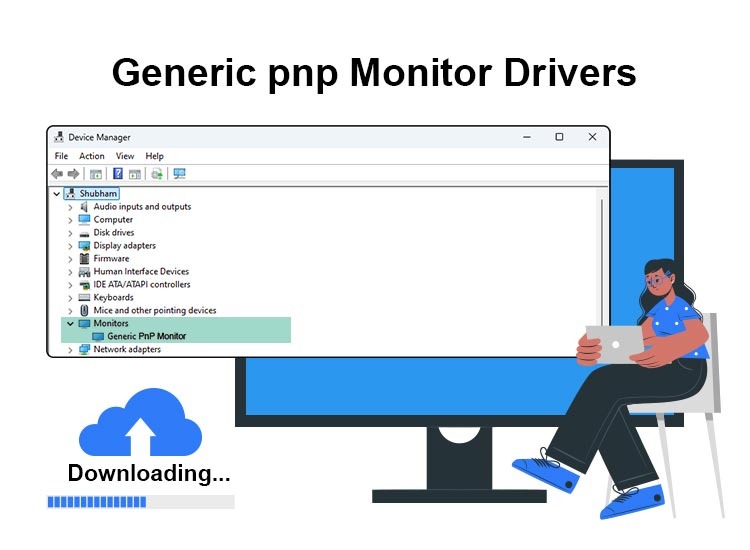
The first step in updating your monitor driver is accessing Device Manager, Windows’ built-in hardware control panel. This tool lists all connected devices, including your display, and allows direct driver management.
Locate the Monitors Section
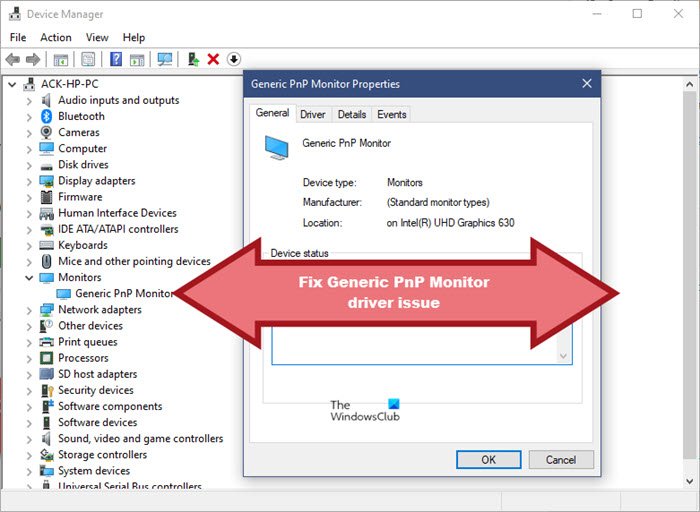
Once in Device Manager, expand the Monitors category by clicking the arrow next to it. You will see one or more entries, typically labeled as “Generic PnP Monitor” or your actual model name. Right-click the entry corresponding to your active display.
Initiate the Driver Update
Select Update driver from the context menu. A new window will appear with two options:
- Search automatically for drivers
- Browse my computer for drivers
Choose Search automatically for drivers to let Windows find and install the latest compatible driver from its online database. If a newer version is available, it will download and apply it. After the process finishes, restart your computer to ensure the driver loads correctly. This method works well for quick fixes but may not deliver the absolute latest version from the manufacturer.
Update Your Monitor Driver Through Windows Update
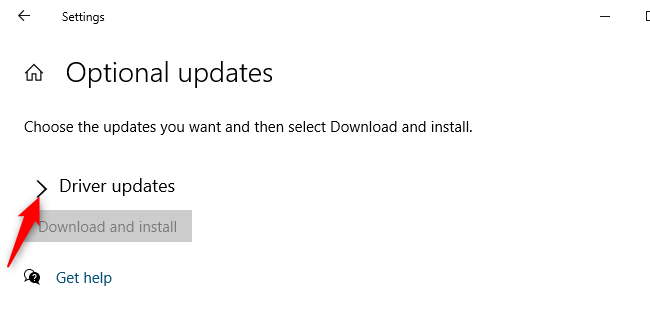
Windows Update is not just for operating system patches. It also delivers verified hardware drivers, including monitor drivers, through the Optional Updates section.
Check for Optional Driver Updates
Press Win + I to open Settings, then navigate to Windows Update (or Update & Security in Windows 10). Click Check for updates. If optional items are available, you will see a link labeled View optional updates.
Click it, then expand the Driver updates section. Here, Windows lists manufacturer-provided drivers that are tested and approved for your system. Look for an entry matching your monitor brand or model.
Install the Monitor Driver
Check the box next to the monitor driver, then click Download and install. The system will handle the download, installation, and driver registration automatically. Once complete, restart your PC. This method is secure and integrates well with system stability, making it a strong alternative to Device Manager, especially after major Windows upgrades.
Download the Monitor Driver from the Manufacturer Website
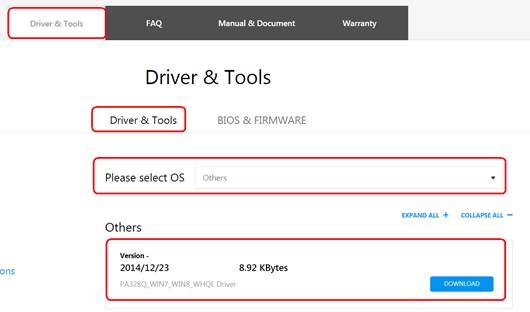
For full access to high refresh rates, HDR, color calibration, or custom resolution profiles, downloading the driver directly from the manufacturer is the best approach.
Identify Your Monitor Model
Before visiting a support site, you need the exact model number. Check the following locations:
- The label on the back or bottom of your monitor
- Original packaging or invoice
- Device Manager under Monitors (right-click > Properties > Details tab > Hardware Ids)
Common model formats include ASUS VG27AQ, LG 27GN850-B, and HP Z27k G3.
Download and Extract the Official Driver
Go to the official support website for your monitor brand. Use the model number to search for drivers, then filter by your Windows version (10 or 11, 64-bit). Download the monitor driver specifically. If only a ZIP file is available, extract it to a folder like C:\MonitorDriver.
Perform a Manual Driver Installation
Return to Device Manager > Monitors > right-click your display > Update driver > Browse my computer for drivers. Click Browse, navigate to the extracted folder, and select it. Check Include subfolders, then click Next. Windows will install the driver using the .inf file inside the package.
If the automatic browse fails, choose Let me pick from a list > Have Disk > Browse to locate the .inf file directly. Restart your PC afterward to activate advanced display features.
Use Third-Party Tools to Update Your Monitor Driver
If you manage multiple devices or want a one-click solution, automated tools like Driver Booster or Snappy Driver Installer can simplify the process.
Scan for Outdated Drivers
Install a trusted driver updater from its official website and avoid third-party download portals. Launch the app and run a system scan.
The tool will analyze all hardware components and flag outdated drivers, including those under “Display” or “Monitors.”
Update with One Click
Find your monitor in the list, click Update, or select Update All if other drivers also need attention. The software will back up the current driver, download the latest version from official sources, and install it silently.
These tools save time but should be used cautiously. Always choose custom installation during setup to avoid bundled bloatware or adware. After updating, restart your computer to finalize changes.
Reinstall a Corrupted Monitor Driver
If your display has persistent flickering, wrong resolution, or shows only “Generic PnP Monitor,” the driver may be corrupted. A clean reinstall can fix this.
Uninstall the Current Driver
Open Device Manager > expand Monitors > right-click your display > Uninstall device. In the dialog box, check “Delete the driver software for this device” if available. This ensures a complete removal.
Trigger an Automatic Reinstall
Disconnect the monitor cable (HDMI, DisplayPort, etc.) from your PC for 10 seconds, then reconnect it. Restart your computer.
Windows will detect the display as new hardware and automatically install a fresh generic driver. This often resolves glitches caused by software corruption. For a deeper clean, use Display Driver Uninstaller (DDU) in Safe Mode to remove all display-related drivers before rebooting and letting Windows reinstall.
Verify Your Updated Monitor Driver Settings
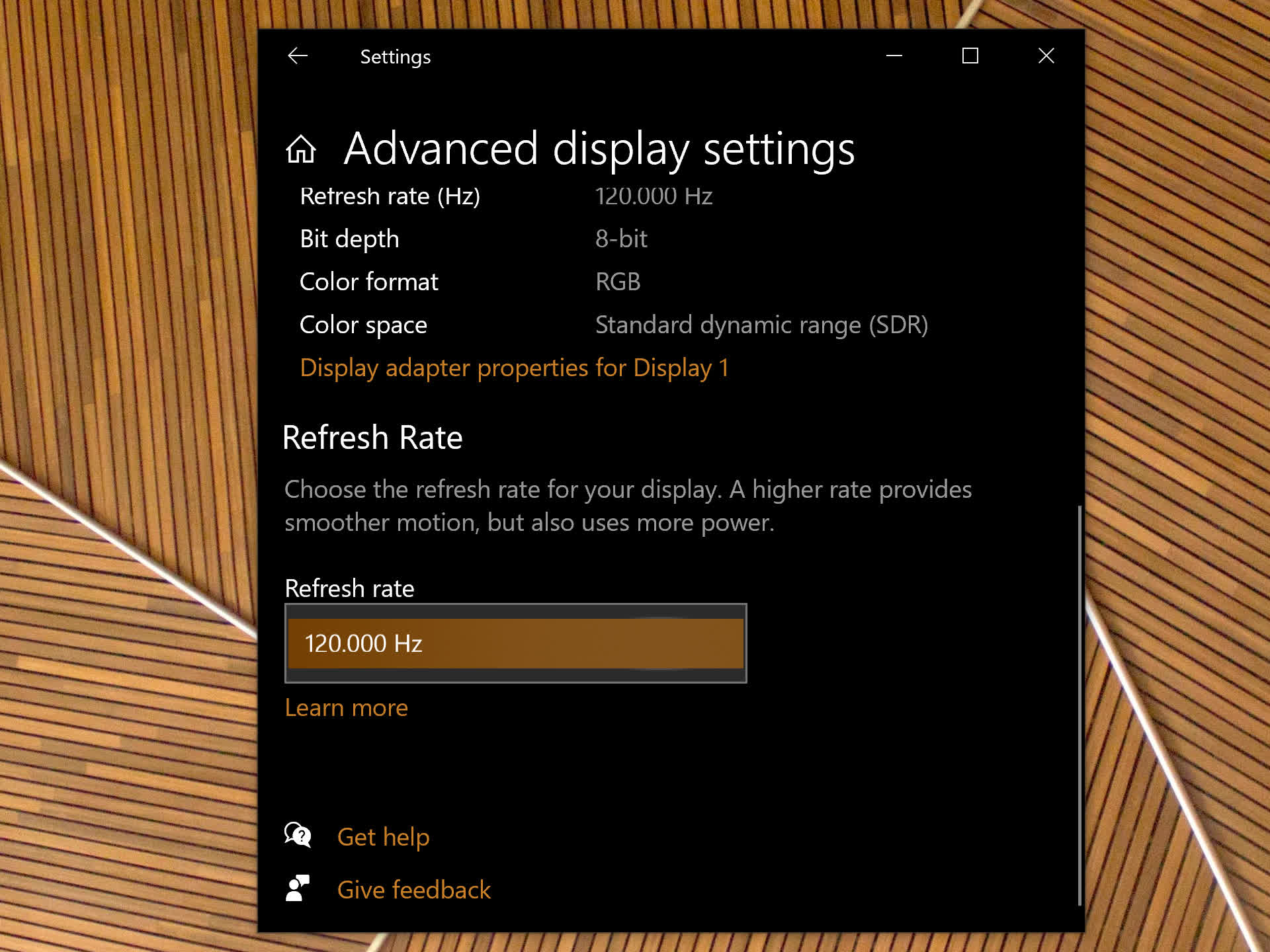
After any driver update, confirm it worked by checking key display settings.
Confirm Native Resolution
Go to Settings > System > Display > Advanced display. Ensure your native resolution (e.g., 2560×1440) is selected and marked as “(Recommended)”. If it is not listed, the driver may not be fully installed, or your cable may not support it.
Check the Refresh Rate
In the same Advanced display menu, look for Refresh rate. Select the highest option (e.g., 144Hz or 165Hz) if available. If only 60Hz appears, verify the following:
- Your cable supports high refresh rate (e.g., DisplayPort 1.4, HDMI 2.0+)
- The monitor is plugged into the dedicated GPU, not the motherboard video port
- The graphics driver is also up to date
Test Color and HDR
For color-critical work or HDR content, open Settings > System > Display > Advanced color. Ensure the correct color profile is active and enable HDR if your monitor supports it. An updated monitor driver often unlocks these features where generic drivers do not.
Common Mistakes When Updating Monitor Drivers
Even simple updates can go wrong without caution.
Avoid Fake Driver Websites
Only download drivers from official manufacturer sites. Third-party driver sites often host outdated, repackaged, or malware-infected files.
Do Not Ignore Graphics Driver Updates
A monitor driver works with your graphics driver (NVIDIA, AMD, Intel). If the GPU driver is outdated, high refresh rates or HDR may still not work. Update both drivers for full compatibility.
Always Restart Your PC
Always restart your PC after a driver update. Without a reboot, the new driver may not load fully, leading to instability or missing features.
Signs You Need to Update Your Monitor Driver
Knowing the warning signs helps you act before issues worsen.
Screen Flickering or Flashing
Random flickering, especially at certain brightness levels or after boot, often points to a driver conflict or corruption. An update or clean reinstall usually resolves it.
Wrong or Missing Resolution
If your screen looks blurry, stretched, or will not go beyond 1080p on a 1440p monitor, Windows likely is not detecting the correct model. Installing the proper driver restores native resolution.
High Refresh Rate Not Available
Gamers who cannot select 120Hz, 144Hz, or higher in display settings may be missing a proper monitor driver. Generic drivers often cap refresh rates at 60Hz.
“Generic PnP Monitor” Detected
This label means Windows does not recognize your specific model. While basic display works, advanced features will not. A manufacturer driver replaces this with the correct model name and unlocks full functionality.
Issues After a Windows Update
Major OS updates can overwrite or reset drivers. If display issues appear post-update, reinstalling the monitor driver often fixes the problem.
Monitor Driver vs Graphics Driver: Key Differences
Understanding the difference prevents wasted effort.
Monitor Driver Controls Display Identity
This driver tells Windows what monitor is connected, what resolutions and refresh rates it supports, and which color profile to load. It is tied to the monitor model and is usually small in size.
Graphics Driver Powers Rendering Performance
This driver controls GPU performance (FPS in games), 3D rendering, ray tracing, DLSS/FSR, and multi-monitor setups. It is provided by NVIDIA, AMD, or Intel and can be over 1 GB.
Both Must Be Updated
If you install a monitor driver for 144Hz but your NVIDIA driver is outdated, the option may still be missing. Update both for full compatibility.
Final Tips for Updating Your Monitor Driver Successfully
Use High-Quality Cables
A cheap HDMI cable cannot support 4K at 120Hz. Use DisplayPort 1.4 for high-refresh 1440p or 4K displays, HDMI 2.1 for 4K/120Hz or 8K, or USB-C with DisplayPort Alt Mode for laptops. Cable issues often mimic driver problems.
Keep Drivers Updated Monthly
Set a reminder to check Windows Update > Optional Updates monthly and visit your monitor manufacturer’s support page quarterly. Many brands release minor updates for better compatibility.
Roll Back If Problems Occur
If a new driver causes instability, open Device Manager, right-click your monitor, select Properties, go to the Driver tab, and click Roll Back Driver. This reverts to the previous working version.
Frequently Asked Questions About Updating Monitor Drivers
How do I know if my monitor driver is outdated?
You will see symptoms like screen flickering, missing native resolution options, capped refresh rates, or Windows identifying your display only as “Generic PnP Monitor.” These signs indicate the driver is outdated or missing.
Is updating a monitor driver the same as updating a graphics driver?
No. A monitor driver controls display identity, resolution, and color profiles for the physical panel. A graphics driver controls GPU rendering performance. Both must be kept current for full functionality.
Can I update my monitor driver without Device Manager?
Yes. You can use Windows Update’s Optional Updates section, download the driver directly from the manufacturer’s website, or use a trusted third-party tool like Driver Booster to automate the process.
Will updating my monitor driver improve gaming performance?
It can. An updated monitor driver unlocks higher refresh rates (like 144Hz or 165Hz) and proper color profiles. However, you also need an updated graphics driver for maximum FPS and rendering quality.
What should I do if the new monitor driver causes problems?
Open Device Manager, right-click your monitor, select Properties, and click Roll Back Driver on the Driver tab. This restores the previous working version until a fix is released.
Do I need to restart after updating a monitor driver?
Yes. Restarting ensures the new driver fully loads and that all display settings apply correctly. Skipping the restart can cause missing features or instability.
Key Takeaways for Updating Your Monitor Driver
Updating your monitor driver is a fast, free way to unlock your display’s full potential. Whether you use Device Manager, Windows Update, or the manufacturer’s website, the process takes just minutes. For most users, the Device Manager or Windows Update method is sufficient. But for gamers, designers, or anyone using HDR or high refresh rates, a manual manufacturer install is essential.
Always verify the update by checking resolution and refresh rate in Settings > Display, and remember to restart your PC after every driver change. By keeping your monitor driver current, you ensure sharp visuals, smooth performance, and full access to the features you paid for.


