
Imagine plugging in your new display, pressing every button on the front, and staring at a completely black screen. It is a frustrating scenario that leaves many users wondering if their unit is defective or if they are simply missing a hidden switch. The truth is, Samsung monitors do not all share the same power activation method; the location and style of the power control depend entirely on your specific model series and manufacturing era.
Knowing exactly how to turn on Samsung monitor units requires identifying whether your device uses a front-panel soft button, a hidden rear rocker switch, or a modern jog controller. Using the wrong technique, such as pressing non-functional symbols on older SyncMaster models, can lead to unnecessary confusion. This guide breaks down the exact activation steps for every major Samsung monitor architecture, ensuring you can power up your device correctly the first time.
We will walk through identifying your specific control interface, executing the correct power-on sequence, and troubleshooting common issues like blue lights with no image. By the end of this article, you will know precisely where to look and what to press to get your display running.
Identify Your Monitor Control Type
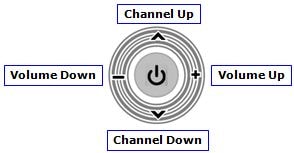
Before attempting to power up your device, you must determine which control architecture your specific model utilizes. Samsung has transitioned through three distinct designs over the years, ranging from visible front buttons to completely hidden rear switches. Misidentifying your model type is the primary reason users fail to turn on their monitors.
Check Front Panel Buttons
Many standard series models, such as the LS27A700, feature a dedicated control panel located at the bottom center of the front bezel. These units rely on a soft-power system where the button sends a signal to the internal firmware rather than physically cutting electrical current.
- Location: Look for a cluster of four buttons on the lower front frame.
- Power Button: This is almost always the middle button in the row.
- Navigation: The surrounding buttons act as Up (Menu), Down (Input), and Left/Right arrows for navigation.
If your monitor has these visible buttons, pressing the center one firmly should initiate the startup sequence. If the screen illuminates but shows no image, the monitor is on but lacks a video signal, which is a different issue than a power failure.
Locate Hidden Rear Rocker Switches
Older legacy models, particularly the SyncMaster 2494HM series, utilize a hard physical switch rather than a soft-touch button. This design choice often confuses users because the front of the monitor displays power symbols that are merely decorative labels.
- Visual Trickery: The “I-in-the-O” symbol on the front bottom-right is non-functional. Pressing it will yield no result.
- Actual Location: The real switch is a small, black rocker mechanism located on the back of the monitor, directly adjacent to where the power cable inserts.
- Visibility Issue: Because the switch is black on a black chassis, it is nearly invisible unless you shine a light at a low angle or feel for it by hand.
For these models, the monitor will not turn on via the front interface. You must physically toggle the rear switch to the “On” position (usually marked by the “I” side) to complete the electrical circuit.
Find Jog Controller Sticks
Modern curved monitors and F-series units (like the C24F390FH) have eliminated traditional buttons in favor of a single Jog Controller. This joystick-style stick serves as the power button, menu navigator, and input selector all in one.
- Placement: Feel along the back of the monitor on the right-hand side while facing the screen.
- Operation: Unlike a button you press down, this is a stick you push inward or hold.
- Function: Pushing the stick inward typically toggles power, while moving it up, down, left, or right navigates the on-screen display (OSD).
If your monitor lacks front buttons and has no rear rocker switch, it almost certainly uses this jog controller. Finding it by touch is often easier than trying to spot it visually.
Execute Power Activation Steps
Once you have identified your control type, follow the specific activation procedure for your hardware. Using the wrong method, such as trying to toggle a soft-power menu on a hard-switch unit, will prevent the monitor from starting.
Press Middle Power Button
For standard series monitors with front-facing controls, the process is straightforward but requires a firm press to engage the internal switch.
- Ensure the power cable is securely connected to both the wall outlet and the monitor.
- Locate the row of buttons on the bottom center of the front bezel.
- Press the middle button firmly. You may feel a slight click or resistance.
- Wait for the internal systems to initialize. If a valid video source is connected, the screen will light up immediately.
- If the screen remains black, check if a “No Signal” message appears, which confirms the monitor is powered but not receiving data from your computer.
Toggle Rear Hard Switch
If you own a legacy SyncMaster or similar model with a rear rocker switch, the front buttons are irrelevant for power activation. You must access the back of the unit.
- Move to the back of the monitor and locate the power cable insertion point.
- Feel immediately next to the power port for a small, protruding switch.
- Toggle the switch to the “On” position. On most rocker switches, the side marked with a vertical line (“I”) indicates On.
- The monitor should power on instantly if the cable is live. There is no boot-up delay associated with hard switches.
- If the screen remains dark, verify the power outlet is functional and the cable is not damaged.
Activate Jog Controller Stick
For F-series and curved monitors, the single joystick requires a specific manipulation to trigger the power state.
- Reach behind the monitor to the right side to find the joystick nub.
- Push the stick inward toward the monitor body. In some firmware versions, you may need to hold it inward for a second.
- Release the stick once you feel the engagement.
- The monitor should wake up or power on. If the OSD menu appears instead of the desktop, push the stick inward again to exit the menu and return to the main display.
- Use the stick’s directional movements to adjust settings if the image does not appear immediately.
Decode Power Light Indicators

Samsung monitors use LED color codes to communicate their current status. Understanding these lights is crucial for diagnosing why your screen might be dark even when the unit appears to be on.
Steady Blue Light Meaning
A solid blue light is the ideal status indicator. It signifies that the monitor is receiving electrical power and successfully detecting a valid video signal from your source device.
- Normal Operation: If you see steady blue and have an image, your system is functioning perfectly.
- Blue Light, No Image: If the light is blue but the screen is black, the monitor is powered but stuck in a firmware hang or failing to render the image. This specific symptom often requires the forced reset protocol detailed in the troubleshooting section.
Amber Light Status Codes
An amber or orange light indicates that the monitor is in a low-power standby mode. It is receiving electricity but is not detecting an active video signal.
- Sleep Mode: This often happens when the connected computer has gone to sleep or turned off.
- Loose Connection: If your computer is on but the light is amber, check that the HDMI or DisplayPort cable is seated tightly at both ends.
- Input Mismatch: The monitor might be looking at the wrong input source (e.g., looking for VGA when you are using HDMI).
No Light Diagnostics
If there is absolutely no light emanating from the monitor, the unit is either completely off or disconnected from power.
- Check Power Source: Ensure the wall outlet is live and the power brick (if your model uses an external adapter) is plugged in.
- Hard Switch Check: On legacy models, verify the rear rocker switch is actually toggled to “On.”
- Cable Integrity: Inspect the power cable for physical damage or loose connections at the monitor port.
Troubleshoot Power Failures Effectively
When standard activation steps fail, specific anomalies like a blue light with no image or unresponsive buttons require targeted diagnostic protocols. These steps address firmware hangs and input detection errors.
Fix Blue Light No Display
If your power light is blue but the screen remains black, the monitor is likely stuck in a low-power state due to a firmware glitch. You can force a hardware reset to clear this condition.
- Disconnect Power: Unplug the power cable completely from the back of the monitor while it is still showing the blue light.
- Discharge Capacitors: Press and hold the power button for 15 to 20 seconds. This drains residual electricity from the internal components.
- Reconnect While Holding: While continuing to hold the power button down, plug the power cable back into the monitor.
- Sustain Hold: Keep holding the button for another 5 to 10 seconds after reconnecting the power.
- Release: Let go of the button. The monitor should now bypass the stuck state and attempt to re-initialize the video signal.
Resolve Input Source Errors
Sometimes the monitor is on, but it is looking for a signal on the wrong port. This is common if you recently changed cables or if the computer wakes up slower than the monitor.
- Access Menu: Press the Menu or Source button (or push the jog stick) to open the OSD.
- Select Input: Navigate to the input list and manually select the correct connection type, such as HDMI or Analog (VGA).
- Force Output: On your computer, press
Win + P(Windows) or check System Settings > Displays (Mac) to ensure the system is sending a signal to the external display. - Cable Check: If manual selection fails, try a different video cable to rule out physical damage to the connector.
Address Unresponsive Units
If the monitor does not react to any button presses or light up at all, perform these corrective actions.
- Force Shutdown: If the unit is frozen, hold the power button for 5 seconds to force a hard shutdown, then try powering on again.
- Check Standby Timer: The monitor may be in energy-saving mode. By default, many units sleep after 10 minutes of inactivity. Move your mouse or press a key on your keyboard to wake the source device.
- Inspect Power Brick: If your model uses an external power adapter, check for any signs of failure or overheating. A faulty brick will prevent the monitor from receiving voltage.
Prevent Common Activation Mistakes
User error is a frequent cause of perceived monitor failure. Avoiding these common pitfalls can save you time and prevent unnecessary service calls.
Avoid Pressing Dummy Symbols
On older SyncMaster models, the power symbol printed on the front bezel is purely cosmetic. It is a label, not a button.
- The Mistake: Repeatedly pressing the front symbol thinking it is the power switch.
- The Result: Frustration and a belief that the monitor is broken.
- The Fix: Ignore the front symbols on these specific models and locate the hard rocker switch on the rear chassis.
Prevent Cable Strain Damage
How you route your cables can physically prevent the monitor from turning on or cause intermittent power loss.
- Routing Error: Running heavy power or video cables underneath the monitor base creates upward pressure on the ports.
- Consequence: This strain can damage internal soldering or cause the cable to disconnect slightly, leading to “No Signal” errors.
- Best Practice: Route cables away from the base and secure them so they do not rest on the input ports.
Ensure Correct Input Selection
Manually forcing the wrong input type will result in a black screen even if the monitor is fully powered.
- Mismatch Scenario: Selecting “Analog” in the menu while using an HDMI cable.
- Outcome: The monitor waits for a signal that will never arrive on that port.
- Solution: Always verify that the OSD input setting matches the physical cable you are using. If unsure, use the “Auto Source” feature if available.
Maintain Monitor Longevity Properly
Proper shutdown and maintenance procedures extend the life of your Samsung monitor and ensure consistent performance.
Use Soft Power Off
For models with front buttons or jog controllers, avoid simply unplugging the unit to turn it off.
- Recommended Method: Press the power button to access the OSD, navigate to “Power Off,” and confirm.
- Reasoning: This allows the firmware to close processes correctly and preserves panel longevity.
- Exception: Only pull the plug directly if you are performing the forced reset protocol for a frozen unit.
Clean Controls Safely
Dust and grime can accumulate around buttons and joysticks, leading to unresponsive controls.
- Cleaning Method: Use a dry or slightly damp cloth to wipe the bezel.
- Warning: Avoid excessive moisture near the control panel or jog stick, as liquid can seep into the mechanism and cause internal shorts.
- Frequency: Wipe down the controls monthly to prevent buildup.
Verify Firmware Functionality
If your monitor frequently gets stuck in a “blue light, no image” state, it may indicate a deeper firmware corruption.
- Reset: Perform a factory reset via the OSD menu (Settings > Reset > Factory Reset) to clear corrupted preferences.
- Service: If reset protocols fail repeatedly, the unit may require professional internal repair or component replacement.
Frequently Asked Questions About Samsung Monitor Power Activation
Why is my Samsung monitor not turning on even when I press the power button?
Your monitor may not turn on because you are pressing a non-functional symbol on a legacy model, or the unit is stuck in a firmware hang. For SyncMaster models, the real power switch is on the rear. For stuck units, perform the forced reset by holding the power button for 15 to 20 seconds while disconnected from power.
Where is the power button located on a Samsung monitor?
The power button location depends on your model. Standard series monitors have a front-center middle button. Legacy SyncMaster models use a rear rocker switch near the power port. Modern F-series and curved monitors use a jog controller stick on the back right side.
What does a blue light with no image mean on a Samsung monitor?
A blue light with no image indicates the monitor is receiving power but is stuck in a low-power state or failing to detect a video signal. This typically requires the forced reset protocol where you disconnect power, hold the power button for 15 to 20 seconds, then reconnect while continuing to hold the button.
How do I turn on a Samsung monitor with no visible buttons?
If your Samsung monitor has no visible front buttons, it likely uses a jog controller. Reach behind the monitor on the right-hand side to locate the joystick nub. Push it inward toward the monitor body to power on the unit.
Why does my Samsung monitor show an amber or orange light?
An amber or orange light means the monitor is in standby or sleep mode. It is receiving electricity but not detecting an active video signal. Check that your computer is on, the video cable is securely connected at both ends, and the correct input source is selected in the OSD menu.
Can I damage my Samsung monitor by pressing the wrong button?
Pressing non-functional symbols will not damage the monitor, but it can lead to frustration and incorrect troubleshooting. However, repeatedly unplugging the unit instead of using the soft power-off menu can shorten panel lifespan over time by preventing proper firmware closure.
Key Takeaways for Turning On Your Samsung Monitor
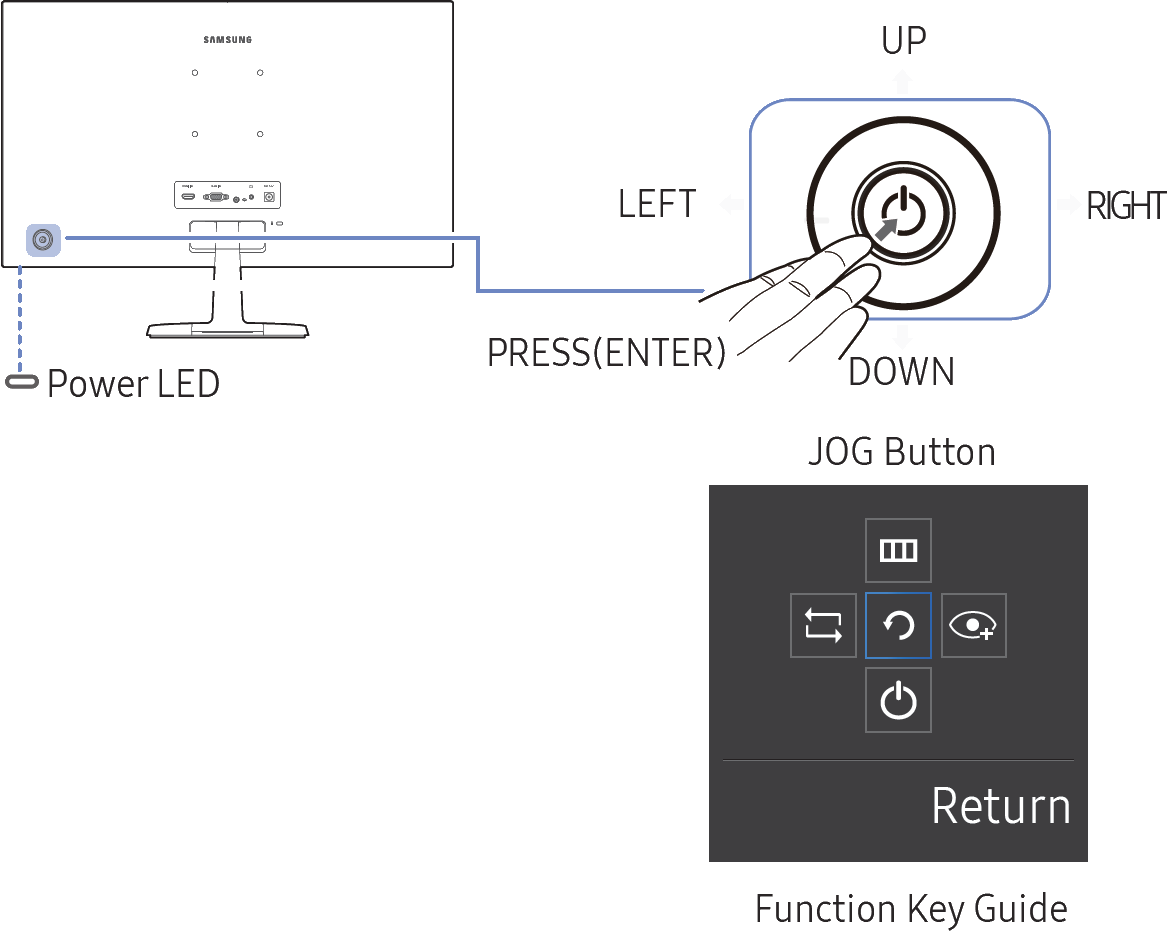
Understanding your specific Samsung monitor architecture is the foundation of successful power activation. Front-button models require a firm press on the middle button, legacy SyncMaster units need a rear rocker toggle, and modern F-series displays respond to an inward push on the jog controller.
When standard activation fails, diagnostic indicators like blue lights with no image or amber standby lights provide clear signals about the underlying issue. The forced reset protocol (holding the power button for 15 to 20 seconds while disconnected) resolves most firmware hang conditions.
Your next step is to identify your control type using the descriptions above, then apply the matching activation procedure. If problems persist after following these steps, contact Samsung support or a qualified technician for internal component evaluation.


