
Is your ViewSonic monitor showing flickering colors or a stubborn “no signal” error? You are likely searching for how to reset ViewSonic monitor settings to fix these common glitches without buying new hardware.
This guide details four proven methods including power cycling and factory resets to restore your screen. You will learn specific button combinations and software steps to clear errors instantly.
Power Cycle Your ViewSonic Monitor to Clear Glitches
A power cycle discharges residual electricity from internal capacitors to refresh the processor. This method fixes frozen screens and temporary signal losses without erasing your custom color profiles or brightness settings.
Perform a Complete Power Drain
You must remove all power sources to clear the volatile memory effectively. Follow these precise steps to ensure a full reset of the internal logic.
- Turn off the monitor using the physical power button.
- Unplug the power cord directly from the wall outlet.
- Remove all video cables like HDMI or DisplayPort to isolate the unit.
- Press and hold the power button for 30 to 60 seconds.
Pro Tip: If the problem continues after the first attempt leave the monitor unplugged for 5 to 10 minutes. This extended drain ensures every bit of residual energy dissipates completely.
Reconnect Cables and Test Display
Plug the power cord back in and reconnect your video source securely. Turn on the device to see if the frozen state or signal loop has resolved.
If the screen remains black or erratic you should proceed to a factory reset via the menu system.
Execute Factory Reset via On-Screen Display Menu

Use this method when you face persistent color distortion or configuration errors that a simple power cycle cannot fix. This process erases all non-volatile memory including custom color profiles and input preferences.
Navigate System Settings Menu
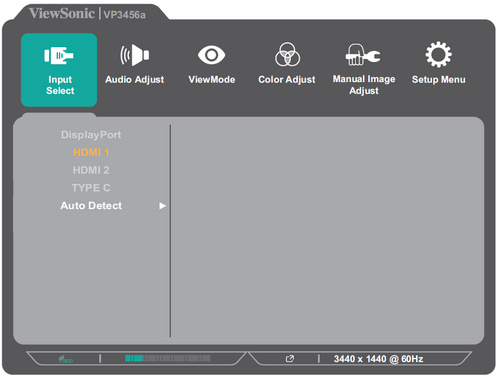
Locate the physical Menu button or joystick on your monitor bezel. Press it to open the On-Screen Display (OSD) interface.
Use the navigation controls to find the section labeled Setup System or Picture Settings. The exact location varies by model series.
Select and Confirm Reset Option
Look for terms like Factory Reset Memory Recall Data Recall or All Recall within the menu. These labels all perform the same function of restoring defaults.
Select the option and confirm your choice when the prompt appears. Wait 5 to 30 seconds for the screen to flash and reboot automatically.
Use ViewSonic Manager Software for Remote Reset
You can reset compatible monitors remotely using the ViewSonic Manager application. This approach is ideal for office environments or situations where physical buttons are inaccessible.
Install and Launch Management Tool
Download the official ViewSonic Manager software from the company website. Install it on your computer and ensure the application detects your connected monitor.
Navigate to the Advanced Settings section within the software interface. This area provides deep control over display configurations.
Apply Factory Default Command
Click on the Display Control tab to reveal reset options. Select All Recall or Factory Reset and click Apply to initiate the process.
The monitor will receive the command and restore default settings instantly without touching the hardware. This saves time when managing multiple displays simultaneously.
Force Hardware Reset Using Button Combinations
Some models require a specific button combination to force a reset when the screen is black. This hardware-level method bypasses the standard menu system entirely.
Perform Input and Power Combo
Unplug the monitor for one minute then plug it back in quickly. Immediately press and hold the Input button and Power button together.
Keep holding both buttons for 10 to 15 seconds until you see a logo or screen flash. Release the buttons and allow the unit to boot normally.
Check Model Specific Variations
Different series respond to different triggers so check your manual for certainty. Elite VX and XG series often use the Input plus Power combination.
VP and VG series models might only require holding the Power button for 15 seconds during startup. Always verify the specific requirement for your unit to avoid confusion.
Diagnose When to Reset Your Display
Not every display issue requires a full reset so identify your specific symptoms first. Understanding the root cause helps you choose between a power cycle and a factory wipe.
Identify Visual Artifacts and Lag
Flickering ghosting or strange color shifts usually indicate corrupted picture settings. A Factory Reset is the best solution for these visual artifacts.
Input lag or a completely frozen OSD often points to a temporary processor hang. Try a Power Cycle first to clear the volatile memory quickly.
Resolve Signal and Connection Errors
“No Signal” messages often stem from handshake failures between devices. Perform a Power Cycle first then try a Factory Reset if the error persists.
Ensure your cables are tight and the correct input source is selected before resetting. Loose connections frequently mimic serious hardware failures.
Troubleshoot Failed Reset Attempts
Sometimes a reset does not solve the problem indicating other underlying issues. You must check external factors like cables and drivers before assuming hardware failure.
Verify Cables and Graphics Drivers
Test your setup with a different HDMI or DisplayPort cable to rule out damage. Update your computer graphics drivers since outdated software can cause display conflicts.
Try connecting the monitor to a different computer or console. If the issue follows the monitor to a new device the problem is likely internal.
Assess Persistent Hardware Faults
If the screen remains faulty after testing multiple cables and computers the panel may be damaged. Internal components like the power board or backlight could be failing.
Contact ViewSonic support or an authorized service center for professional diagnosis. Do not attempt to open the monitor casing yourself as this voids warranties.
Avoid Common Mistakes During Reset Process
Users often skip critical steps or misunderstand the difference between reset types. Avoiding these errors ensures a successful restoration of your display.
Distinguish Between Reset Types
A Power Cycle does not erase saved settings while a Factory Reset wipes everything. Use the correct method based on whether you want to keep your custom configurations.
Confusing these two can lead to frustration when settings do not change as expected. Always choose the method that matches your specific troubleshooting goal.
Prevent Unnecessary Wear on Memory
Frequent factory resets can degrade the internal flash memory over time. Only perform a full wipe when necessary to resolve persistent issues.
Backing up your settings before a reset saves time and preserves your preferred look. Use software tools or take photos of your OSD menus for reference.
Backup Custom Settings Before Wiping Data
Losing your carefully calibrated color profile can be frustrating after a factory reset. Take precautions to save your current configuration before proceeding.
Save Profiles Using Software
Open ViewSonic Manager and go to the Profile Management section. Save your current brightness contrast and color temperature settings as a custom file.
Reapply this saved profile after the reset completes to restore your workflow instantly. This eliminates the need to manually recalibrate from scratch.
Document Settings Manually
If software backup is unavailable take clear photos of every OSD menu page. Write down specific values for gamma brightness and color temperature.
Having these numbers ready allows you to reconfigure the monitor quickly. This manual method works for any model regardless of software compatibility.
Verify Setup After Completing Reset
Your work is not done until you confirm the display operates at peak performance. Follow this checklist to ensure everything is configured correctly.
Check Resolution and Refresh Rate
Right-click your desktop and open Display Settings to verify output. Set the resolution to the native value for your specific monitor model.
Adjust the refresh rate to the maximum supported value like 144Hz or 165Hz. Incorrect settings here can cause blurriness or limited frame rates.
Recalibrate Color Accuracy
Professional users should recalibrate colors using a hardware tool or software wizard. Manual adjustment of color temperature and gamma ensures accurate image reproduction.
Verify that all cables are seated firmly and the correct input source is active. A quick final check prevents future confusion about signal sources.
Future Trends in Monitor Reset Technology
ViewSonic continues to innovate with cloud-based profiles and automated diagnostics. These features will simplify the reset process for future monitor generations.
Cloud Profile Integration
Newer models support storing custom settings in the cloud for instant retrieval. This allows users to restore their preferred configuration with one click after a reset.
Remote management capabilities are expanding for enterprise and multi-monitor setups. Users will soon enjoy seamless synchronization across multiple devices.
Self-Healing Firmware Capabilities
Upcoming firmware updates may include automatic error detection and correction. The monitor could potentially self-reset when it detects common glitches.
Artificial intelligence might optimize settings based on usage patterns automatically. These advancements will reduce the need for manual troubleshooting interventions.
Frequently Asked Questions About Resetting ViewSonic Monitors
Does resetting my ViewSonic monitor delete firmware updates?
No a factory reset only clears user settings and does not revert the firmware version. Your monitor retains the latest installed firmware even after a full wipe.
How long should I hold the power button for a hard reset?
Hold the power button for 30 to 60 seconds while the unit is unplugged. Some persistent issues may require leaving the monitor disconnected for up to 10 minutes.
What is the difference between Memory Recall and Factory Reset?
These terms are interchangeable on ViewSonic monitors and perform the same function. Both options erase all custom settings and restore original factory defaults.
Can I reset my monitor if the screen is completely black?
Yes you can try the hardware button combination method during startup. Hold Input plus Power or just Power depending on your specific model series.
Will resetting fix dead pixels on my screen?
No a reset cannot fix physical defects like dead or stuck pixels. It only addresses software configuration and signal processing issues.
How often should I reset my ViewSonic monitor?
Only reset your monitor when you experience specific display issues or before selling it. Frequent unnecessary resets may contribute to long-term memory wear.
Key Takeaways for How to Reset ViewSonic Monitor Issues
Resetting your display is a powerful first step for fixing flickering signal loss or frozen menus. Start with a simple power cycle to clear temporary glitches before attempting a full factory reset.
Always backup your custom color profiles and note your settings before wiping data. This preparation saves time and ensures you can quickly restore your preferred viewing experience.
If problems persist after trying all reset methods and checking cables the issue is likely hardware related. Contact ViewSonic support for further assistance or professional repair options.


