
If you’ve just unboxed a Samsung monitor, whether it’s a sleek office display or a high-performance gaming model like the Odyssey G5, you might be wondering how to get the most out of it. Knowing how to use a Samsung monitor properly goes beyond just plugging it in. From physical setup and input selection to optimizing refresh rates, eye comfort settings, and leveraging smart features, every step impacts your experience.
This guide walks you through everything: assembling your monitor, connecting devices, navigating menus, fine-tuning picture quality, using productivity tools like Easy Setting Box, and troubleshooting common issues. Whether you’re setting up a 24″ 100Hz model for work or a 32″ curved gaming display, you’ll learn how to unlock its full potential, quickly, safely, and efficiently.
Assemble and Mount Your Samsung Monitor

Attach the Stand Securely
Most Samsung monitors ship with a detachable stand that snaps into place without tools. Start by connecting the base to the stand arm, then align the monitor’s rear groove with the stand’s hook. Press down firmly until it clicks.
- Ensure the connection is tight to prevent wobbling.
- Some models allow tilt adjustment (up to -2° to 20°); adjust this after placement.
- Avoid forcing the monitor into position, as misalignment can damage internal connectors.
Use VESA Mounting for Wall or Arm Setup
For cleaner desk space or ergonomic flexibility, use VESA 100x100mm mounting holes on the back panel.
- Attach the VESA bracket to the monitor first, using the included screws.
- When securing bolts, tighten diagonally in a crisscross pattern to ensure even pressure.
- Confirm full bolt engagement before releasing the monitor’s weight onto the mount.
Pro Tip: Third-party mounts from brands like AndaSeat or Ergotron work seamlessly, but always verify weight compatibility before installation.
Choose the Right Placement
Position your monitor at eye level with the top of the screen aligned with or slightly below your eye line. Sit about an arm’s length away (20 to 30 inches) and keep the display away from direct sunlight or bright overhead lights to reduce glare.
Ergonomic positioning prevents neck strain and improves focus during long work or gaming sessions.
Connect Cables the Right Way
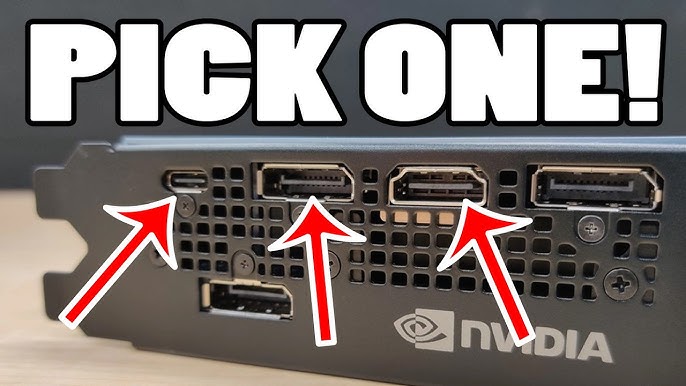
Pick the Best Cable for Performance
Your cable choice determines maximum resolution and refresh rate.
| Cable Type | Max Refresh Rate (Typical) | Best For |
|---|---|---|
| DisplayPort 1.4 | 165Hz @ 1440p | Gaming (Odyssey G5, high-end) |
| HDMI 2.0 | 100 to 144Hz @ 1080p/1440p | General use, consoles |
| USB-C (data + power) | Varies | Laptops, minimalist setups |
- Use DisplayPort to unlock 165Hz on gaming models.
- HDMI may cap at 120Hz unless your GPU and cable support HDMI 2.1.
- Avoid adapters, as they can degrade signal quality.
Identify and Use the Correct Ports
On the back panel, you’ll typically find HDMI 2.0 and DisplayPort 1.4 inputs, a USB 3.0 downstream port for peripherals like a mouse or keyboard, and a power input. Some gaming models use a round proprietary adapter instead of a standard power cord.
⚠️ Critical Note: The Odyssey G5 uses a proprietary round power adapter. Standard power cords won’t fit. Always use the included unit.
Manage Cables Neatly
Many Samsung monitors include a built-in cable clip on the stand or rear shroud.
- Bundle power, HDMI, and USB cables together.
- Route them through the clip to reduce clutter and prevent accidental disconnections.
- For wall-mounted setups, consider adhesive cable channels to hide wires.
Power On and Navigate the OSD
Learn the Button Layout
Control methods vary slightly by model, but most follow a consistent logic.
Single Joystick Button (e.g., Odyssey Series)
- Press once to open or confirm the menu.
- Press and hold to power on or off.
- Push up, down, left, or right to navigate the OSD.
Four-Way Buttons (e.g., LS27A700)
- Center: Power and select.
- Up: Open the OSD.
- Down: Cycle inputs.
- Left: Input selection or back.
✅ Visual Cue: When powered on, the LED usually turns solid white or blue.
Turn the Monitor On Properly
- Plug in and power on your PC or console first.
- Press the power button briefly (don’t hold).
- Wait for signal detection. The screen should light within seconds.
If nothing appears, check that the source device is on, ensure cables are fully seated, and try switching inputs manually.
Switch Between Input Sources
To change from PC to console or laptop:
- Press the Input/Source button or hold the main button.
- Use navigation keys to select HDMI 1, HDMI 2, or DisplayPort.
- Confirm with the center button.
💡 Auto Source Plus: Enabled by default on many models. The monitor auto-detects active devices when multiple cables are connected.
Optimize Display for Gaming and Work
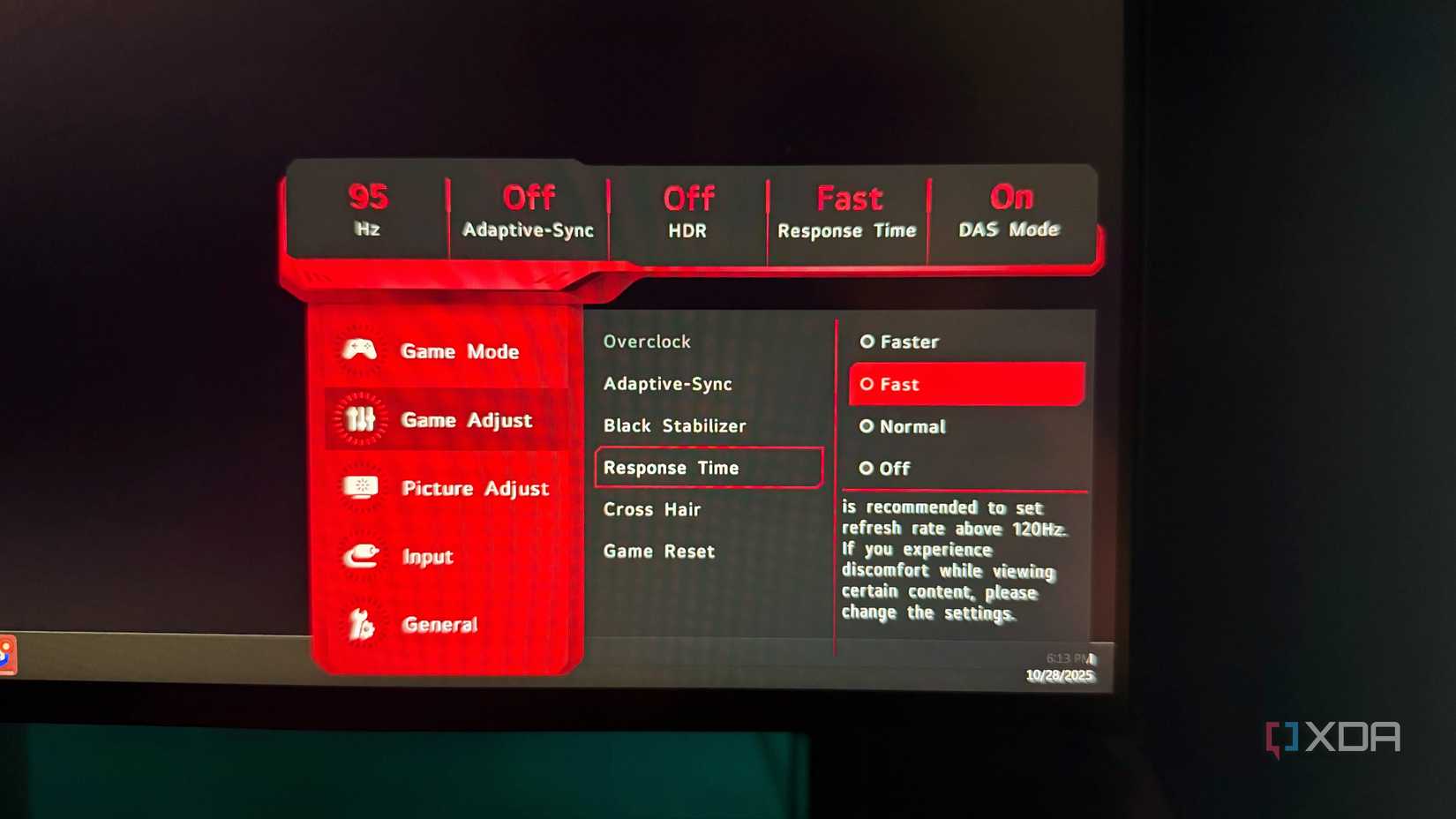
Set the Correct Refresh Rate
To enable high refresh rates (e.g., 100Hz or 165Hz):
On Windows:
- Right-click the desktop and select Display settings.
- Scroll down to Advanced display.
- Under “Refresh rate,” select the highest available option (e.g., 165Hz).
🔗 Use DisplayPort to access rates above 60Hz on most models.
Adjust Response Time Settings
Available in the Game Settings menu:
- Extreme: Fastest response, but may cause inverse ghosting.
- Fast: Balanced and recommended for most games.
- Standard: Default and safe for general use.
⚖️ Trade-off: Faster settings reduce motion blur but increase overshoot artifacts.
Enable Adaptive Sync (FreeSync Premium)
Eliminate screen tearing in games:
- Open OSD and navigate to Game Settings, then AMD FreeSync.
- Set it to On.
- In AMD Radeon Software or NVIDIA Control Panel, enable FreeSync (NVIDIA cards require compatibility mode).
🛠️ Note: FreeSync only works within a specific refresh rate range (e.g., 48 to 165Hz).
Reduce Eye Strain and Improve Comfort
Activate Eye Saver Mode
Reduces blue light emission:
- Open OSD and go to Picture, then Eye Saver Mode.
- Toggle On and choose High or Low depending on ambient light.
Use this during evening sessions to minimize eye fatigue and support better sleep.
Use Eco Saving Plus for Efficiency
This feature lowers backlight brightness automatically. It’s ideal for office environments or dimly lit rooms and can extend monitor lifespan while reducing power bills.
Calibrate Brightness and Contrast
Adjust based on your lighting conditions:
- Brightness: 80 to 100% in bright rooms, 50 to 70% in dark rooms.
- Contrast: 70 to 80% for balanced whites and blacks.
- Color Tone: Choose Warm for reading and Standard for media.
🎯 Pro Tip: Use a calibration tool or built-in Windows HDR calibration for precision.
Boost Productivity with Smart Features
Use Easy Setting Box for Multitasking
Download Samsung Easy Setting Box from the official support site.
Once installed:
1. Launch the app.
2. Choose a layout: 2-split, 3-split, or 4-split.
3. Click Adjust Grid to customize divider positions.
4. Drag open windows into zones. They’ll snap automatically.
💼 Perfect for coding with docs on one side, trading with live charts and news, or streaming while browsing.
The monitor displays red guide lines during setup, which disappear after confirmation.
Customize the On-Screen Display (OSD)
Personalize menu behavior:
- Transparency Mode: Makes OSD semi-transparent.
- Repositionable Menu: Move OSD to any corner.
- Auto-Hide Timer: Hides menu after 5 to 15 seconds.
- Key Repeat Time: Adjust delay when holding a button.
Access these via OSD Settings, then Menu Position or Transparency.
Unlock Smart Monitor Features (If Available)
Access Smart Hub and Install Apps
Some models (e.g., M7, M8) run Tizen OS and function like smart TVs.
To install apps:
1. Press Home on the remote.
2. Go to Search and type the app name (Netflix, YouTube, etc.).
3. Click Install.
Manage apps by adding them to the Home screen for quick access or locking them with a PIN via Settings > General > System Manager > Change PIN.
Mirror Screens with Smart View
Wirelessly cast from your phone or PC:
- Both devices must be on the same Wi-Fi network.
- Press Home, then Source, then Connection Guide.
- Select Smartphone or PC and follow pairing prompts.
Once connected, you can view photos, stream videos, and browse the web. Disconnect via the remote or source device.
Control with Bixby Voice
Use voice commands:
1. Press and hold the Voice Assistant button on the remote.
2. Say commands like “Open Disney+”, “Search for weather”, or “Turn off monitor”.
Set up Bixby via Settings > General > Voice > Bixby Voice Settings. Choose your language, feedback sound, and create a Voice ID for personalized recognition.
🎧 Works best in quiet environments with clear pronunciation.
Stream Media and Browse the Web
Web Browsing
- Use the Internet app on the Home screen.
- Navigate with the remote’s directional pad.
- Save bookmarks and manage tabs.
PC Media Streaming
- Connect your PC via HDMI.
- Select the PC input.
- Use the remote to navigate Music or Videos folders on your PC.
Bluetooth Audio
- Pair your phone via Settings > Sound > Bluetooth > Scan.
- Play music through monitor speakers.
- Supports hands-free calls if the microphone is enabled.
Troubleshoot Common Issues
Fix “No Signal” Error
If the screen stays black with a “No Signal” message:
- Check that the PC or console is powered on.
- Reseat the HDMI or DisplayPort cable at both ends.
- Try a different cable or port.
- Switch input source manually.
🔌 Quick Test: Plug in a known working device (e.g., laptop) to isolate the issue.
Reduce Bright Standby LED
The power LED may glow or blink in dark rooms, disrupting sleep. Cover it with a small piece of opaque tape (electrical or painter’s tape), but avoid blocking ventilation areas.
Reduce Input Lag for Gaming
For competitive gaming:
- Enable Game Mode in the OSD.
- Set response time to Fast (avoid “Extreme” if seeing artifacts).
- Use DisplayPort and disable unnecessary post-processing effects.
⏱️ Budget models (4ms GTG) have slightly higher lag, making them best for casual play.
Stop Screen Flickering
Common causes and fixes:
- Low-quality cable: Replace with certified DP 1.4 or HDMI 2.0+.
- Incorrect refresh rate: Match OS setting to monitor spec.
- Power fluctuations: Plug into a surge protector.
Know What to Expect by Model Type

Budget/Office Models (e.g., 24″ 100Hz)
Specs: 100Hz, 4ms, TN/IPS panel
Best For: Remote work, students, light gaming
Pros:
– Includes HDMI cable
– Smooth scrolling versus 60Hz
– Affordable (often under $200)
Cons:
– No USB-C power delivery
– Bright standby LED
– Limited OSD customization
Mid-Range Gaming (e.g., Odyssey G5 32″)
Specs: 32″ 1440p, 165Hz, 1ms GTG, VA panel, FreeSync Premium
Best For: Immersive gaming, media, content creation
Pros:
– Deep blacks and high contrast (VA panel)
– 1000R curve enhances immersion
– Solid build quality
Cons:
– Proprietary power adapter
– No audio out or USB upstream
– Limited ports
Frequently Asked Questions About Using a Samsung Monitor
How do I set up a Samsung monitor for the first time?
Attach the stand by snapping the base into the stand arm, then connect the monitor to the stand until it clicks. Plug in the power adapter, connect your device via HDMI or DisplayPort, and press the power button. Adjust tilt and height for ergonomic comfort.
What cable should I use for 165Hz on a Samsung gaming monitor?
Use DisplayPort 1.4 to achieve 165Hz at 1440p on models like the Odyssey G5. HDMI 2.0 may cap your refresh rate at 120Hz or lower depending on your GPU and cable version.
How do I enable FreeSync on my Samsung monitor?
Open the OSD, navigate to Game Settings, and turn AMD FreeSync on. Then enable FreeSync in your graphics driver software (AMD Radeon Software or NVIDIA Control Panel with compatibility mode).
Why does my Samsung monitor say “No Signal”?
The message usually means a loose cable, an inactive source device, or an incorrect input selection. Reseat your cables, confirm the PC or console is powered on, and manually switch to the correct input source.
Can I use a Samsung monitor without downloading extra software?
Yes. Modern operating systems recognize Samsung monitors automatically with plug-and-play drivers. However, downloading Easy Setting Box and specific drivers from Samsung’s support site unlocks advanced features like split-screen layouts and color calibration.
How do I reduce eye strain on a Samsung monitor?
Enable Eye Saver Mode in the OSD to cut blue light emission. Calibrate brightness to 50 to 70% in dark rooms, use Warm color tone for reading, and sit 20 to 30 inches from the screen.
Key Takeaways for Mastering Your Samsung Monitor
Mastering how to use a Samsung monitor means more than just turning it on. It’s about tailoring the display to your workflow, gameplay, or entertainment needs. Start with proper assembly and ergonomic placement, then choose the right cable (DisplayPort for high refresh rates) to unlock full performance.
From there, optimize picture settings like Eye Saver Mode and FreeSync, and leverage tools like Easy Setting Box for multitasking. Whether you’re gaming at 165Hz or splitting your screen for productivity, these steps ensure you get the best experience from day one. Download the latest firmware and drivers from Samsung’s support site to keep your monitor running smoothly for years to come.


