
Is your screen painfully bright during late-night work or movie sessions? You’re far from alone. A harsh display causes eye strain, disrupts sleep cycles, and makes dim-room viewing uncomfortable. Fortunately, there are multiple reliable ways to darken monitor screen output on Windows, whether you own a laptop or use an external display. This guide walks you through every proven technique, from built-in sliders and physical monitor controls to GPU calibration and lightweight third-party tools.
You’ll learn how to reduce brightness safely, preserve shadow detail in dark scenes, and troubleshoot common issues like missing sliders or grayed-out controls. By the end, you’ll know exactly which method fits your specific setup and use case.
Adjust Brightness Through the Windows Taskbar
:max_bytes(150000):strip_icc()/001_how-to-change-brightness-in-windows-11-6749592-10b2b48504364c0487187d22d91fcc7f.jpg)
The quickest path to a darker screen runs through Windows’ native controls, though availability depends on your hardware.
Use the Quick Settings Panel
On most modern laptops, you can dim the display without opening any menus:
– Click the network, speaker, or battery icon on the right side of your taskbar.
– Locate the brightness slider in the pop-up panel.
– Drag it leftward to darken the display.
This slider appears automatically on laptops with integrated screens. Desktop PCs with external monitors often lack this option due to hardware limitations.
Open the Full Settings Menu
When the taskbar slider stays hidden, the Settings app provides the same control:
1. Press Start, then select Settings (or hit Win + I).
2. Navigate to System, then click Display.
3. Under “Brightness & color,” drag the Brightness level slider leftward.
Changes apply instantly across Windows 10 and 11. Fine-tune until your eyes feel comfortable.
Enable Automatic Brightness Adjustment
Some laptops include ambient light sensors that adapt brightness to room conditions:
1. Go to Settings > System > Display.
2. Expand the Brightness section.
3. Toggle on Change brightness automatically when lighting changes.
This keeps your screen at an ideal darkness level as natural light shifts throughout the day. HDR displays may transition more slowly than SDR screens when lighting changes.
Stop Content-Based Brightness Fluctuations
Does your screen dim unexpectedly during dark movie scenes? That is Content-Adaptive Brightness Control (CABC), a Windows 11 feature designed to save power.
Disable Unwanted Dimming
To lock in consistent brightness:
1. Open Settings > System > Display.
2. Find Change brightness based on content.
3. Select Off or Optimized for quality.
This step matters most for photo editors, gamers, and video professionals who need stable output. Leaving it on “Optimized for battery” can crush shadow detail in dark imagery.
Use Your Monitor’s Physical Buttons

For external displays, the Windows brightness slider frequently does not work, and that is by design.
Adjust Through the On-Screen Display
To darken an external monitor:
1. Press the menu button on the monitor’s bezel (usually bottom or side).
2. Navigate to Brightness, often marked by a sun icon.
3. Lower the value using arrow or toggle keys.
This remains the most reliable method across HDMI, DisplayPort, DVI, and VGA connections. Windows cannot control external backlights without specialized drivers.
Resolve DVI Brightness Lock Issues
Some DVI-connected monitors appear stuck at 50% or full brightness:
– Cause: Poor handshake between GPU and monitor.
– Fix: Use the monitor’s OSD menu exclusively; ignore Windows controls.
– Workaround: Adjust black level through your GPU settings (covered next).
Calibrate Output Through Your GPU
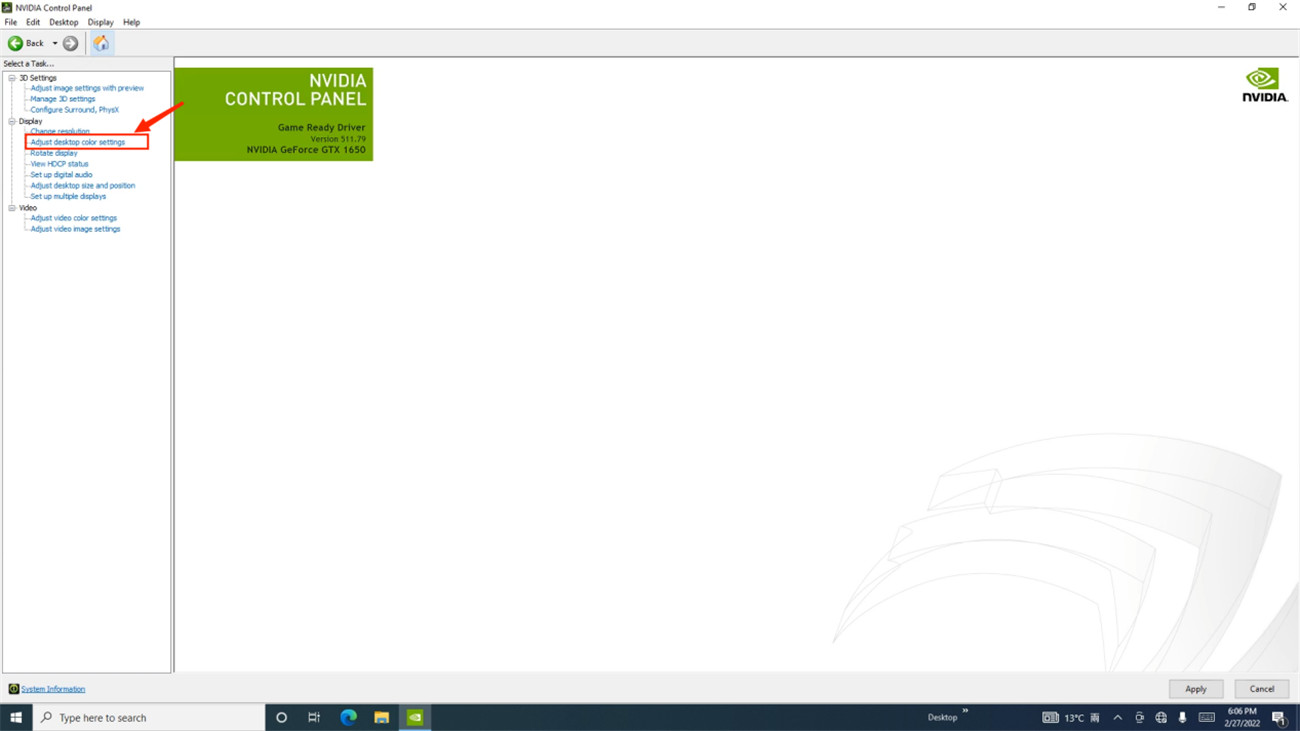
When hardware controls fall short, your graphics card can simulate darkness by altering its output signal.
NVIDIA Control Panel Method
- Right-click the desktop and select NVIDIA Control Panel.
- Under Display, choose Adjust desktop color settings.
- Modify Digital vibrance or open Adjust video color settings.
- In the Video section, adjust Brightness (Black Level):
– Slide left to deepen blacks.
– Stop before faint gray bars disappear to avoid crushing detail.
AMD Radeon Software Method
- Launch AMD Radeon Software.
- Navigate to Display, then Color.
- Lower the Brightness slider (this controls black level).
- Adjust Gamma for mid-tone darkness.
Intel Graphics Command Center Method
- Right-click the desktop and select Intel Graphics Settings.
- Go to Display, then Color.
- Lower Brightness and tweak Contrast for balanced dimming.
Calibration Tip: Use test patterns from lcd-test.com or AVS HD 709. Your goal: bars 17 through 28 should stay visible in black level tests, while lower bars remain invisible.
Enable Night Light for Warmer Darkness
Want a softer, less aggressive display at night? Night Light filters blue light and shifts colors toward warmer tones, making the screen feel darker and easier on tired eyes.
Turn On and Fine-Tune Strength
- Click the network or speaker icon in the taskbar.
- Toggle Night light on.
- For deeper control:
– Open Settings > System > Display > Night light.
– Adjust Strength (40–60% works well for most users).
– Schedule it: choose Sunset to sunrise or set custom hours.
Night Light does not actually reduce luminance. Instead, it filters color wavelengths. The warmer tone simply feels darker and supports healthier melatonin production.
Fix a Grayed-Out Night Light Toggle
If the toggle stays disabled:
– Your display driver may be outdated.
– Open Device Manager, expand Display adapters, right-click your GPU, and select Update driver.
– Download the latest driver from NVIDIA, AMD, or Intel’s official site.
Install ICC Color Profiles for Accurate Darkness
For precise control over how dark tones render in photos and videos, proper color management helps.
Enable Automatic Color Management
- Go to Settings > System > Display > Color profile.
- Turn on Automatically manage color for apps.
- This ensures smoother gradients and reduces banding in dark scenes.
Add a Custom ICC Profile
Monitor manufacturers often publish ICC profiles for “dark room” or sRGB modes:
1. Download the correct profile from your manufacturer’s website.
2. Open Color profile, then click Add profile.
3. Select your display and set the new profile as Default.
This step improves dark color rendering, especially valuable for creative professionals.
Run the Display Calibration Wizard
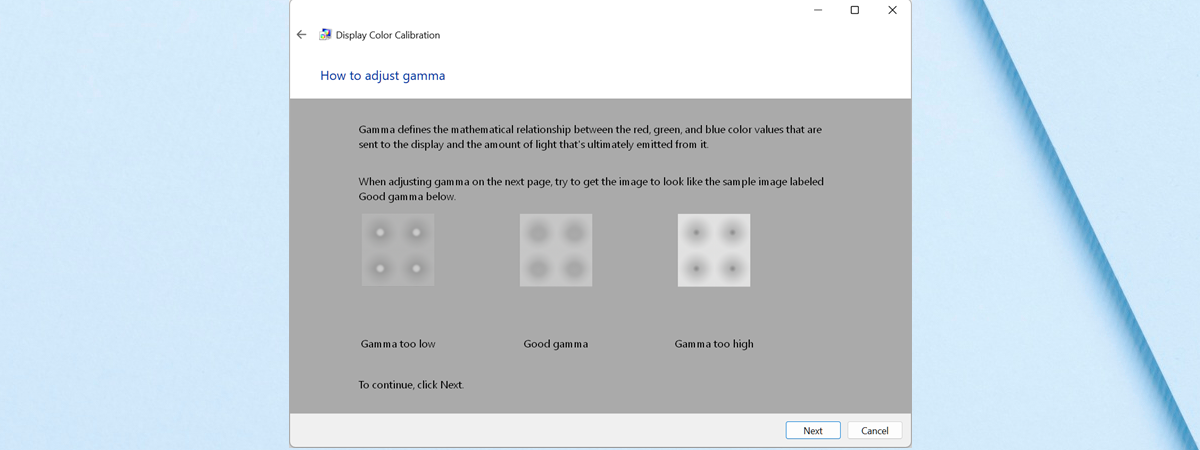
Windows includes a built-in tool for fine-tuning brightness and gamma.
Calibrate for Optimal Darkness
- Search “Calibrate display color” in the Start menu.
- Follow the on-screen wizard:
– Adjust Gamma using the circle test.
– Set Brightness so only bars 17–28 remain visible.
– Fine-tune Contrast for clean white clarity. - Save the new calibration profile.
HDR Users: If you own an HDR monitor, download the Windows HDR Calibration app from the Microsoft Store. It lets you define minimum and maximum nits to prevent washed-out dark areas.
Use DimScreen for External Monitors
Missing a brightness slider? DimScreen is a portable tool that overlays a dark tint to simulate dimming on any monitor.
How DimScreen Works
- Download DimScreen (free, roughly 431 KB, no installation needed).
- Run the executable directly.
- Right-click the system tray icon (check the hidden icons arrow).
- Choose Dimmer > Decrease or use hotkeys to cycle levels.
Key features include:
– 10 preset levels ranging from 0% to 100% opacity.
– Persistent settings that survive reboots.
– Universal compatibility with any monitor, even without DDC/CI support.
Known Limitations
- Single monitor only: No per-display adjustment in multi-monitor setups.
- Overlay conflicts: May interfere with full-screen games or recording software.
- No blue light filter: Pure dimming only.
Troubleshooting: If DimScreen disappears after shutdown, create a shortcut in your Startup folder for automatic relaunch.
Troubleshoot Missing or Grayed-Out Controls
When brightness controls vanish entirely, these fixes restore functionality.
Brightness Slider Missing?
Cause: External monitor or outdated driver.
Fix:
– Use your monitor’s physical buttons.
– Update the display driver through Device Manager:
1. Right-click Start and select Device Manager.
2. Expand Display adapters.
3. Right-click your GPU and choose Update driver > Search automatically.
Slider Grayed Out?
Cause: “Basic Display Adapter” driver is active.
Fix:
– Download and install the manufacturer-specific GPU driver (NVIDIA GeForce Experience, AMD Adrenalin, or Intel Driver & Support Assistant).
DVI Monitor Stuck at 50%?
Cause: Signal limitation prevents backlight control over DVI.
Fix:
– Adjust brightness only through the monitor OSD.
– Use GPU black level or gamma adjustments to simulate dimming.
Match the Method to Your Situation

Different needs call for different approaches. Here is the best fit for common scenarios.
For Night Use and Eye Strain
- Enable Night Light at 60% strength on a sunset-to-sunrise schedule.
- Lower monitor brightness through the OSD.
- Add DimScreen if hardware controls fail.
For Gaming and Full-Screen Apps
- Skip DimScreen to avoid overlay conflicts.
- Use the monitor OSD or GPU black level controls.
- Disable CABC for stable lighting.
For Photo and Video Editing
- Run the Display Calibration Wizard.
- Enable Auto Color Management.
- Turn off Change brightness based on content.
- Apply accurate ICC profiles for dark tones.
For Laptops on Battery
- Lower brightness to 30–50%.
- Enable auto-brightness adjustment.
- Activate Night Light after dark.
For Desktops With No Software Controls
- Use DimScreen for quick dimming.
- Calibrate GPU black level for precision.
- Update drivers to unlock potential Windows controls.
Frequently Asked Questions About How to Darken Monitor Screen
Why is my brightness slider missing in Windows Settings?
The slider usually disappears when you connect an external monitor, since Windows cannot control external backlights without specific driver support. Switch to your monitor’s physical buttons, or update your display driver through Device Manager.
Does Night Light actually darken the screen?
Night Light filters blue light wavelengths and shifts colors warmer, which makes the display feel darker. However, it does not reduce actual luminance. For real brightness reduction, combine Night Light with hardware or software dimming.
Is DimScreen safe to use?
Yes. DimScreen is a lightweight, portable utility that simply overlays a semi-transparent black layer. It does not modify system files or drivers. The main drawback is potential interference with full-screen applications and games.
How do I darken an external monitor without physical buttons?
Use GPU calibration tools like NVIDIA Control Panel, AMD Radeon Software, or Intel Graphics Command Center to adjust black level and gamma. Alternatively, install DimScreen for an overlay-based dimming effect.
What is the ideal brightness level for night use?
Most users find 30–50% brightness comfortable in dim environments. Pair this with Night Light at 40–60% strength for the best combination of reduced glare and warmer color temperature.
Can darkening my screen save battery life?
Absolutely. Lowering brightness is one of the most effective ways to extend laptop battery life. Disabling Content-Adaptive Brightness Control and reducing backlight intensity both reduce power consumption significantly.
Key Takeaways for Darkening Your Monitor Screen
Learning how to darken monitor screen output effectively comes down to matching the right method to your hardware. Laptops with integrated displays benefit most from the Windows brightness slider and Night Light. Desktop users with external monitors should rely on physical OSD controls, GPU calibration, or DimScreen for reliable dimming.
Three core principles guarantee the best results. First, always update your display drivers to unlock full software control. Second, calibrate using test patterns to avoid crushing shadow detail in dark scenes. Third, combine hardware brightness reduction with Night Light for maximum eye comfort during late-night sessions.
Your next step: pick the method that matches your setup from this guide and apply it tonight. Your eyes will thank you by morning.


