
You set up a second monitor expecting a bigger workspace, but the taskbar stubbornly stays on your original screen. You try dragging it across, and nothing happens. This is one of the most frustrating changes in Windows 11. Unlike Windows 10, where you could freely drag the taskbar to any display, Microsoft now locks the taskbar position to your primary monitor. So learning how to move taskbar to other monitor requires understanding this new system-level dependency.
The fix exists, but it comes with a trade-off. You must designate your preferred monitor as the main display, which changes where apps and dialog boxes open by default. This guide walks you through the exact steps to move the taskbar to another monitor, explains what shifts in your workflow, and offers alternatives if you need more flexibility.
Designate Your Target Monitor as Primary in Windows 11
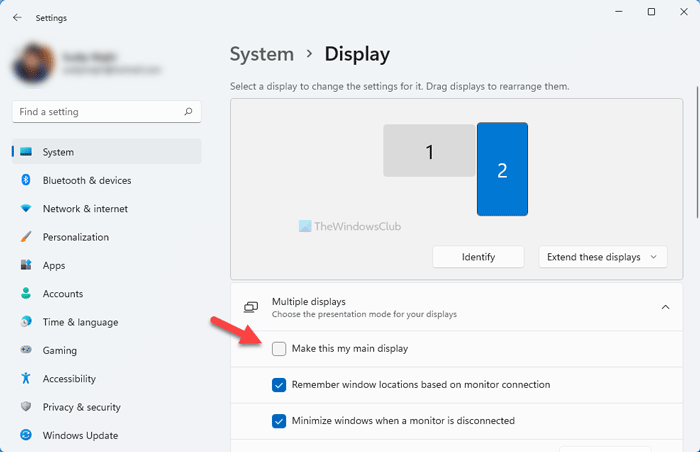
The only native way to move the taskbar to another monitor involves changing your primary display. Microsoft ties the taskbar location directly to this setting, so understanding the relationship is your first step.
Identify Which Monitor Is Which
Before changing anything, confirm your physical screen layout matches what Windows shows.
1. Press Windows + I to open Settings.
2. Navigate to System, then click Display.
3. Click the Identify button.
– A large number briefly flashes on each connected screen.
– Match these numbers to your actual desk arrangement.
This prevents accidentally swapping the wrong monitor, especially if your on-screen diagram does not reflect your real layout.
Change the Primary Display Setting
Once you know which monitor you want the taskbar on:
1. In the Display settings, click the box representing your target monitor.
2. Scroll down to the Multiple displays section.
3. Check the box labeled Make this my main display.
– The taskbar instantly jumps to this monitor.
– The Start button, system tray, and pinned icons now live here.
Note: This change works immediately when using “Extend these displays.” If you duplicate screens instead, the setting has no visible effect.
Control Whether the Taskbar Appears on All Screens
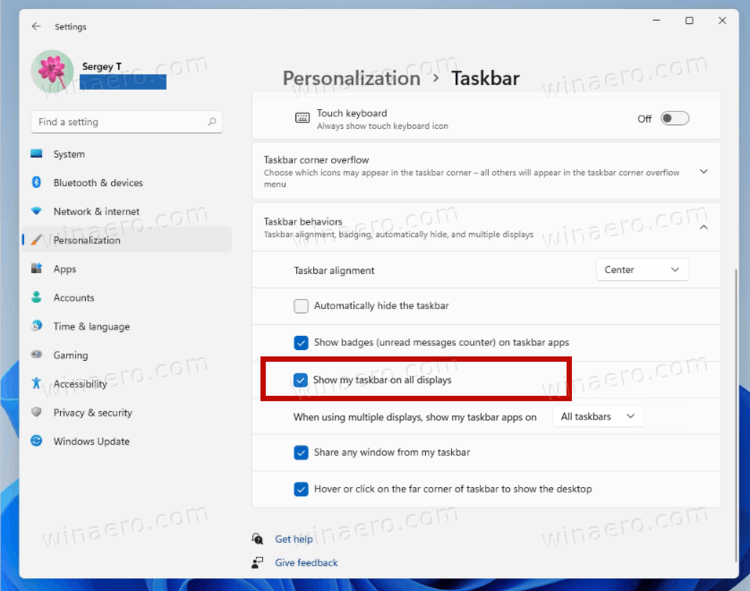
After moving the taskbar to your preferred monitor, decide if it should stay exclusive or appear across every display.
Show the Taskbar on Only One Monitor
To keep your setup clean and focused:
1. Open Settings and go to Personalization.
2. Click Taskbar, then expand Taskbar behaviors.
3. Make sure Show my taskbar on all displays is turned off.
– Off means the taskbar appears only on the main display.
– On means every monitor gets its own taskbar.
With this disabled, your secondary screens stay clean and distraction-free.
Show the Taskbar on Every Connected Monitor
If you want full access across all screens:
1. Go to Personalization > Taskbar > Taskbar behaviors.
2. Turn on Show my taskbar on all displays.
– Each monitor displays a full taskbar with pinned apps.
– The Start button and system clock remain anchored to the main display.
This option suits symmetric setups where you frequently switch focus between screens.
Understand How Moving the Taskbar Changes Your Workflow
Changing the primary display does more than relocate the taskbar. It reshapes how Windows handles new windows and applications across your entire setup.
New Apps Default to the New Primary Monitor
Once you swap the primary display:
– Every app launched from the Start menu, search, or desktop opens on the new main screen.
– Browser windows, documents, and system dialogs follow this rule.
– Communication tools you kept on a smaller monitor now open on the larger one.
This can disrupt established habits, especially if you preferred keeping chat apps visible on a side screen while working on a primary display.
Dialog Boxes Follow the Primary Display
Even pop-up windows like Save As, Print, and Settings dialogs often appear on the main display. If you edit video on a secondary monitor, these boxes may still pop up on your new primary screen, forcing you to shift focus.
Pro Tip: You can manually drag dialog boxes to your current workspace, but this adds an extra step to routine tasks.
Compare Windows 10 vs. Windows 11 Taskbar Behavior
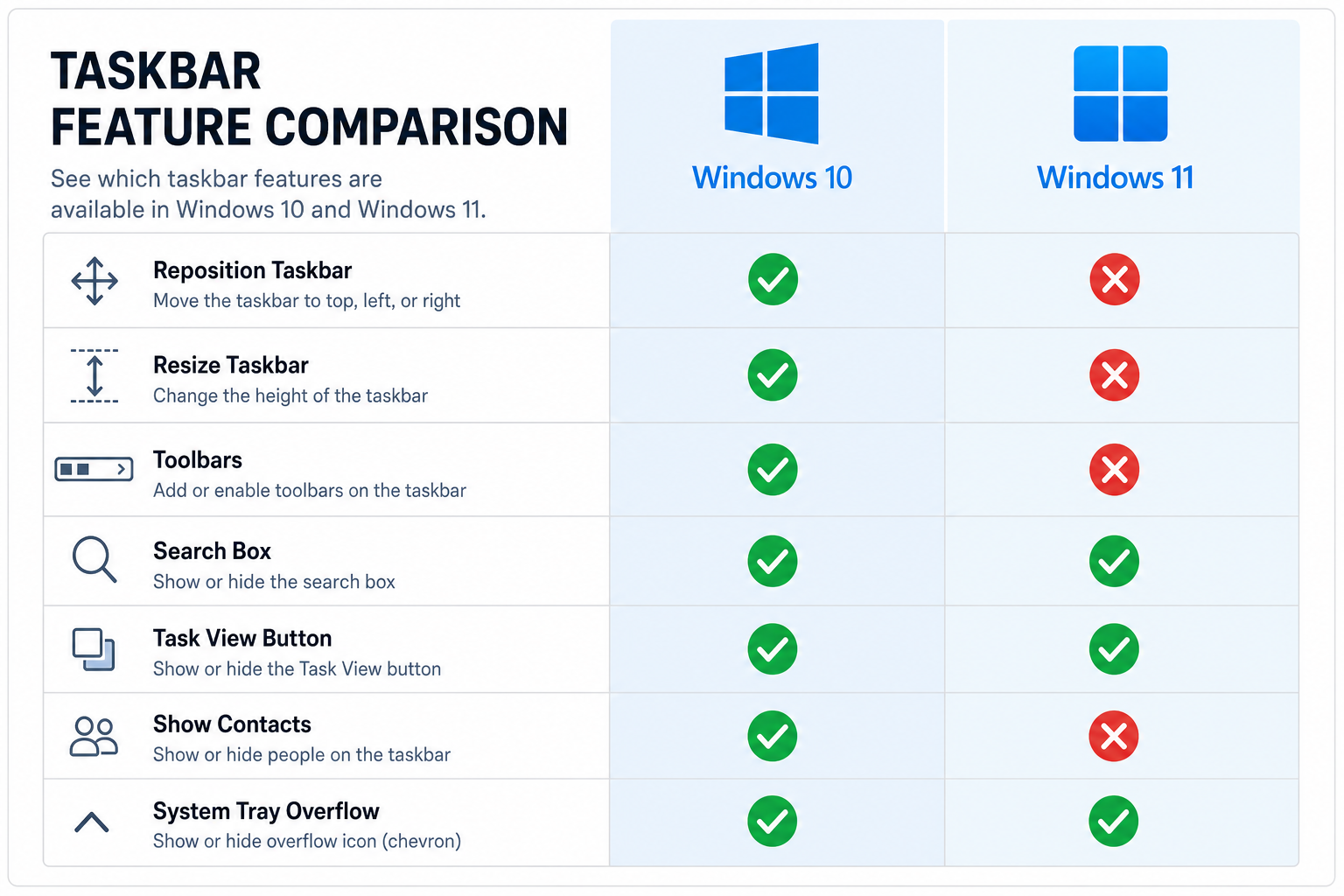
| Feature | Windows 10 | Windows 11 |
|---|---|---|
| Movement Method | Drag and drop freely | Must change primary display |
| Independent Control | Yes, taskbar location is separate from primary display | No, taskbar locked to main display |
| Multi-Monitor Taskbars | Optional per screen | Tied to primary plus global toggle |
| User Flexibility | High, customize per monitor | Low, system-wide dependency |
Many users stay on Windows 10 specifically for this flexibility. The removal of drag-and-drop taskbar movement remains one of the top complaints since Windows 11 launched.
Submit Feedback to Microsoft for Feature Restoration
Microsoft knows this limitation frustrates users. The Feedback Hub gives you a direct channel to request changes.
File a Request Through Feedback Hub
- Press Windows + F to open the Feedback Hub.
- Search for “move taskbar to another monitor.”
- Upvote existing suggestions or write a new one.
- Use a clear title like “Restore Ability to Move Taskbar Independently of Primary Display.”
- Describe how the current limitation impacts your productivity.
High-volume feedback increases the chance Microsoft restores independent taskbar positioning in a future update.
Consider Third-Party Tools With Caution
Some applications claim to restore Windows 10-style taskbar freedom, but they carry real risks.
Popular Third-Party Options
- ExplorerPatcher: Restores independent taskbar placement and Start menu customization.
- StartAllBack: Offers granular taskbar control, including per-monitor positioning.
- RockDock and ObjectDock: Provide dock-like bars on any screen, though they are not true taskbar replacements.
Risks to Understand
- May cause system instability or Explorer crashes.
- Can break after Windows updates.
- Not officially supported, so use at your own risk.
Recommendation: Only install third-party tools if the native method severely disrupts your workflow, and always back up your system first.
Optimize Your Multi-Monitor Setup in Windows 11
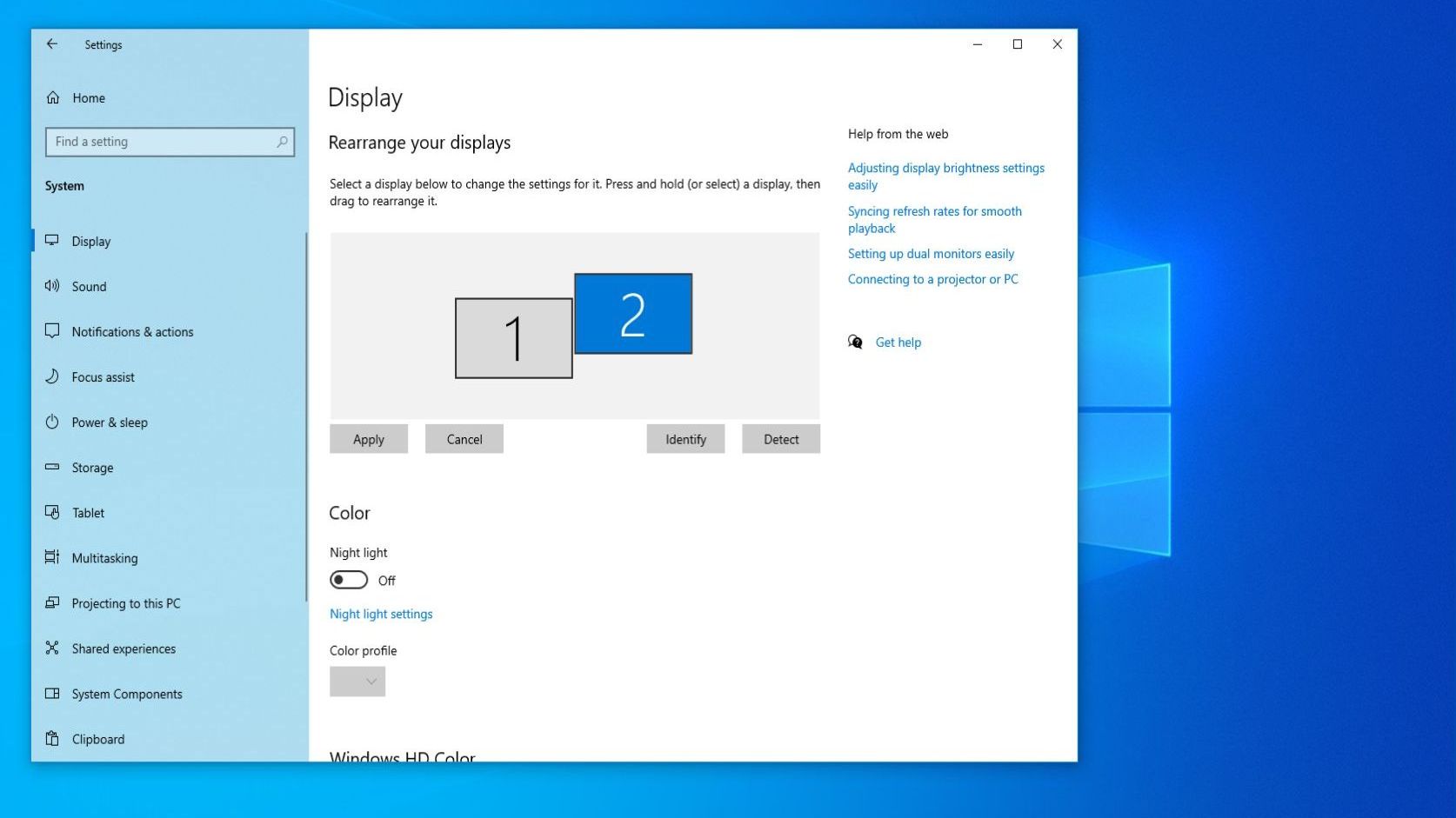
Even with Windows 11 limitations, you can fine-tune your experience for better productivity.
Arrange Monitors Correctly in Settings
- Open Settings > System > Display.
- Drag the monitor thumbnails to match your physical layout.
- Ensure the numbering reflects left-to-right or top-to-bottom positioning.
– This affects how windows drag between screens and where your pointer moves.
Pin Your Most Used Apps
On your preferred monitor:
– Pin key apps like Chrome, Outlook, or Photoshop to the taskbar.
– Use taskbar search or Win + [number] shortcuts to launch apps quickly.
Use Virtual Desktops for Better Organization
Separate work contexts to reduce clutter:
– Press Win + Tab and click New Desktop.
– Assign specific apps to each desktop.
– Switch between them with Ctrl + Win + Left or Right.
This strategy works especially well when you enable “Show taskbar on all displays.”
Frequently Asked Questions About Moving the Taskbar to Another Monitor
Can I drag the taskbar to another monitor in Windows 11?
No. Windows 11 removed the drag-and-drop method available in Windows 10. The only native way to move the taskbar to another monitor requires changing your primary display setting in Settings > System > Display.
Will moving the taskbar affect where my apps open?
Yes. When you change the primary display to move the taskbar, all new applications and dialog boxes default to opening on that monitor. This is the main trade-off of the native solution.
How do I show the taskbar on all monitors in Windows 11?
Go to Settings > Personalization > Taskbar, expand Taskbar behaviors, and turn on Show my taskbar on all displays. Each monitor will display a taskbar, though the Start menu stays on the main display.
Is there a way to move the taskbar without changing the primary display?
Not natively. Third-party tools like ExplorerPatcher and StartAllBack can restore independent taskbar placement, but they may cause system instability or break after Windows updates.
Why did Microsoft remove the ability to move the taskbar freely?
Microsoft redesigned the taskbar architecture in Windows 11 and tied its location to the primary display. This decision has been widely criticized, and many users have requested the feature be restored through the Feedback Hub.
Can I keep the taskbar on my original monitor while using multiple screens?
Yes. Just leave your current monitor as the primary display and avoid changing the “Make this my main display” setting. The taskbar will remain on your original screen.
Key Takeaways for Moving Your Taskbar to Another Monitor
Learning how to move taskbar to other monitor in Windows 11 comes down to one essential step: designating your target screen as the primary display. Once you do this through Settings > System > Display, the taskbar shifts immediately. You can then choose to keep it exclusive to that monitor or extend it across all displays via Taskbar behaviors.
Remember the trade-off: changing the primary display also changes where new apps and dialog boxes open. If this disrupts your workflow, consider submitting feedback through the Feedback Hub or exploring third-party tools with caution. Your best next step is to identify your monitors, set your preferred screen as primary, and decide whether you want the taskbar everywhere or just where you need it most.


