
A flashing or flickering monitor can derail your work in seconds. Whether the screen pulses every few seconds or cuts out entirely, the disruption hurts productivity and strains your eyes. The good news is that most causes of a flashing monitor are fixable without buying new hardware. The trick is figuring out whether the issue comes from software, cables, power, or internal components.
This guide gives you a step-by-step process to diagnose and fix a flashing monitor. You will learn how to tell if the problem is a driver glitch, a loose cable, a failing GPU, or unstable power in your space. By the end, you will have a clear path to restore a stable, flicker-free display.
Run the Task Manager Test First
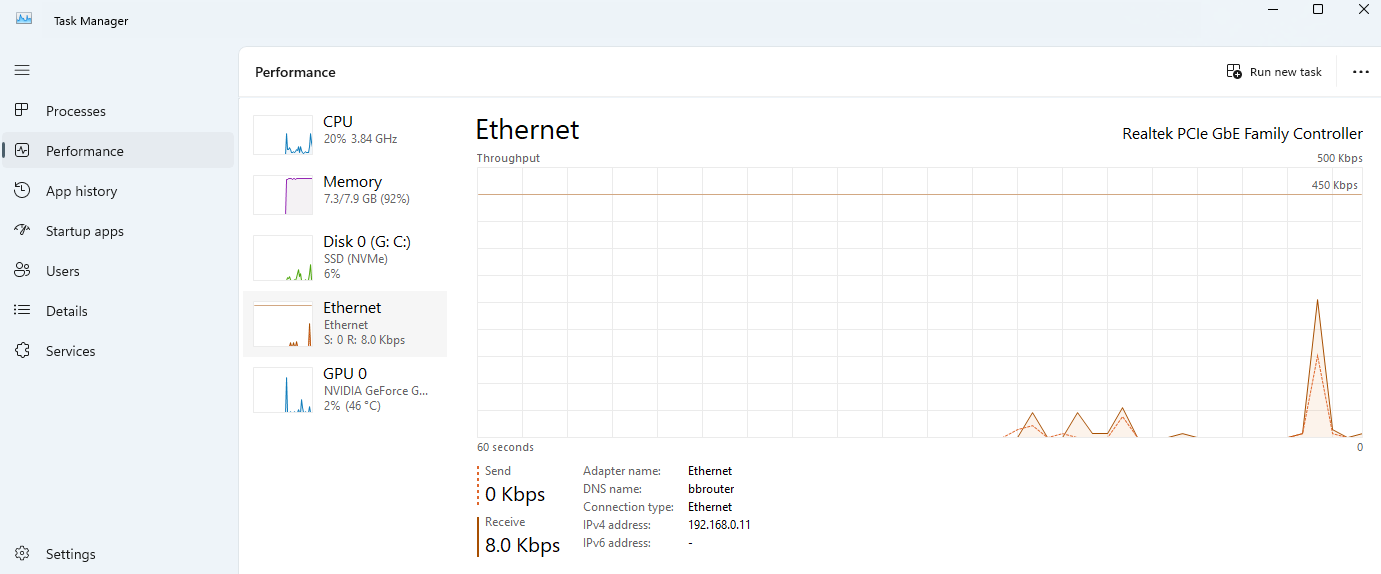
Before trying complex fixes, start with one of the fastest diagnostic tools in Windows. The Task Manager test tells you whether the flicker comes from software or hardware.
Check How Task Manager Behaves
Press Ctrl + Shift + Esc to open Task Manager. Keep the window visible while the screen flickers and watch what happens.
- If Task Manager flickers with the rest of the screen, the issue is system-wide. This usually points to graphics driver problems.
- If Task Manager stays steady while other elements flicker, the issue is app-specific. A buggy program with hardware acceleration is the likely culprit.
- If the screen goes completely black, the monitor is losing signal or power. This points to cables, GPU, or power supply issues.
This three-second test saves hours of guesswork.
Update or Roll Back Your Graphics Drivers
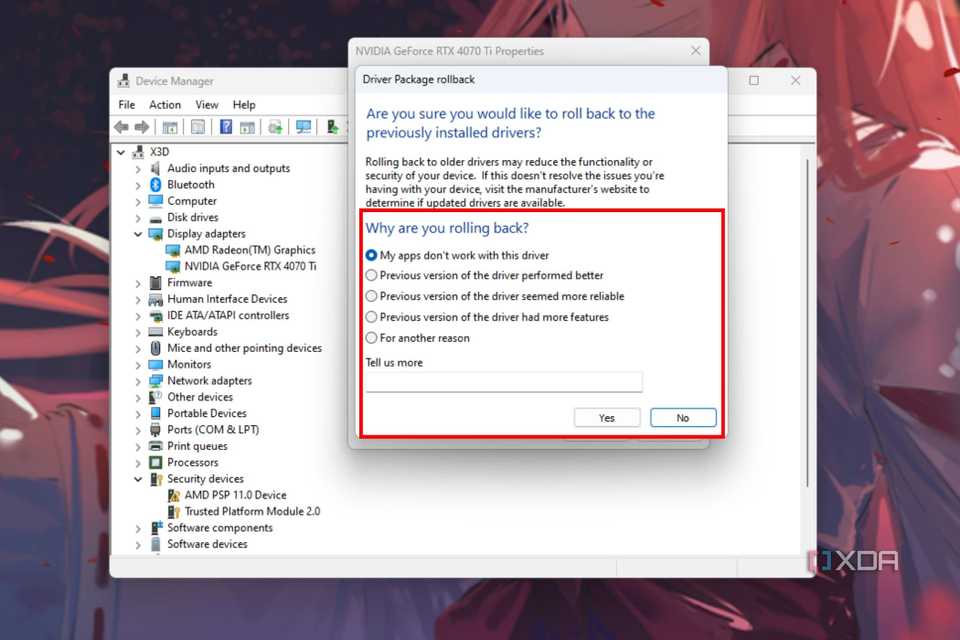
Outdated or corrupted graphics drivers cause more flickering than any other software issue on Windows.
Download the Latest Driver
- Press
Windows + Xand open Device Manager. - Expand Display adapters.
- Right-click your GPU and choose Update driver.
- Select Search automatically for drivers.
For better results, visit the manufacturer directly:
- NVIDIA: nvidia.com/Download
- AMD: amd.com/support
- Intel: intel.com/drivers
Always install the WHQL-certified driver for your exact GPU model.
Roll Back a Recent Driver
If flickering started right after a driver update, the new version may be unstable.
- Open Device Manager and right-click your GPU.
- Select Properties and open the Driver tab.
- Click Roll Back Driver if the option is available.
This restores the previous stable version and often stops the flicker immediately.
Set the Correct Refresh Rate and Resolution

A wrong refresh rate forces your monitor to operate outside its design range. This causes flicker, especially on older LCD panels.
Choose Your Monitor’s Native Refresh Rate
- Right-click the desktop and open Display settings.
- Scroll to Advanced display.
- Click Choose refresh rate and pick the right option:
- 60 Hz: Standard for most office monitors
- 75 Hz, 120 Hz, or 144 Hz: Common for gaming displays
- 72 Hz to 85 Hz: Often required for older LCDs to stop flicker
Never force a rate your monitor does not support. Doing so can cause blackouts or permanent damage.
Match the Native Resolution
Set your resolution to the recommended option, usually the highest one available. Mismatched resolution creates scaling issues that look like flickering.
Disable HDR on Windows 11
HDR can cause flicker on monitors that do not fully support it.
- Go to Settings > System > Display.
- Toggle off Use HDR.
- Restart and check whether the flicker is gone.
Stop Flickering Caused by Specific Apps
Some applications hijack GPU resources and conflict with display rendering. This is common with browsers, chat apps, and meeting software.
Turn Off Hardware Acceleration
Many apps use hardware acceleration by default. When buggy, it triggers flicker.
In Chrome:
1. Open Settings > System.
2. Switch off Use hardware acceleration when available.
3. Restart the browser.
Repeat the process in Discord, Zoom, Firefox, and any other app with this setting.
Uninstall Recent Software
If the flicker started after installing new software, remove recent apps one at a time. Reboot after each removal and watch for changes. Common offenders include antivirus tools, screen recorders, and desktop widgets.
Inspect and Replace Your Cables
Loose or damaged cables are a leading cause of intermittent flicker, especially when the screen cuts out or shows “No Signal.”
Reseat Every Cable
- Power off both the monitor and the PC.
- Unplug the video cable from both ends.
- Reconnect firmly. Tighten thumbscrews on VGA or DVI. Push HDMI or DisplayPort until they click.
- Repeat the process with the power cable.
Swap Cables to Test
Use a known working cable to replace the current one. Internal wire damage is often invisible from the outside.
- Avoid adapters and extension cables since they weaken the signal.
- Use shielded cables in areas with heavy electromagnetic interference.
Test Your Power and Environment
Flicker that comes and goes, especially in dorms or older buildings, often points to unstable power rather than bad hardware.
Check for Circuit Overload
A standard residential circuit handles about 1,800 watts at 15 amps. A typical PC draws 200 to 400 watts. Add a heater or microwave on the same circuit and you may exceed the limit.
Signs of a power problem:
– Flicker happens when other devices turn on
– Monitor cuts out for one or two seconds at a time
– Issue only appears in one room
Stabilize Your Power Supply
- Plug into a different outlet, ideally on another wall or room.
- Use a surge protector to filter minor spikes.
- Invest in a UPS (Uninterruptible Power Supply). A UPS regulates voltage and protects against drops and surges. This is the best fix for dorms and older buildings.
Eliminate Electromagnetic Interference
Routers, microwaves, and large speakers emit electromagnetic fields that disrupt video signals.
Reduce EMI Around Your Monitor
- Move the monitor away from routers, power strips, and large speakers.
- Keep video cables away from power cords.
- If cables must cross, do so at a 90-degree angle to reduce interference.
This step matters most for VGA and DVI cables, which are more vulnerable than HDMI or DisplayPort.
Diagnose Laptop-Specific Problems
Laptops have unique failure points because of their compact design and moving parts.
Check the Hinge and Internal Cable
The ribbon cable connecting the screen to the motherboard runs through the hinge. Repeated opening and closing can loosen or damage it.
Signs of cable damage:
– Flicker changes when you adjust the screen angle
– Screen flashes when you press near the hinge
Gently wiggle the lid while watching the screen. If the flicker changes, the internal cable is likely loose or broken.
Test the Power Adapter and Battery
A failing adapter or swollen battery can cause unstable power delivery.
- Run the laptop on battery only with the charger unplugged.
- Then run on charger only with the battery removed if possible.
- If the flicker stops in one mode, the power source is the issue.
Isolate the Faulty Component
When software and cables check out, you need to find out whether the monitor, GPU, or PSU is to blame.
Swap the Monitor
- Connect your monitor to a different computer.
- If the flicker continues, the monitor is faulty.
- If the flicker stops, the problem is with your original PC.
Swap the PC
- Connect a known working monitor to your PC.
- If the flicker continues, the issue is with your GPU, driver, or PSU.
- If the flicker stops, your original monitor is the culprit.
This swap method is the most reliable way to confirm hardware failure.
Identify Internal Monitor Failures
If testing confirms the monitor is the problem, the issue is usually internal.
Common Internal Failures
- Failing backlight: Causes pulsing flicker, especially in dim lighting.
- Bad capacitors: Lead to intermittent power loss where the screen flashes off and on.
- Faulty power board: The monitor struggles to stay powered.
What to do:
– If under warranty, contact the manufacturer.
– If out of warranty, replacement is usually smarter than repair. Labor costs and high-voltage risks make DIY fixes unsafe.
Warning: Never open a monitor unless you are qualified. Internal components can hold lethal voltage even when unplugged.
Diagnose GPU and Power Supply Issues
If the problem stays with your PC, the GPU or PSU may be failing.
Test the Graphics Card
- Use integrated graphics if available. Remove the GPU and plug the monitor into the motherboard’s video port.
- If the flicker stops, the dedicated GPU is failing.
- Try a different GPU in your system to confirm.
Check the Power Supply
An aging or underpowered PSU cannot deliver stable voltage to the GPU under load.
Signs of PSU failure:
– Flicker during gaming or heavy tasks
– Random shutdowns
– Burning smell or unusual fan noise
If you suspect the PSU, test with a known good unit or use a power supply tester.
Frequently Asked Questions About a Flashing Monitor
Why does my monitor flicker only sometimes?
Intermittent flicker usually points to a loose cable, unstable power, or a failing component under load. Start by reseating cables, then check your power outlet and circuit load.
Can a flashing monitor damage my eyes?
Yes. Prolonged flicker causes eye strain, headaches, and fatigue. Fix the issue promptly to avoid discomfort, especially during long work sessions.
How do I know if my monitor or GPU is the problem?
Use the swap test. Connect your monitor to another PC. If the flicker follows the monitor, the monitor is bad. If the flicker stays with the PC, the GPU or PSU is likely failing.
Is a flashing monitor a sign it is about to die?
Often, yes. Flickering from a failing backlight, bad capacitors, or a worn power board usually means the monitor is near the end of its life. Replacement is often cheaper than repair.
Will updating drivers fix a flashing monitor?
In many cases, yes. Driver issues are the top software cause of flicker. Updating to the latest WHQL-certified driver or rolling back a recent bad update resolves the problem for most users.
Should I use a UPS to stop monitor flicker?
A UPS helps if your flicker comes from unstable power, voltage drops, or shared circuits. It regulates incoming voltage and protects your equipment from surges. It will not fix hardware or driver problems.
Key Takeaways for Fixing a Flashing Monitor
Start with the Task Manager test to separate software issues from hardware problems. Update or roll back your graphics drivers, then check your refresh rate and resolution settings. Inspect every cable connection and replace damaged cables with shielded ones. Test your power outlet and consider a UPS if you live in a dorm or older building.
If software and cables check out, use the swap test to isolate the faulty component. Replace a failing monitor or GPU rather than attempting risky internal repairs. With this approach, you can fix a flashing monitor quickly, save money on unnecessary replacements, and get back to a stable display.


