
Your monitor suddenly looks off. Whites appear yellow, colors seem washed out, or reds are completely missing. Monitor color problems affect users across Windows laptops, Mac desktops, and multi-monitor setups alike. These issues can stem from simple software settings like Night Light to deeper hardware faults like a damaged ribbon cable. The key is knowing where to start.
This guide walks you through a complete, step-by-step process to diagnose and fix monitor color problems, whether it is a dull screen after a Windows update or strange tints following a drop. You will learn how to test cables, reset color profiles, disable filters, and determine when hardware repair is needed, all without guesswork.
Disable Built-In Blue Light Filters
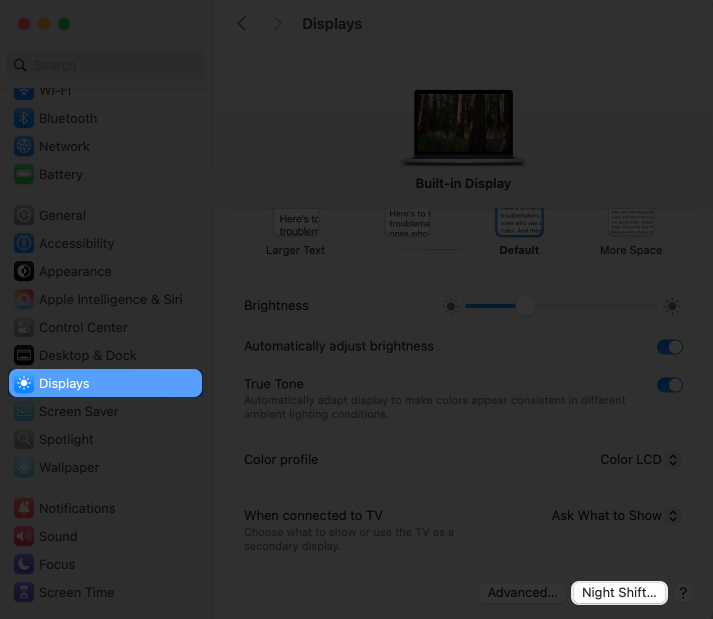
Many color issues are intentional. Your system thinks it is helping. Features like Night Light or True Tone warm the screen to reduce eye strain, but they can make the display look unnaturally yellow.
Turn Off Windows Night Light
Go to Settings then System then Display. Scroll down and toggle Night Light to Off. If it was active, you should see colors instantly cool down. To prevent recurrence, set a custom schedule or disable automatic activation.
Disable macOS Night Shift and True Tone
On Mac, open System Settings then Displays. Toggle both Night Shift and True Tone off. True Tone adjusts based on ambient light and often causes warm shifts. Turning it off restores factory color balance.
Reset Color Temperature Manually
If the screen still looks warm, manually adjust the temperature using these steps:
– Windows: In Display settings, click Advanced display then Color calibration
– macOS: Use ColorSync Utility (search via Spotlight) then Calibrate
Set the white point to 6500K, the standard neutral daylight temperature.
Check for HDR Misconfiguration
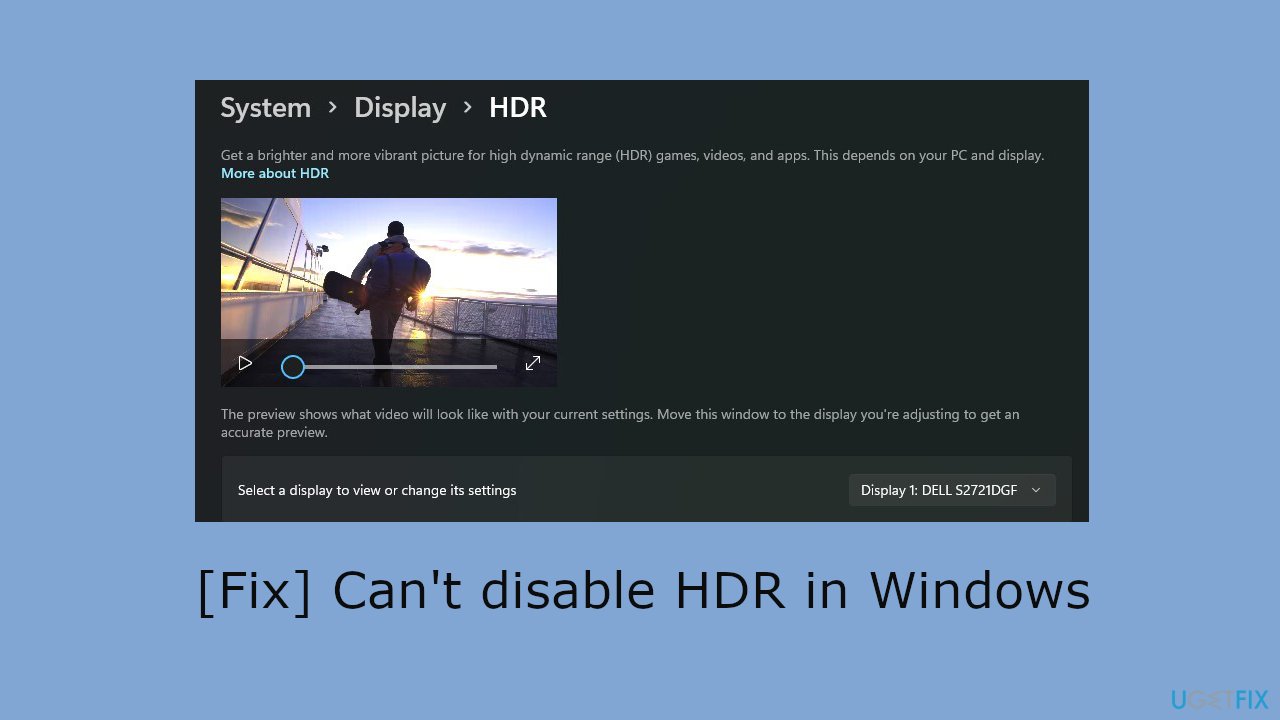
HDR can make colors pop, but if enabled on a non-HDR monitor, it causes washed-out images and grey blacks.
Disable HDR in Windows
Go to Settings then System then Display. Scroll to High Dynamic Range and toggle Use HDR to Off. This step is critical after Windows updates, which sometimes enable HDR automatically on incompatible displays.
Verify Monitor HDR Support
Not all monitors support HDR. Check your model specifications. If unsure, assume it does not. Forcing HDR on a standard display corrupts gamma and contrast.
Calibrate After Disabling HDR
After turning HDR off, run the Calibrate display color tool (search in Start menu). Follow the steps to reset gamma, brightness, and contrast. This clears residual HDR effects.
Update or Roll Back Graphics Drivers
Outdated or faulty GPU drivers are a top cause of color distortion, especially after system updates.
Update Your Graphics Driver
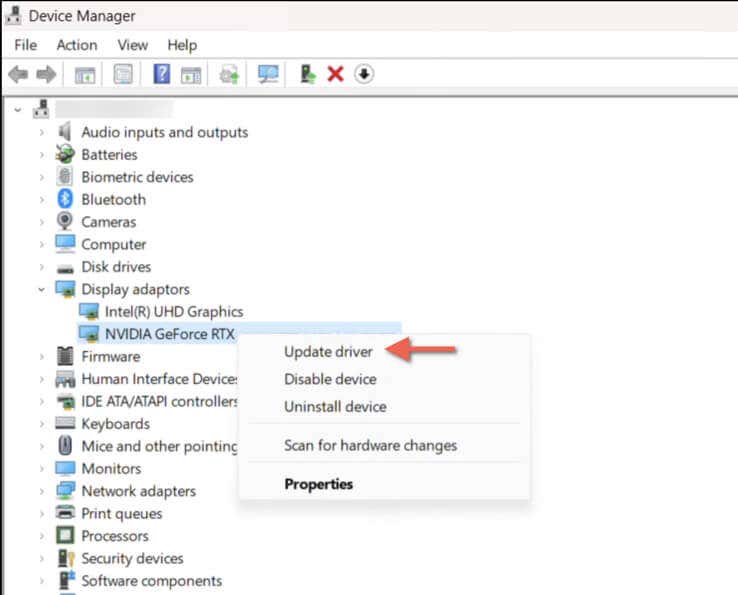
Press Win + X then Device Manager and expand Display adapters. Right-click your GPU (such as NVIDIA, AMD, or Intel) then Update driver then Search automatically. Install any available updates.
Roll Back Driver After a Bad Update
If colors went wrong right after an update, roll back the driver:
– In Device Manager, right-click the GPU then Properties then Driver tab then Roll Back Driver
– This reverts to the last working version and often fixes sudden color shifts
Reinstall Monitor Driver (Windows)
Expand Monitors in Device Manager. Right-click your display (such as “Generic PnP Monitor”) then Uninstall device, check Delete the driver software, and restart. Windows will reinstall a clean driver.
Reset ICC Color Profiles

Corrupted or mismatched ICC profiles force incorrect color rendering. Resetting them can restore normal appearance.
Remove Custom ICC Profiles
Search for Color Management in the Start menu. Go to the Advanced tab then Change system defaults then Advanced then Color Management. Under the Profiles tab, select any non-default profile and click Delete.
Set Default sRGB Profile
Click Add then choose sRGB IEC61966-2.1 then Set as Default Profile. This is the standard color space for most content and ensures consistency.
Calibrate Display Colors
Run Calibrate display color from the Start menu. Follow the wizard steps:
1. Adjust gamma (mid-tones)
2. Set brightness (black level)
3. Tune contrast (white level)
4. Balance colors (red, green, blue sliders)
Save the new profile when done.
Test with an External Monitor
This test tells you whether the problem is your GPU or your screen.
Connect a Known-Good Display
Use HDMI or DisplayPort to connect your computer to a working monitor or TV. If colors appear normal on the external display, the issue is with your internal screen or its cable.
Interpret the Results
- Colors correct externally? The problem is not the GPU or OS. Likely causes include internal screen damage, loose ribbon cable, or faulty panel.
- Colors still wrong externally? The problem is software, drivers, or GPU. Focus on system-level fixes.
Case Example: Post-Fall Color Distortion
A dropped laptop showed dark reds, faded greens, and overly bright blues, even in BIOS. But an external HDMI monitor displayed perfectly. Diagnosis: internal LCD or ribbon cable damage. This requires hardware repair.
Inspect Cables and Connections
A damaged or loose cable often causes missing colors or flickering tints.
Reseat and Swap Cables
Unplug and reconnect both ends of the video cable (HDMI, DisplayPort, USB-C). Ensure a snug fit. Then replace it with a high-quality, known-working cable.
Check for Physical Damage
Look for bent pins, frayed wires, or kinks. Cheap or old cables may not support full color depth, especially at high resolutions.
Test Different Ports
If your GPU or laptop has multiple video outputs, try a different port. A faulty port can cause signal corruption in one or more color channels.
Perform a Clean Boot (Windows)
Third-party apps can hijack display settings. A clean boot isolates software conflicts.
Disable Startup Programs and Services
Press Win + R, type msconfig, then click OK. Go to the Services tab, check Hide all Microsoft services, and click Disable all. Then go to the Startup tab, open Task Manager, and disable all items.
Restart and Test
Reboot. If colors return to normal, a background app is interfering. Re-enable services and startup items in batches to identify the culprit.
Common Offenders
Apps like f.lux, old monitor utilities, or screen recording software often override color settings. Uninstall or update them.
Factory Reset the Monitor (OSD)
External monitors have independent settings that can be misconfigured.
Access On-Screen Display Menu
Use the physical buttons on your monitor. Navigate to Settings and look for Reset, Factory Reset, or Default Settings.
Adjust Color Temperature in OSD
Set Color Temperature to 6500K for neutral white. Avoid presets like “Warm” or “Cool” unless calibrated.
Tune Brightness and Contrast
Set Brightness so black is deep but not crushed. Set Contrast so whites are bright without bleeding. Use a test image (search “monitor calibration test pattern”) for accuracy.
Diagnose Hardware Damage

When software fixes fail, the issue may be physical.
Identify Internal Screen Damage
Watch for these symptoms:
– Color issues visible from BIOS or boot screen
– History of drop or impact
– Distortion limited to laptop’s built-in display
The cause is likely a loose, torn, or disconnected ribbon cable, or a damaged LCD panel. This requires opening the device to reseat the cable or replace the screen. It is not user-serviceable, so seek professional repair.
Check for GPU Hardware Failure
If color problems appear on all connected displays (internal and external) and persist after driver reinstalls, the GPU may be failing. Look for:
– Color artifacts in games or videos
– Flickering rainbow patterns
– Overheating symptoms
For desktops, replace the GPU. For laptops, consult a technician.
Detect OLED Burn-In
On OLED monitors or phones, static images leave permanent ghosts or discoloration. This is irreversible. Prevention: use screen savers, auto-dimming, and avoid static UI elements.
Prevent Future Color Issues
Avoid recurring problems with proactive maintenance.
Keep Drivers Updated
Download GPU drivers directly from the manufacturer rather than relying solely on Windows Update. Avoid missing critical patches that affect color accuracy.
Use High-Quality Cables
Invest in certified HDMI 2.1, DisplayPort 1.4, or USB-C cables. Avoid cheap adapters that often lack bandwidth for full RGB color.
Calibrate Regularly
For photo, video, or design work, calibrate every 1 to 3 months using built-in tools for basic fixes or DisplayCAL with a colorimeter for professional accuracy.
Maintain Consistent Lighting
Strong warm lights make screens look cooler by comparison. Use neutral white lighting (5000K to 6500K) to avoid false color perception.
Sync Multi-Monitor Profiles
Using two monitors? Ensure both use the same ICC profile. Calibrate them to the same 6500K white point to avoid eye strain and mismatched colors.
Frequently Asked Questions About Monitor Color Problems
Why does my monitor look yellow all of a sudden?
A yellow tint usually means a blue light filter is active. Disable Night Light on Windows or Night Shift and True Tone on macOS. If the tint remains, reset the color temperature to 6500K in your display settings or monitor OSD.
Can a Windows update cause washed-out colors?
Yes. Some Windows updates enable HDR automatically or alter color profiles, causing grey blacks and faded colors. Disable HDR in Settings, roll back the graphics driver, or uninstall the recent update through Windows Update history.
How do I know if my monitor color problem is hardware?
Connect your computer to an external display. If colors look correct on the external monitor, the issue is your internal screen, ribbon cable, or panel. If colors are wrong on both displays, the problem is likely software or GPU related.
What causes one color to disappear, like red or green?
A missing color channel usually points to a cable or port issue. Reseat or replace your HDMI, DisplayPort, or USB-C cable. If the problem persists, test a different port. Internal ribbon cable damage can also cause this on laptops.
Is monitor burn-in reversible?
No. Burn-in on OLED screens is permanent discoloration caused by static images displayed for long periods. You can prevent it with screen savers and auto-dimming, but existing damage cannot be undone.
How often should I calibrate my monitor?
For general use, calibrate every 6 months. For color-critical work like photo or video editing, calibrate every 1 to 3 months using built-in tools or a hardware colorimeter for best results.
Key Takeaways for Fixing Monitor Color Problems
Monitor color problems follow patterns, so start with software before assuming hardware failure. Disable Night Light, reset ICC profiles to sRGB, and update or roll back your graphics drivers. These steps resolve most color issues in minutes.
If software fixes fail, test with an external monitor to isolate the cause. Colors correct externally? The problem is your internal screen or cable. Colors wrong everywhere? The GPU or system settings need attention.
For persistent issues limited to one screen after physical impact, seek professional repair for ribbon cable or panel replacement. Keep your display accurate with regular calibration, quality cables, and updated drivers to prevent future color drift.


