
Spending hours in front of a computer only to end up with a headache, sore neck, or tired eyes? The culprit might be simpler than you think. Your monitor is probably too close or too far. The distance between your face and your screen plays a critical role in both visual comfort and long-term physical health. Experts agree that the ideal monitor distance for most adults falls between 20 to 30 inches (50 to 75 cm), roughly the length of an outstretched arm.
Getting this right means sharper focus, reduced eye strain, and better posture. Get it wrong, and you risk headaches, neck pain, and long-term musculoskeletal issues. This guide will show you exactly how far your monitor should be, how to calculate it based on your setup, and how to fine-tune your entire workstation for maximum comfort and productivity.
Optimal Viewing Distance by Monitor Size

Your screen size directly affects how far you should sit from it. Larger screens require more space to avoid excessive head movement and eye strain, while smaller displays can be viewed comfortably at shorter distances, within reason.
Standard Desktop Monitors (24 to 27 Inches)
For most users, a 24- to 27-inch monitor is the sweet spot. The recommended viewing distance is 20 to 30 inches (50 to 75 cm). At this range, your eyes can comfortably scan the entire screen without constant head turning or eye fatigue.
- 24-inch Full HD (1920×1080): Sit 20 to 30 inches away. Lower pixel density means sitting too close reveals pixelation.
- 27-inch QHD (2560×1440): Ideal at 24 to 30 inches. Higher resolution supports closer viewing with sharper text.
- 27-inch 4K (3840×2160): Can technically be viewed closer due to high PPI, but stay at least 25 inches away to protect posture.
Sitting too close forces your eyes to work harder. Sitting too far makes you lean forward, straining your neck.
Large and Ultrawide Monitors (32+ Inches)
Big screens demand more space. For 32-inch and larger displays, maintain a distance of 30 to 40 inches (75 to 100 cm).
- 32-inch 4K monitors: Best viewed at 32 to 40 inches. The high resolution (141 PPI) allows clarity across the wide field.
- Ultrawide monitors (34 to 49 inches): Keep at least 36 inches away. Their curved design helps maintain consistent distance across the screen, reducing head movement.
If you can’t see the edges without turning your head, you’re too close. If you’re squinting to read text, you’re too far.
Laptops and Portable Screens
Laptops are ergonomic compromises. Their built-in keyboards force users into a hunched position unless corrected.
- 13 to 14 inch laptops: Despite high pixel density (often 200+ PPI), don’t sit closer than 20 inches (50 cm). Use a laptop stand and external keyboard to achieve proper distance and eye level.
- 15.6-inch laptops: Recommended at 20 to 24 inches. With external peripherals, raise the screen so the top is at eye level.
Even if your laptop’s resolution allows sharp viewing at 15 inches, resist the urge. Short distances encourage poor posture and eye strain.
How Screen Resolution Affects Viewing Distance

Higher resolution doesn’t just mean sharper images. It changes how close you can sit without discomfort. The key factor is pixel density (PPI): pixels per inch.
Why Pixel Density Matters
The human eye has a limit to how finely it can distinguish detail. High PPI screens render text and images so finely that individual pixels are invisible at normal distances, allowing you to sit closer without strain.
- Low PPI (under 100): Requires greater distance. A 27-inch 1080p monitor at 82 PPI needs about 32 inches.
- High PPI (over 150): Allows closer viewing. A 13-inch 4K screen at 339 PPI can be seen clearly at 9 inches, but ergonomics still demand 20 inches minimum.
Even if your screen supports ultra-close viewing, never sit closer than 20 inches to protect your neck and eyes.
Calculate Your Ideal Distance
Use this two-step method to find your screen’s optimal distance.
Step 1: Find Your Monitor’s PPI
Use the formula:
PPI = √(Width² + Height²) ÷ Diagonal Size
Example for a 24-inch 1080p monitor: √(1920² + 1080²) = 2203 ÷ 24 = 92 PPI.
Step 2: Apply the C-Value Rule
Multiply PPI by a constant (C-value) based on screen size:
- C = 80 for small, high-density screens like laptops
- C = 60 for larger desktop monitors
Minimum Distance (cm) = PPI × C
For the 24-inch 1080p monitor (92 PPI, C=60): 92 × 60 = 55.2 cm (21.7 inches), well within the 20 to 30 inch range.
Even if math suggests a closer distance, stick to the 50 cm (20 inch) minimum for ergonomic safety.
Monitor Height and Angle: Don’t Ignore Vertical Setup

Distance isn’t the only factor. Your monitor’s height and tilt are just as critical. Misalignment causes neck strain, shoulder pain, and eye fatigue.
Set the Right Screen Height
The top of the monitor should be at or slightly below eye level. Your eyes should rest at the top third of the screen, looking slightly downward.
- This position reduces the exposed eye surface, minimizing dryness.
- Looking down 10 to 20 degrees keeps your neck in a neutral, low-stress position.
Pro Tip: Every 15 degrees your head tilts forward adds 30 pounds of pressure on your neck. Over hours, this leads to chronic strain.
Use a monitor stand, riser, or stack of books to raise your screen. Adjustable desks make this easy.
Tilt the Screen for Comfort
Angle your monitor 10 to 20 degrees backward from vertical.
- This reduces glare from overhead lights.
- It aligns the screen perpendicular to your line of sight, improving clarity.
Avoid tilting it too far back. This can cause reflections or force you to crane your neck upward.
Fix Your Workstation: Step-by-Step Setup Guide
Follow this sequence to build an ergonomic, strain-free workspace.
Step 1: Measure and Adjust Distance
- Sit in your chair with feet flat.
- Extend your arm toward the screen. Your knuckle should lightly touch the monitor.
- Use a tape measure to confirm 20 to 30 inches (50 to 75 cm).
- For large or high-resolution screens, refer to PPI calculations.
Step 2: Align the Screen Height
- Sit upright, eyes forward.
- Adjust the monitor so the top edge is at eye level.
- If using a laptop, elevate it with a stand and connect an external keyboard.
Step 3: Set the Tilt and Angle
- Tilt the screen back 10 to 20 degrees.
- For dual monitors, keep the primary screen centered and angle the secondary inward.
Step 4: Optimize Lighting and Glare
- Position the monitor perpendicular to windows to avoid glare.
- Use blinds or curtains to control natural light.
- Turn off overhead lights or use indirect lighting.
- Consider an anti-glare screen filter if reflections persist.
Step 5: Check Your Posture
- Feet flat on the floor or a footrest.
- Knees at 90 degrees, hips slightly higher than knees.
- Back supported with lumbar cushion if needed.
- Elbows at 90 degrees, arms relaxed.
- Wrists straight, keyboard within easy reach.
Avoid These Common Monitor Mistakes
Even small errors can lead to big discomfort over time. Watch for these red flags.
Sitting Too Close
- Signs: Squinting, eye fatigue, dry eyes, headaches.
- Fix: Pull back to at least 20 inches. Use OS scaling (125%, 150%) instead of leaning in to read small text.
Sitting Too Far
- Signs: Leaning forward, neck craning, blurred vision.
- Fix: Move closer within the 20 to 30 inch range. Ensure text is legible without straining.
Ignoring Resolution and Scaling
- Mistake: Using 4K resolution without scaling makes text too small, forcing you to sit closer.
- Fix: Enable 150% scaling in Windows or macOS. This keeps text readable while preserving image quality.
Poor Height Placement
- Mistake: Screen too low forces constant neck bending.
- Fix: Raise the monitor. Never look down more than 30 degrees.
Forgetting Breaks
- Mistake: Staring at the screen for hours without rest.
- Fix: Follow the 20-20-20 rule: every 20 minutes, look at something 20 feet away for 20 seconds.
Special Use Cases: Gaming, Reading, and Visual Impairments
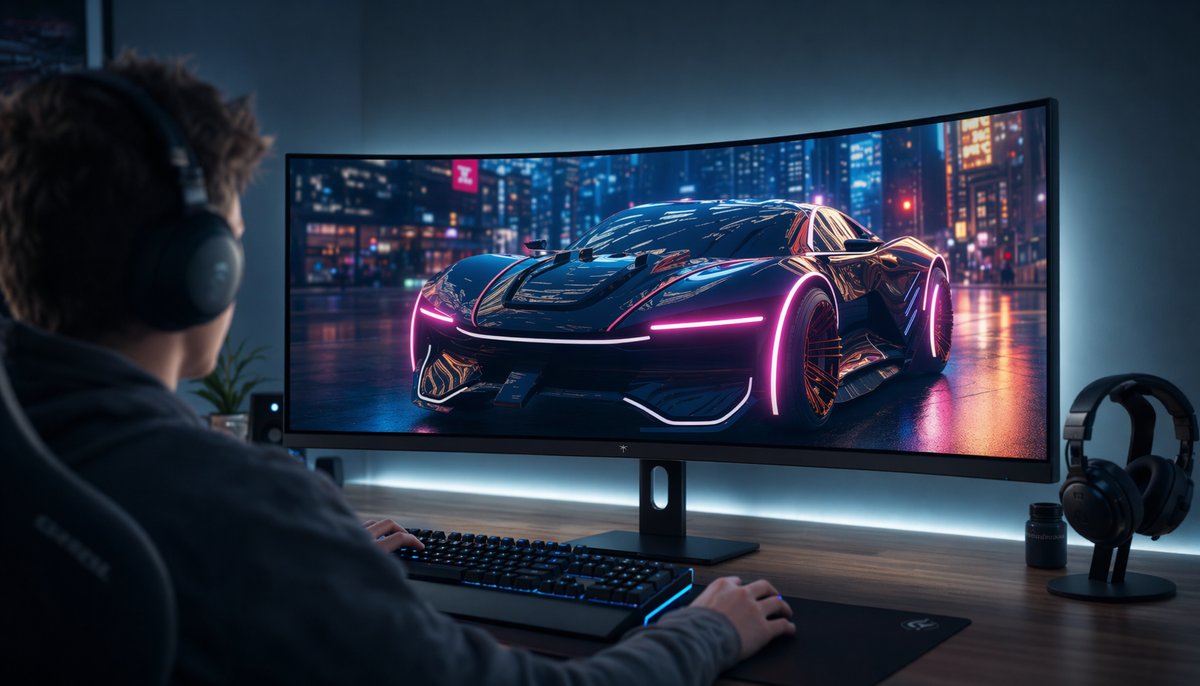
Not all screen time is the same. Adjust your setup based on your task.
Gaming Setup Tips
Gamers often lean in for immersion, but this increases strain.
- Distance: Stay within 20 to 30 inches.
- Monitor Choice: Use curved or ultrawide screens to maintain consistent distance across your field of view.
- Refresh Rate: Pair proper distance with high refresh rates (120Hz+) for smoother visuals and reduced eye fatigue.
Text-Heavy Work (Writing, Coding, Reading)
- May require slightly closer positioning (within 20 to 25 inches) for text clarity.
- Use larger font sizes or zoom (Ctrl +) instead of moving the monitor.
- Ensure high contrast (dark text on light background) to reduce eye effort.
Creative Work (Design, Video Editing)
- Often benefits from slightly more distance (25 to 30+ inches) to see the full canvas.
- Use dual monitors: primary for editing, secondary for tools.
- Higher resolution (QHD or 4K) ensures fine detail remains visible at a distance.
For Users with Visual Impairments
- Increase text size using OS accessibility settings.
- Use high-contrast modes and screen magnifiers.
- Consider larger monitors (27 to 32 inches) at 4K resolution for maximum clarity.
- Maintain standard distance. Don’t sit closer, even with vision challenges.
Prevent Eye Strain and Neck Pain
Ignoring monitor distance leads to Computer Vision Syndrome (CVS) and musculoskeletal issues.
Symptoms to Watch For
- Eye strain: Burning, itching, or tired eyes after screen use.
- Headaches: Especially behind the eyes or at the temples.
- Blurred vision: Temporary focus issues after prolonged use.
- Neck and shoulder pain: From poor posture or screen misalignment.
If you experience these, recheck your setup immediately.
Long-Term Risks
- Chronic neck and back pain
- Worsening vision over time
- Reduced productivity and focus
Prevention is simple: correct distance, proper height, and regular breaks.
Tools to Optimize Your Setup
Upgrade your workspace with these ergonomic essentials.
Monitor Arms and Stands
- Allow precise height, tilt, and distance adjustment.
- Free up desk space and improve cable management.
- Ideal for dual-monitor setups.
Blue Light Filters
- Reduce eye fatigue during long sessions.
- Use software filters (Night Light, f.lux) or physical screen covers.
- Consider blue light blocking glasses for night work.
Anti-Glare Screens
- Minimize reflections from lights and windows.
- Improve contrast and readability.
- Easy to install and clean.
External Keyboards and Mice
- Critical for laptop users to maintain proper distance.
- Use ergonomic designs (split keyboards, vertical mice) to reduce wrist strain.
Frequently Asked Questions About Monitor Distance
How Far Should Monitor Be from Face for Eye Strain Prevention?
For most adults, keep your monitor 20 to 30 inches (50 to 75 cm) from your face. This range matches the average adult arm length and reduces the need for your eyes to refocus constantly. Sitting closer forces your eye muscles to work harder, while sitting farther makes you squint and lean forward.
Is Sitting Too Close to a Monitor Bad for Your Eyes?
Yes. Sitting too close can cause eye strain, headaches, dry eyes, and blurred vision over time. While modern monitors don’t damage your eyes the way old CRT screens did, the muscular fatigue from focusing at very short distances still causes discomfort. Maintain at least 20 inches of distance to keep your eye muscles relaxed.
What Is the Best Monitor Distance for a 27-Inch Screen?
For a 27-inch monitor, sit 24 to 30 inches away. If your screen is 1080p, stay toward the farther end of this range because the lower pixel density (82 PPI) reveals pixelation up close. If your screen is 4K, you can sit closer (around 25 inches) because the higher pixel density (163 PPI) keeps images sharp.
How Do You Calculate the Right Monitor Distance for Your Setup?
Use the PPI formula: divide the square root of (width² + height²) by the diagonal screen size. Then multiply that PPI by a C-value (80 for laptops, 60 for desktop monitors) to get your minimum distance in centimeters. Always round up to at least 50 cm (20 inches) for ergonomic safety, regardless of the calculation.
Does Monitor Resolution Change How Close You Should Sit?
Yes. Higher resolution screens have more pixels per inch (PPI), which means you can sit closer without seeing individual pixels. A 4K monitor allows closer viewing than a 1080p monitor of the same size. However, ergonomics still require a minimum of 20 inches regardless of resolution to protect your neck and posture.
Can the Wrong Monitor Distance Cause Neck Pain?
Absolutely. Sitting too close or too far forces you to crane your neck or hunch forward, adding pressure to your cervical spine. For every 15 degrees your head tilts forward, about 30 pounds of pressure loads onto your neck. Over hours and days, this leads to chronic pain, headaches, and shoulder tension.
Key Takeaways for Setting the Right Monitor Distance
Getting your monitor distance right protects your eyes, supports your posture, and boosts your focus. The ideal range for most adults is 20 to 30 inches (50 to 75 cm), adjusted based on screen size, resolution, and personal comfort. Larger screens need more distance, while high-resolution displays allow you to sit slightly closer without losing clarity.
Start by measuring your current setup with a tape measure or your outstretched arm. Adjust your monitor height so the top edge sits at or just below eye level, and tilt it back 10 to 20 degrees. Pair these changes with proper posture, good lighting, and regular 20-20-20 breaks to prevent eye strain. Your body will thank you within days.


